Workflow Summary Report
Every Step, Task and Change in View
Use the Nora IPLM Workflow Summary Report to review active steps, task progress, owners, attachments and connected change records in one structured view.
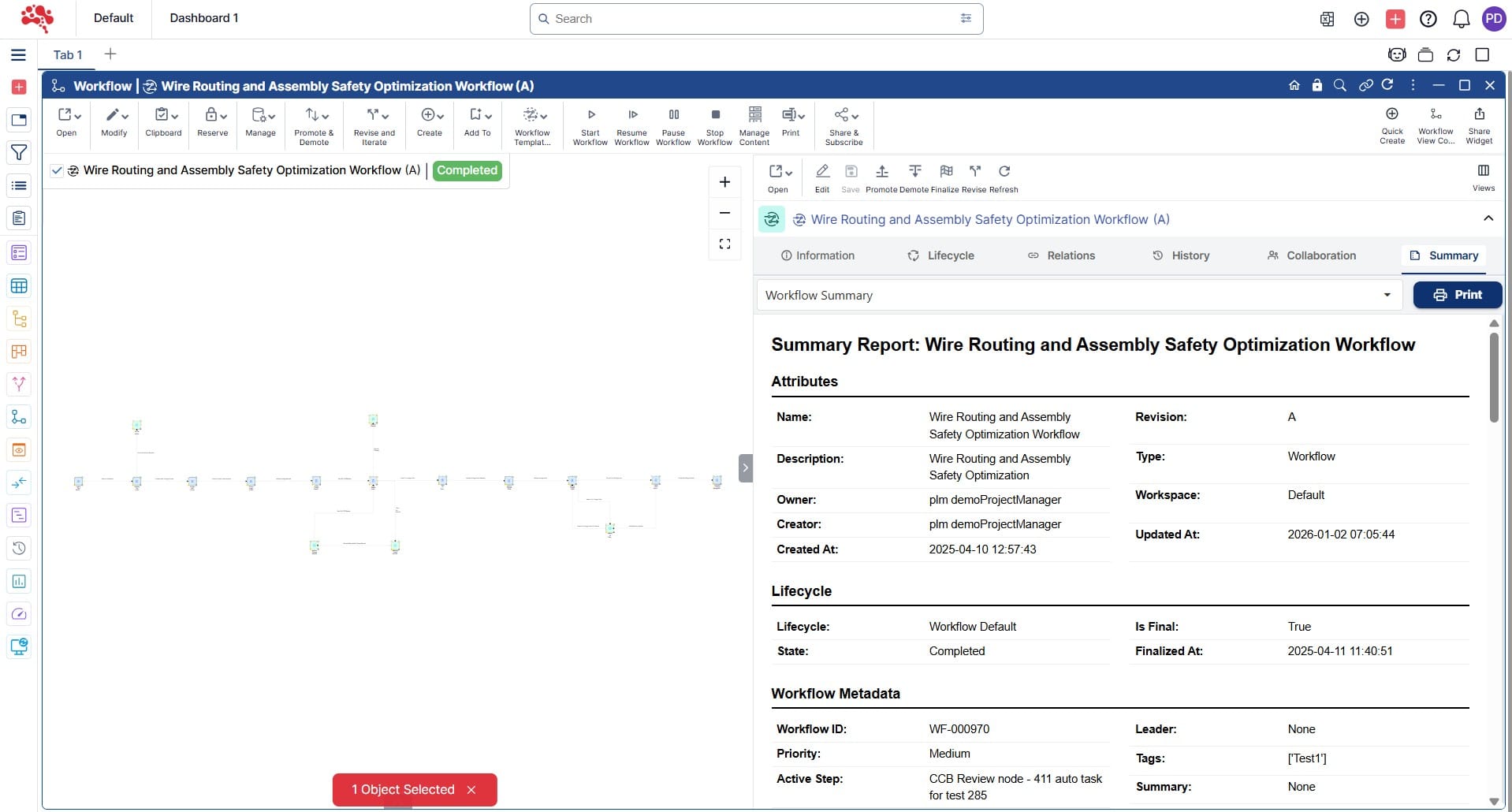
One connected view of workflow execution and readiness.
Review workflow identity, current lifecycle state, ownership, active steps, tasks, attachments and connected engineering changes in one structured report.
Review the wider approval process in workflow management, and follow affected product changes in the Change Order Summary Report.
Use the summary to understand workflow responsibility and progress without opening every related object. Explore the Nora IPLM Summary Reports capability for additional reporting context.
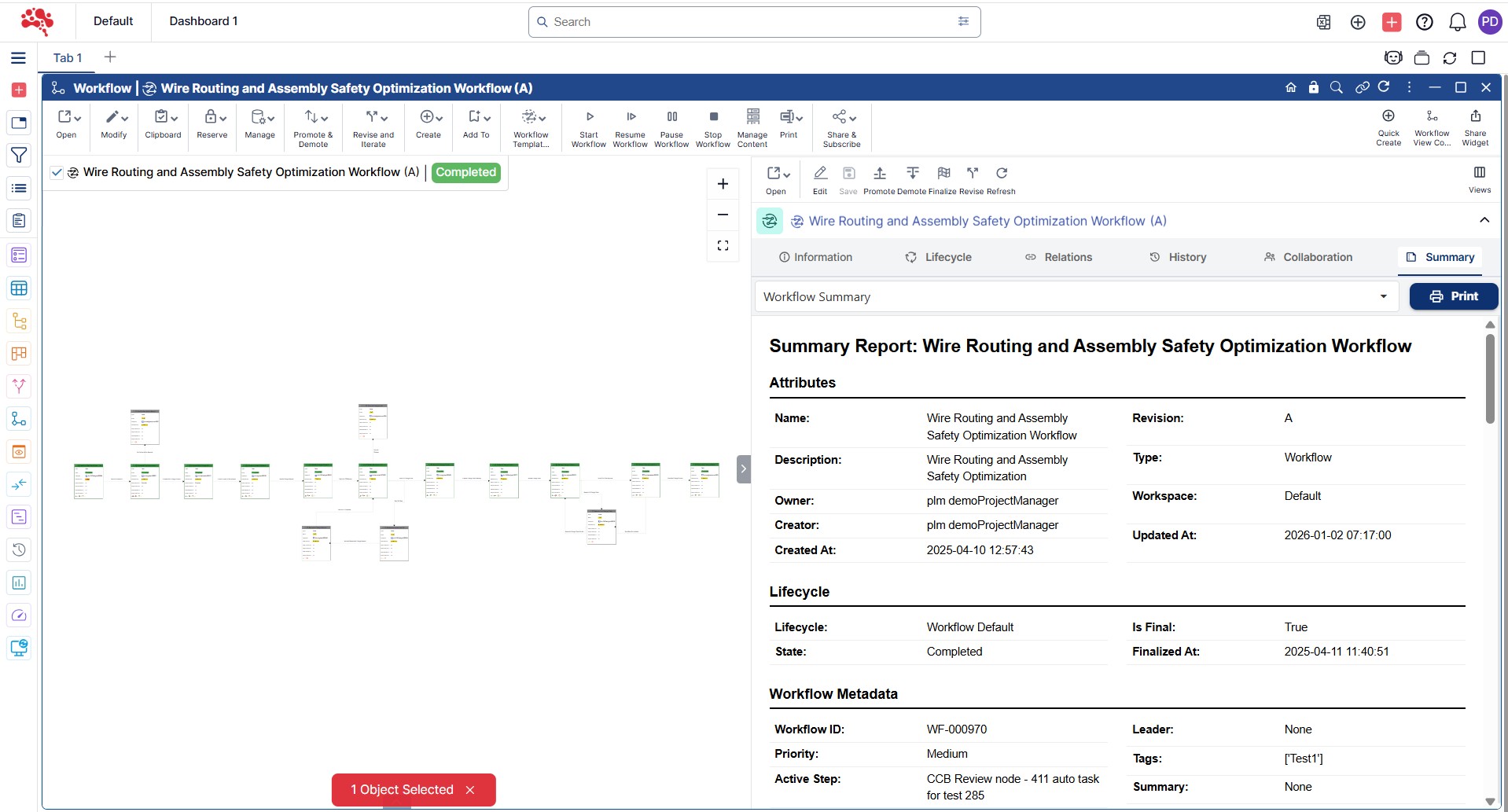
Find the workflow details behind every approval
A consistent summary helps engineering, quality and management teams review the information that determines execution and release readiness.
Know the Current State
Review lifecycle status, current workflow step, priority, ownership and revision without switching views.
See Tasks and Progress
Identify assigned tasks, completed work, pending actions and timeline milestones in the same report.
Verify Supporting Evidence
Find required content, linked files and attachments before a workflow moves to the next decision gate.
Trace Related Changes
Connect workflow decisions to engineering change objects, revisions, relations and operational indicators.
Explore workflow execution clearly.
From active stages to controlled evidence.
Switch between the workflow stage, timeline and task perspectives using original Nora IPLM report screenshots.
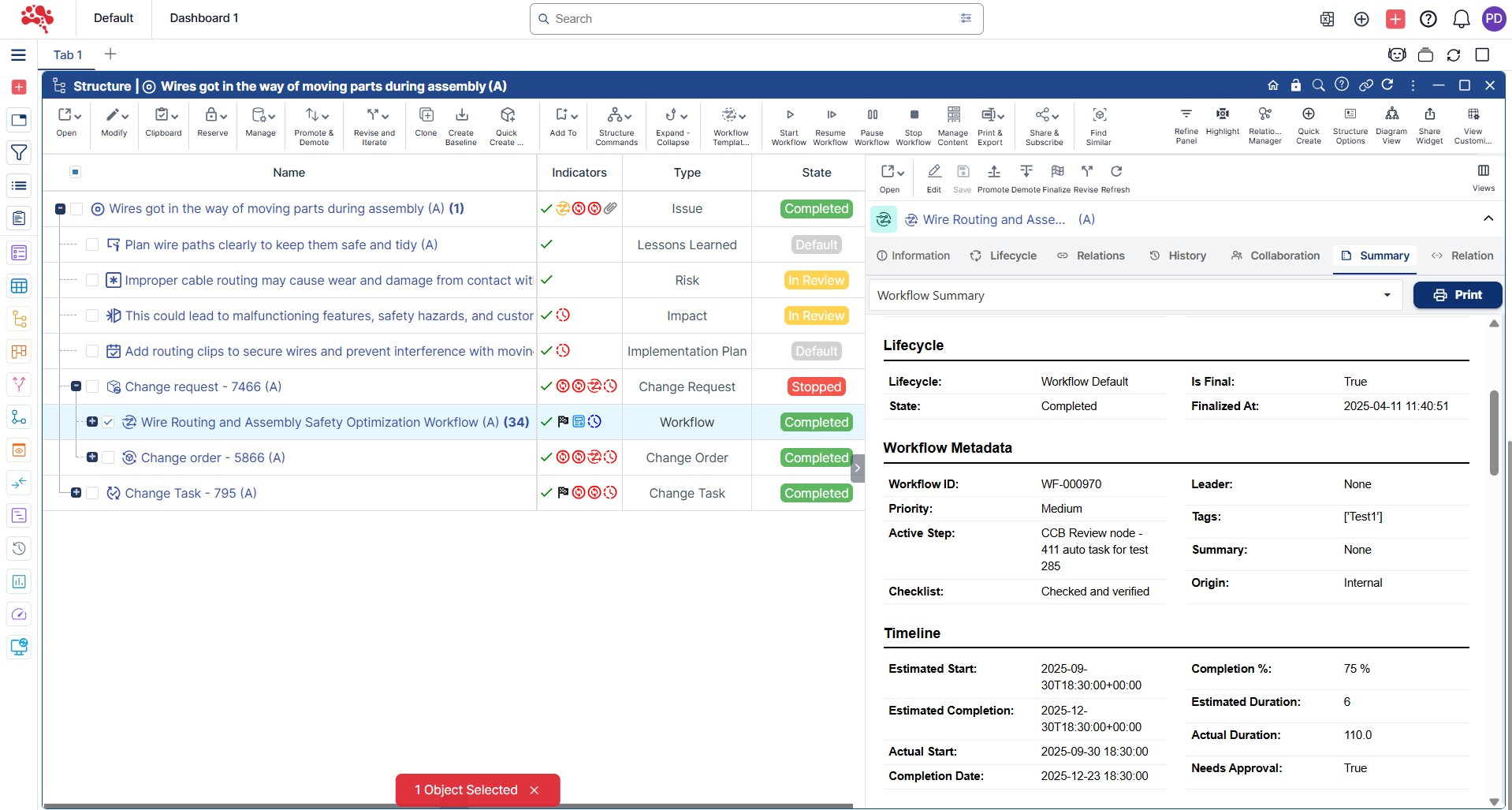
See the current workflow stage
Identify the active step, completed work and decisions waiting for action.
Explore the full workflow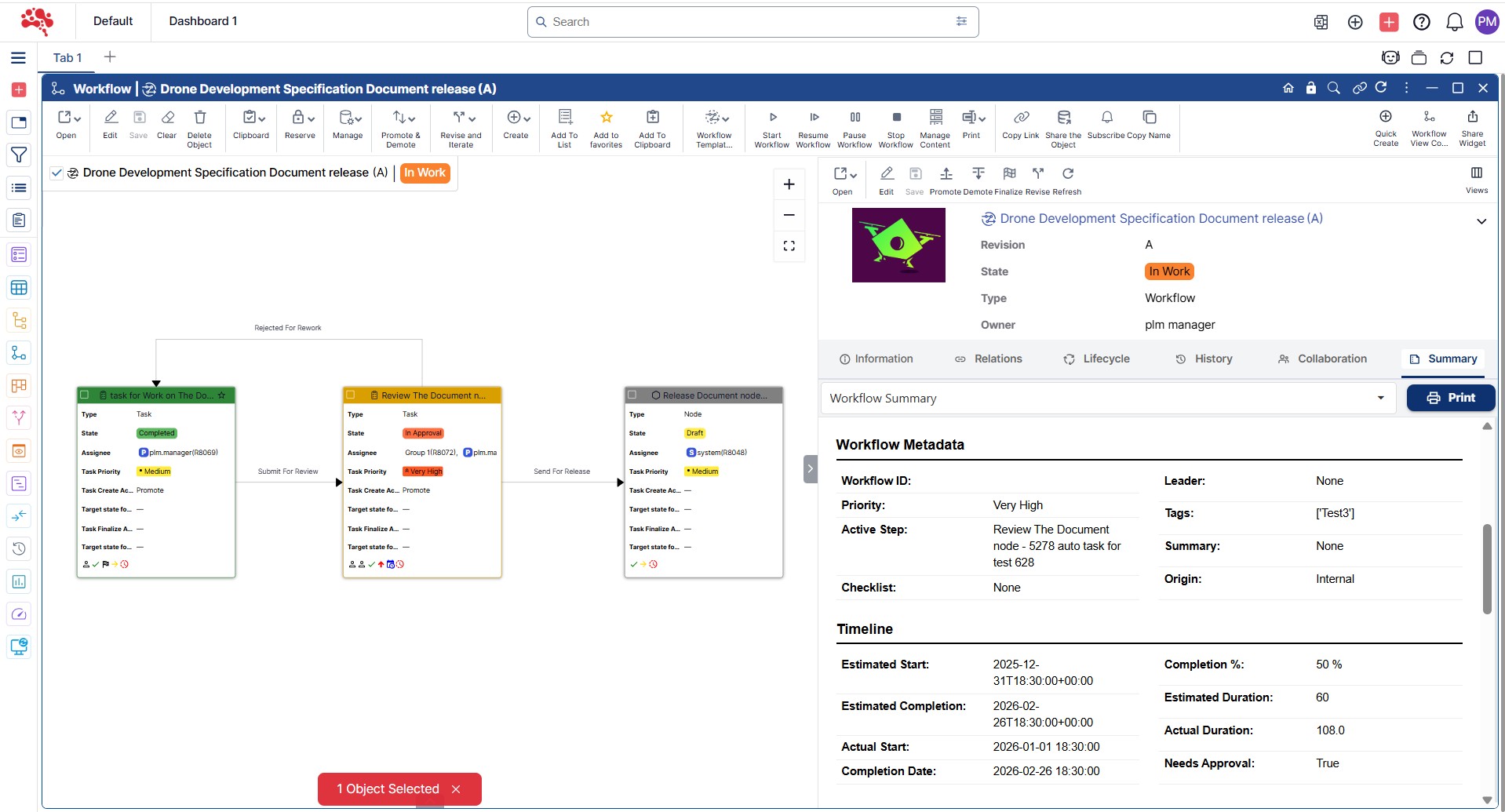
Track workflow progress
Compare milestone timing and overall completion to spot delays and schedule risk.
Explore the full workflow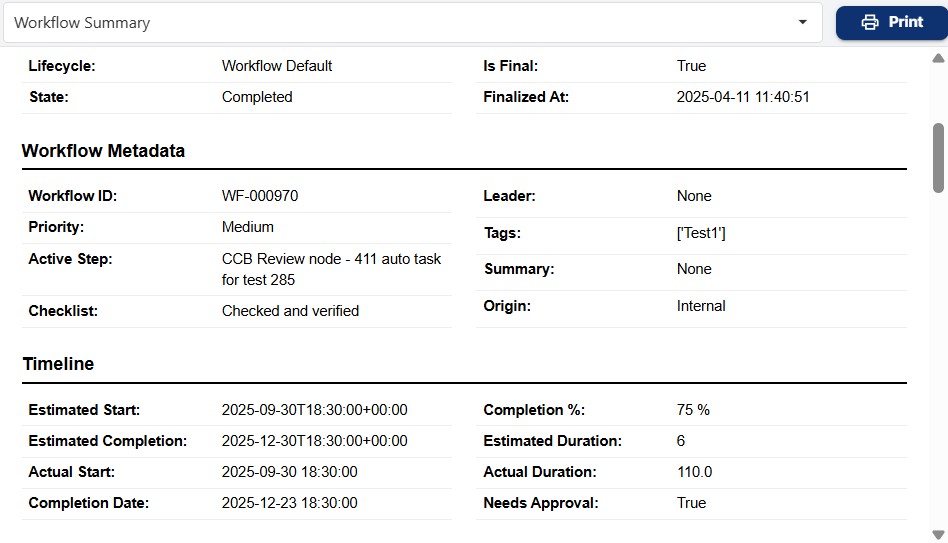
Review assigned work
Review task ownership, step progress, revision and completion details.
Explore the full workflow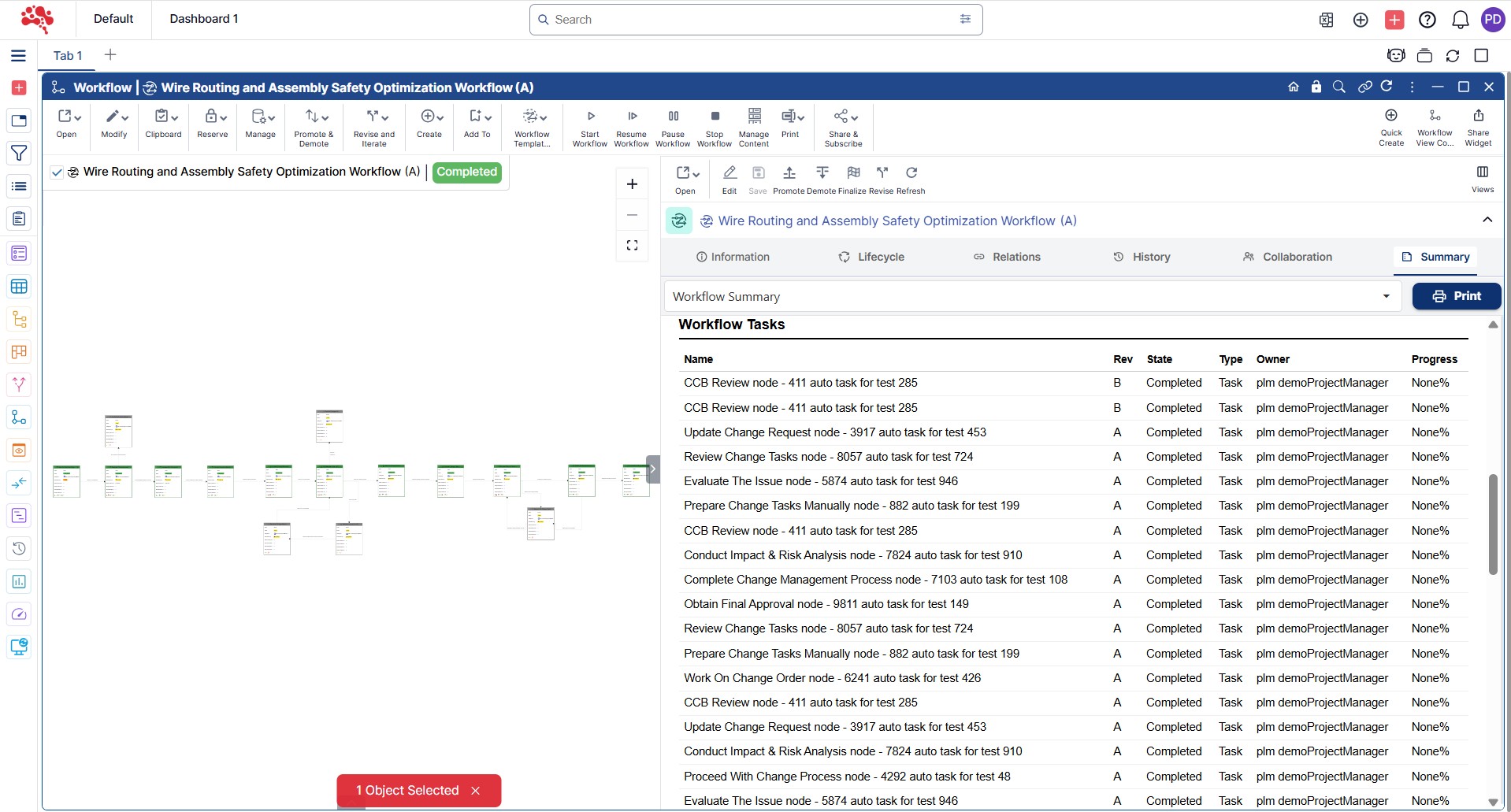
How to use the Workflow Summary Report
Five clear stages, from record to export.
Follow the process without a nested scrollbar. The image stays steady while each report stage comes into view.
Open the workflow record
Navigate to the workflow you need to review and open its current record.
- Confirm the workflow identity and its current lifecycle state.
- Review the owner, responsible team and priority.
Select Workflow Summary Report
Open the Summary tab and select the Workflow Summary Report view.
- Choose the workflow-specific report.
- Use the current workflow as the source of the summary.
Review active steps and tasks
Check current stage, timeline, assignees and completion status.
- Identify the active step and pending decisions.
- Review task ownership and overall progress.
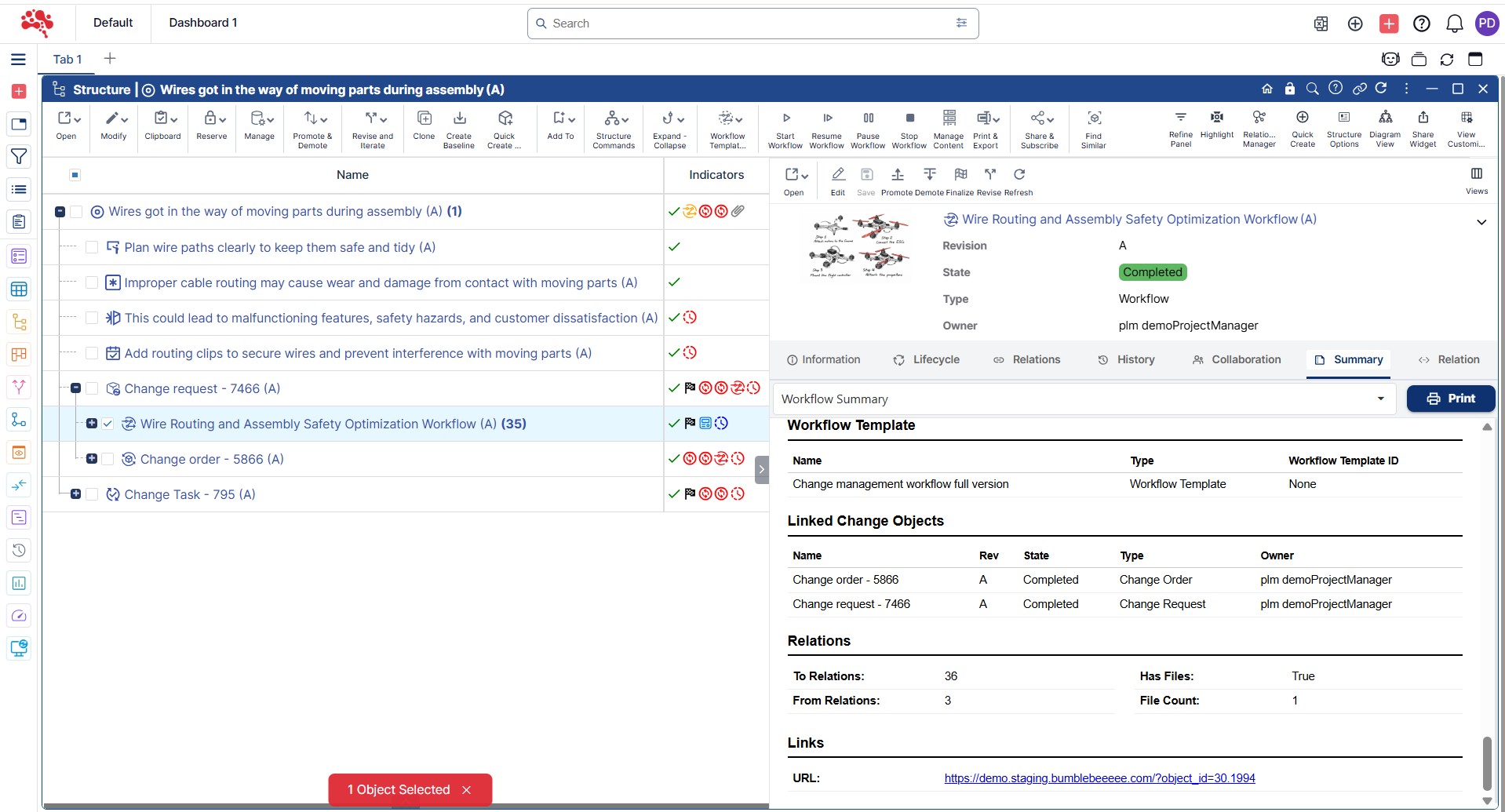
Check linked content and changes
Confirm supporting records, attachments, workflow structure and related engineering changes.
- Review required content and associated files.
- Trace connected change objects and their revisions.
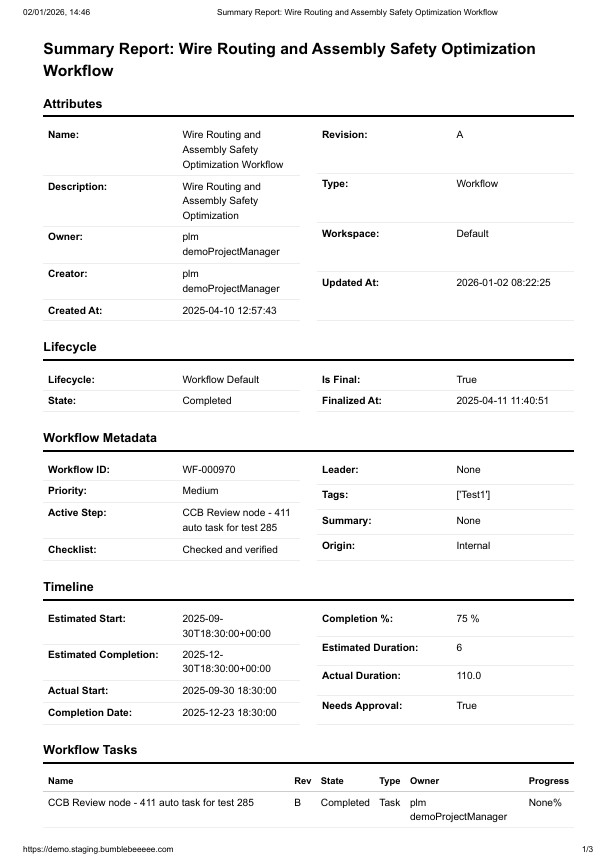
Export and share the report
Use the available export option to prepare a consistent workflow summary for the team.
- Confirm important workflow details before export.
- Share the report for approval, review or follow-up.
Workflow information you can review in one report
From current execution status to required content and change traceability, keep the reporting focus on what reviewers need.
Workflow Identity and Metadata
See the workflow name, ownership, revision, lifecycle state, priority and creation details.
Active Step and Execution Progress
Understand where the process stands, which steps are complete and what is awaiting action.
Task Assignment and Completion
Review task assignees, revisions, status and completion across workflow stages.
Content and Supporting Attachments
Find required records, linked content, related files and evidence used in approvals.
Workflow Nodes and Templates
Understand node structure, workflow types, templates and accountable leadership.
Engineering Changes and Relations
Trace linked change objects, affected revisions, relations and operational indicators.
Related capabilities: Summary Reports, Workflow Management and Change Management.
Workflow Summary Report: what is included
See the key record types and information areas the report brings together for workflow oversight.
| Report area | Information shown | Why teams review it |
|---|---|---|
| Identity and status | Ownership, revision, lifecycle state, priority and metadata | Establish the correct workflow and its current state |
| Active workflow step | Current and completed steps, work awaiting action | Know the next decision and where the process stands |
| Timeline and progress | Milestones, completion information and stage progress | Spot schedule risk and bottlenecks |
| Tasks and assignments | Task owners, revisions, state and completion | Clarify accountability and pending work |
| Supporting content | Required product records, linked documents and attachments | Verify evidence before moving to approval |
| Process structure | Workflow nodes, template and responsible leadership | Understand how execution relates to the process definition |
| Changes and relations | Linked change objects, related files and operational indicators | Trace decisions and affected product information |
Example: review an approval workflow before release
A report can show whether technical review, quality checks and final authorization have the information required to proceed.
Start from the workflow summary
An engineering reviewer opens a workflow to check which stage is active, which tasks are complete and who owns the next action.
Confirm release readiness
Explore Summary Reports for other product and process report types.
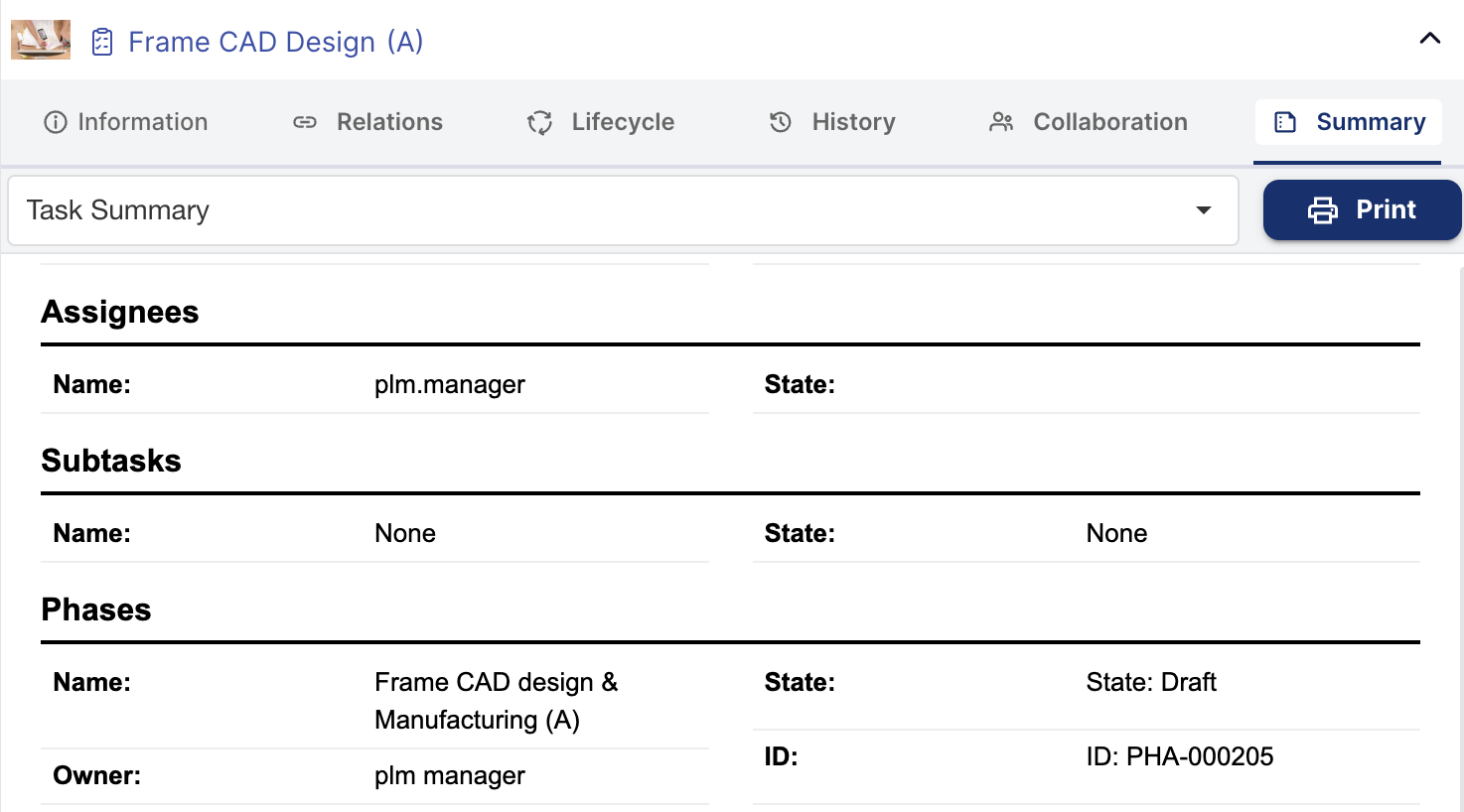
Explore the Workflow Summary Report screenshots
Browse real Nora IPLM report views to review the details behind workflow status, evidence and traceability.
Workflow summary overview
Workflow identity and lifecycle
Active-step execution view
Timeline and progress
Tasks and step progress
Workflow required information
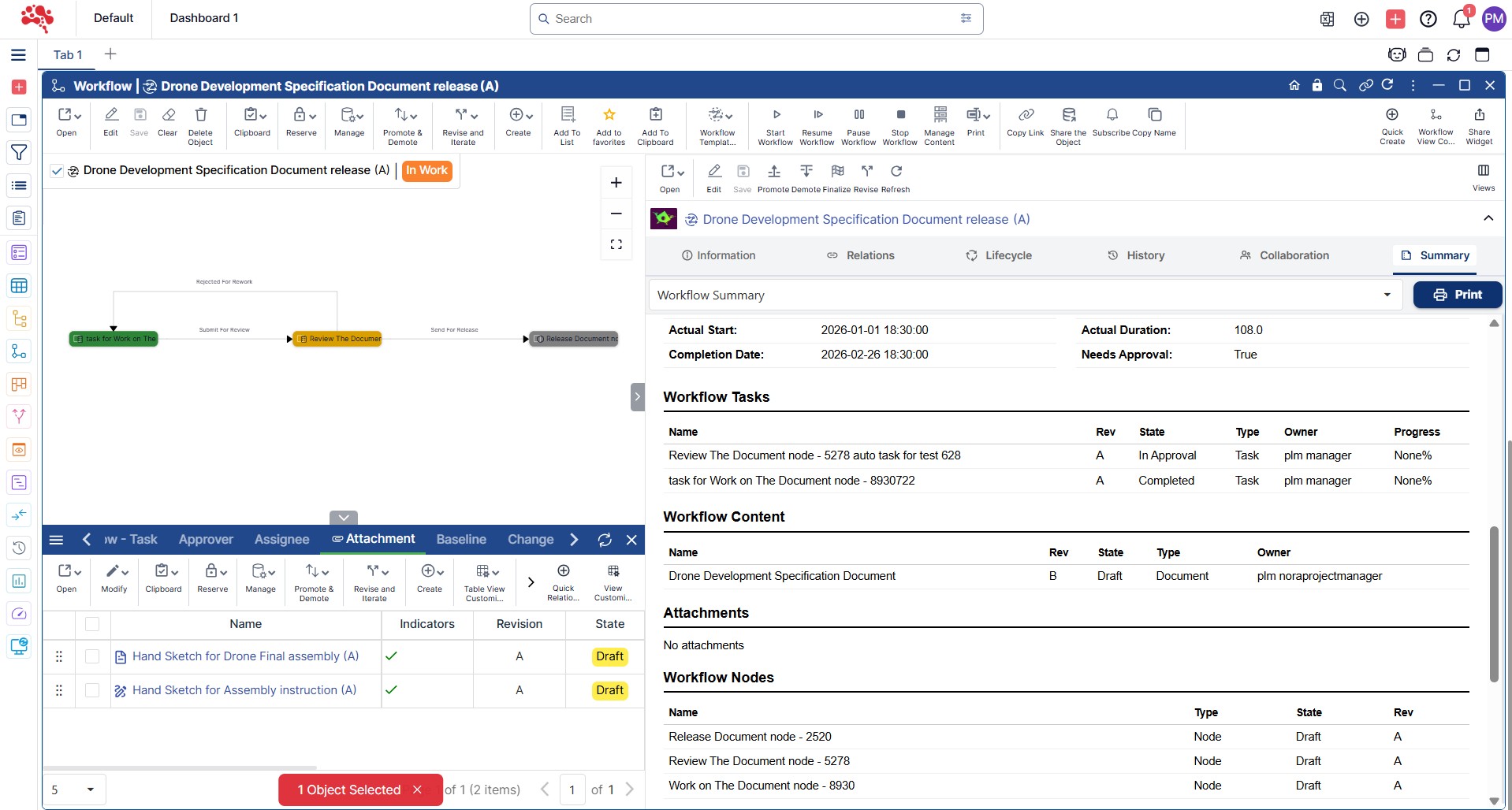
Supporting files and attachments
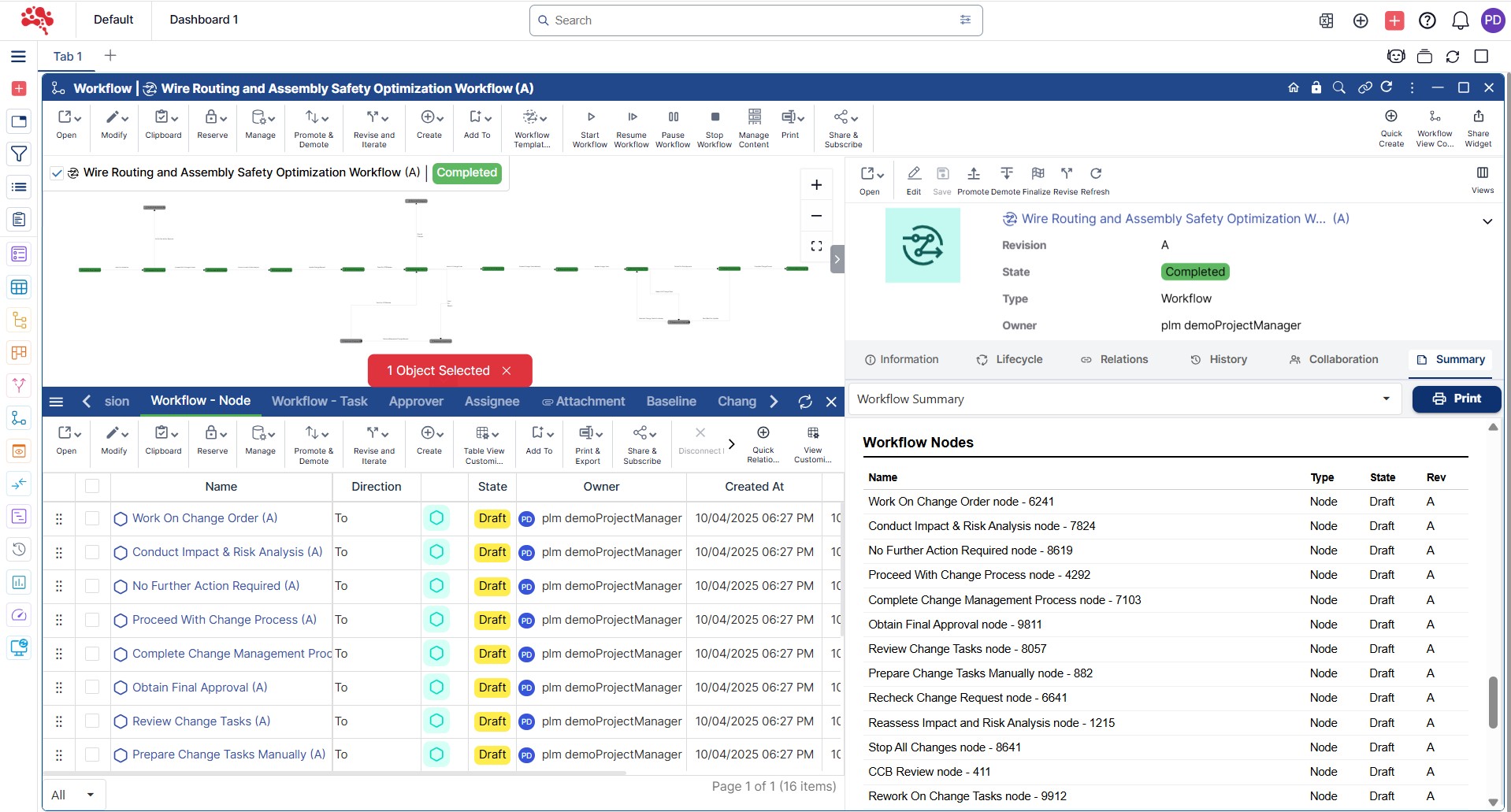
Workflow nodes and structure
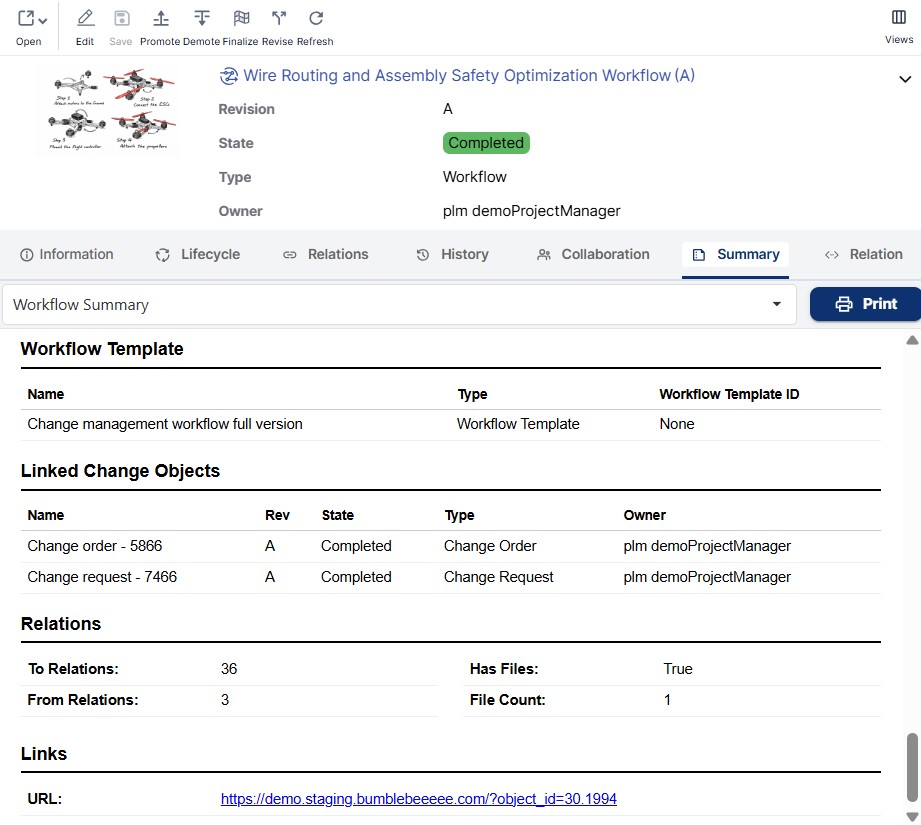
Workflow template and leadership
Linked engineering change objects
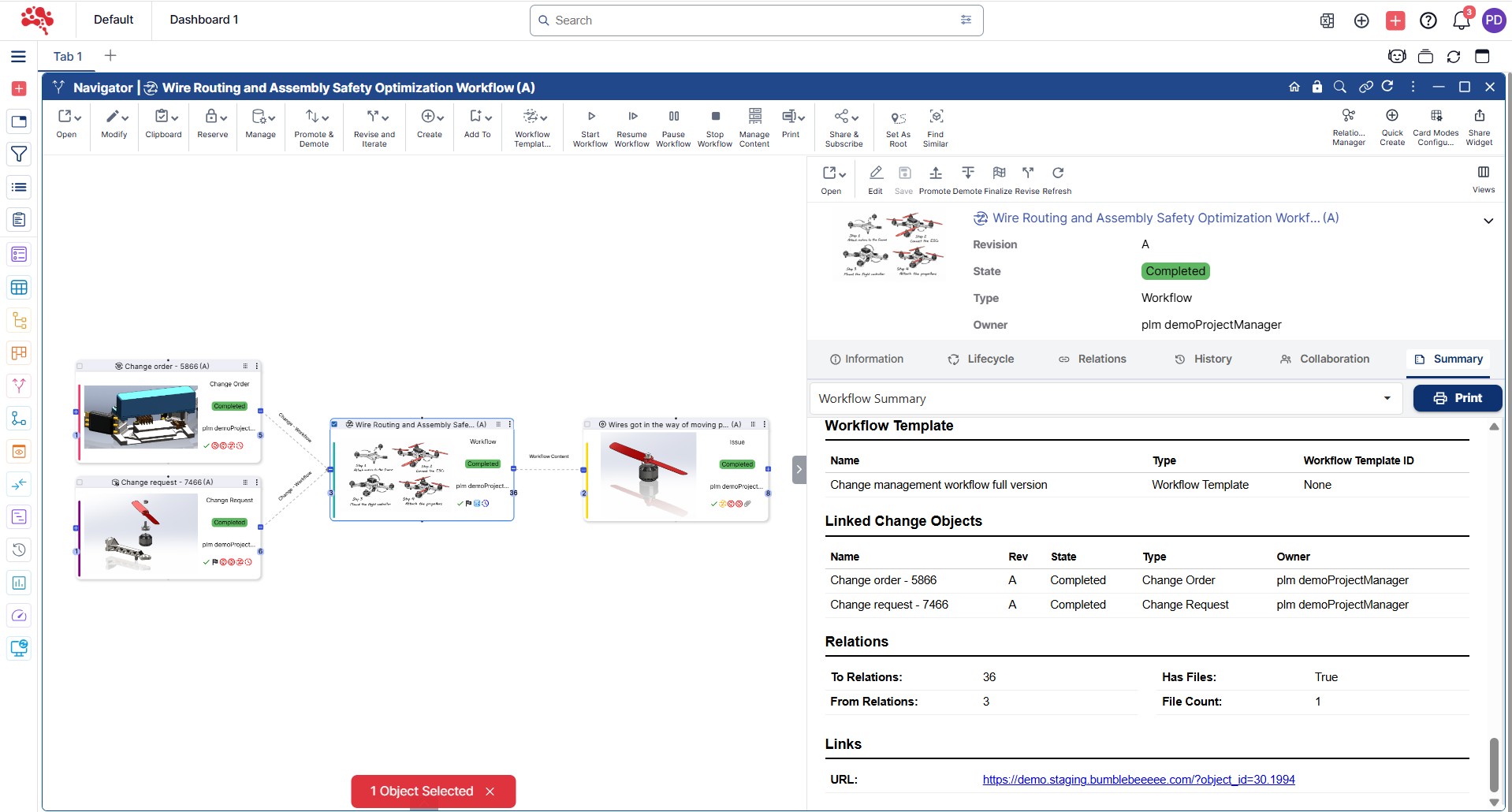
Relations and operational indicators
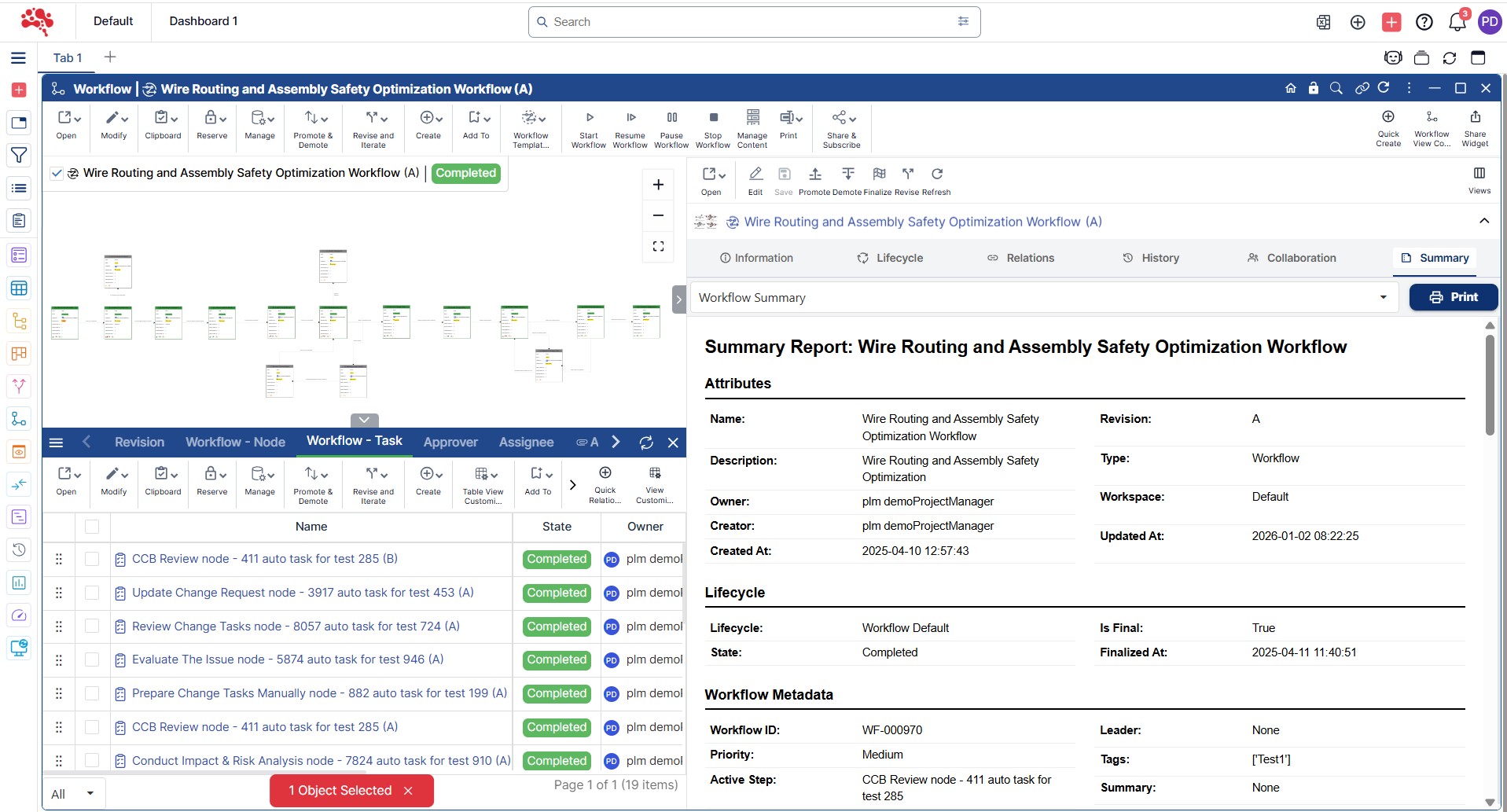
Clear workflow transparency
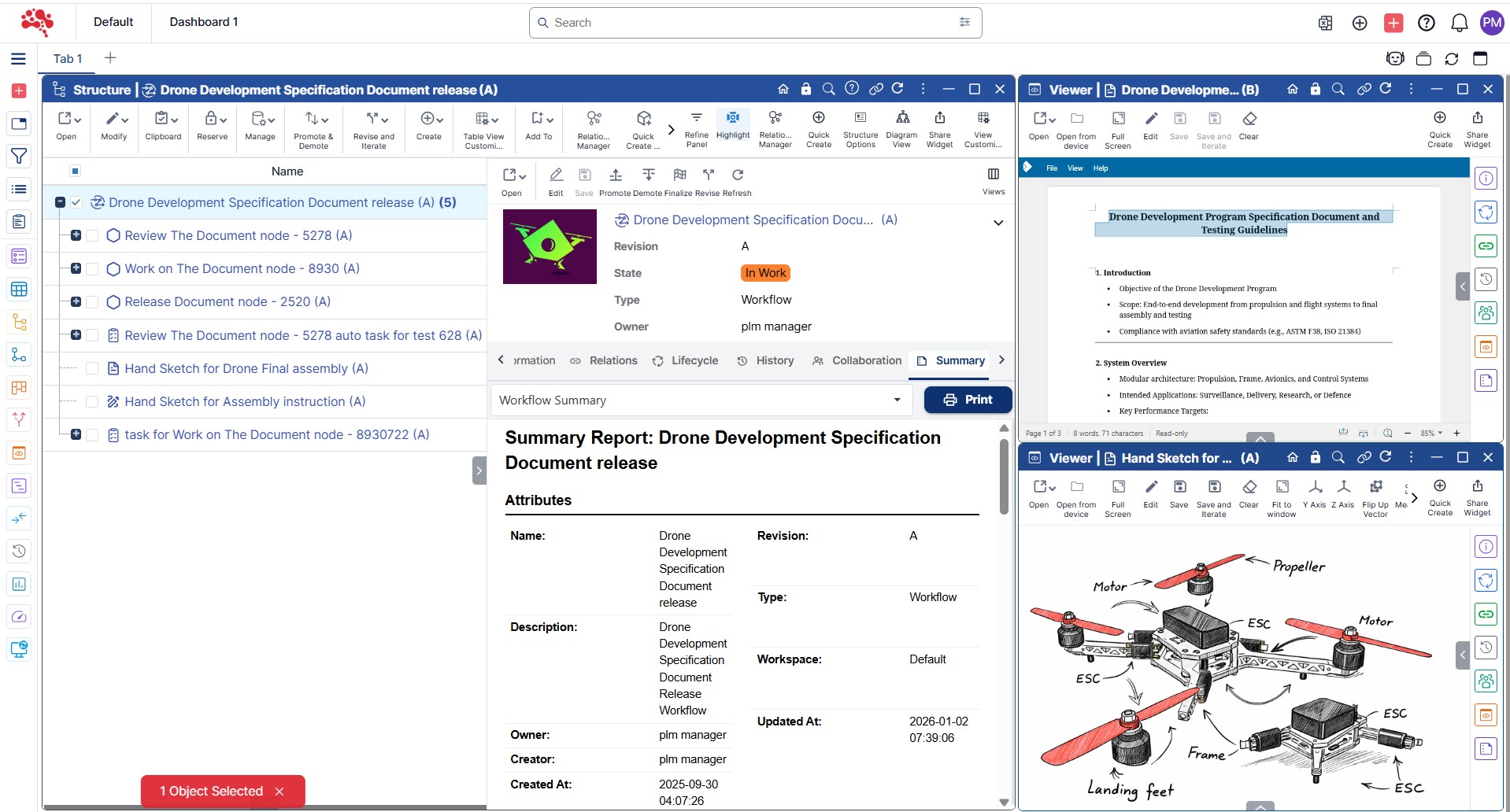
Complete workflow insight
Workflow summary at a glance
Clearer workflow decisions for every team
Use shared workflow context to coordinate engineering, quality, approvals and leadership oversight.
Engineering
Review technical changes, active steps and implementation tasks.
Quality
Check required records, approvals and supporting evidence.
Workflow Owners
Confirm the process state, accountability and outstanding work.
Management
Review progress and bottlenecks without opening every task.
Cross-Functional Teams
Share workflow context, linked change information and next actions.
- Workflow ownership
- Task progress
- Approval readiness
- Document evidence
- Linked changes
- Release status
See the broader Nora IPLM Summary Reports experience.
Workflow Reporting Resource Library
Explore reporting, workflow, engineering change and product lifecycle capabilities.
Summary Reports
Explore how Nora IPLM presents item, workflow and change information.
Explore resourceWorkflow Management
Manage process stages, approvals, assignments and execution.
Explore resourceChange Management
Connect engineering requests and orders to workflow reviews.
Explore resourceReporting & KPIs
Explore other reporting and visibility capabilities.
Explore resourceFrequently
Asked
Questions
Answers about workflow status, task progress, supporting records, related changes and exporting.
What does the Workflow Summary Report show?
It brings workflow identity, lifecycle status, progress, tasks, required content, attachments, related changes and operational context into a structured report.
Can I see which workflow step is active?
Yes. The report includes active-step and execution visibility so reviewers can identify the current stage, completed work and pending actions.
Does it include assigned tasks and workflow progress?
The report presents workflow tasks, assignees, status, revision and completion information along with timeline and progress context.
Can it show attached files and related engineering changes?
The report includes supporting files, required content, relationships and linked change objects, helping reviewers examine the evidence behind workflow decisions.
How do I use and share the Workflow Summary Report?
Open the workflow Summary tab, select Workflow Summary Report, review active steps and status, then use the available export option to share the report.
See workflows with greater clarity.
Connect execution, responsibility and change context.
Explore how Nora IPLM puts workflow status, tasks, content, approvals and connected engineering changes into one report-ready view.