Nora PDM:Your design data, under control.
Connect CAD files, parts, drawings, and revisions in one product record. Nora’s product data management helps you protect work in progress and release the right data to your team.
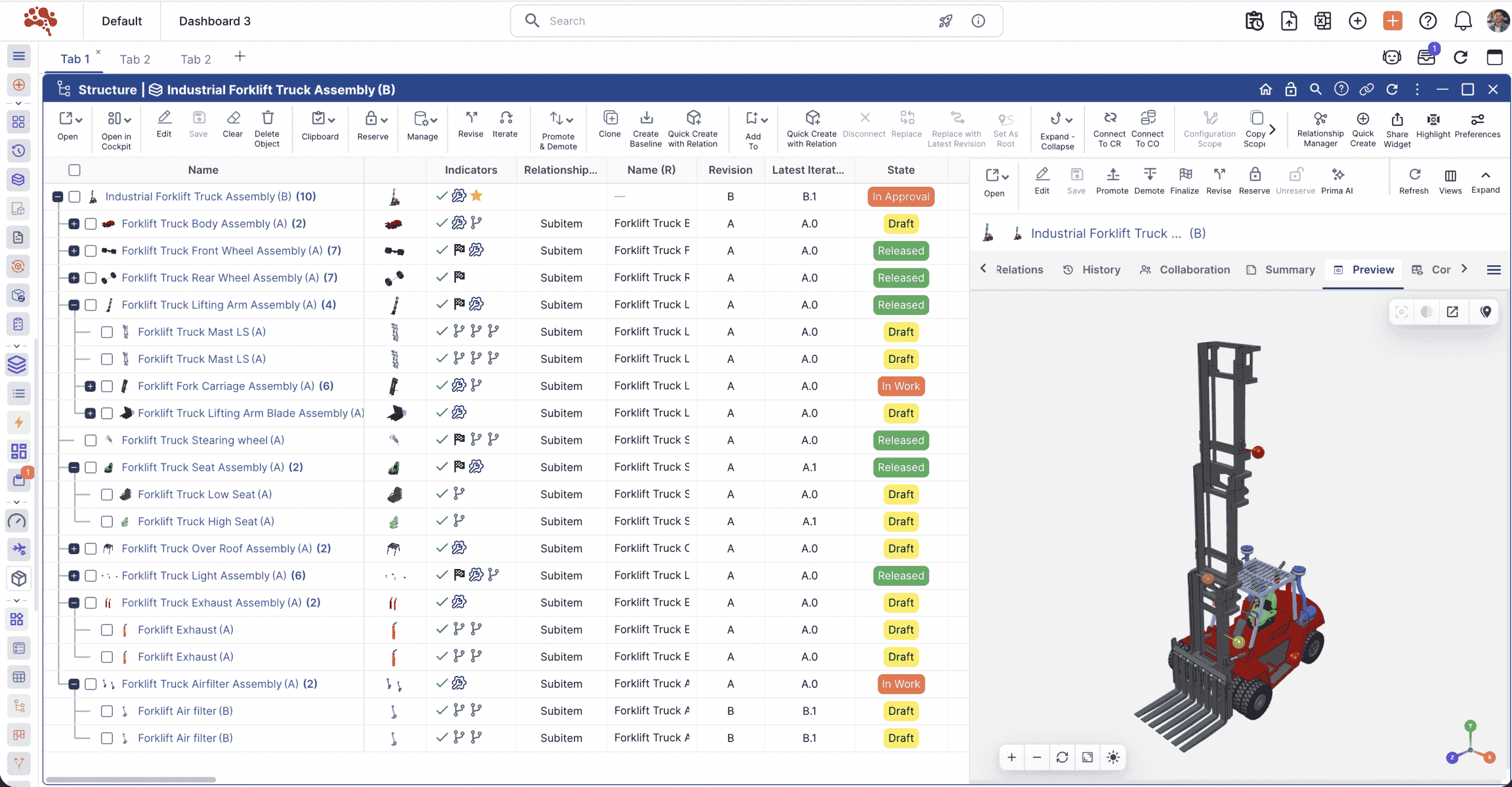
Find the right design.
Keep every update under control.
Find your CAD files and drawings, protect work in progress, and track revisions through review and release. Give your team a clear view of what’s current and what’s approved.
Less searching.
More designing.
Find the part you need, then see the CAD models, drawings, and supporting documents that belong to it.
- Search by part number, name, or attributes
- Review the revision and lifecycle state
No matching files. Try “drawing,” “model,” or “DRV-204.”
Follow one design.
Keep the whole story.
Scroll through a controlled design update. Each step carries the files, structure, and decision history into the next.
Start from the product record.
ReferenceRetrieve the assembly with its part identity, linked files, and revision context.
- Retrieve
Start with the full product context.
Retrieve the relevant assembly and its linked CAD files. Review the part identity, current revision, and product structure before starting the update.
A known starting pointExplore item management - Reserve
Protect the work in progress.
Use Reserve to check out the relevant CAD objects. Reserve Structure covers a parent and its children, so editing ownership is clear across the assembly.
Clear ownership before editingView the reservation guide - Design
Make the change in context.
Keep working in your CAD environment. Nora’s add-ins for SOLIDWORKS and Solid Edge connect your design data, metadata, and product structures to Nora.
PDM tasks inside your CAD workspaceSee the SOLIDWORKS add-in - Synchronize
Bring the record up to date.
Synchronize completed CAD file and structure updates. Unreserve the objects when the work is ready to be available to the team. Availability and release remain separate decisions.
An available working updateFollow the check-in guide - Compare
Understand the difference.
Compare revisions or iterations at attribute, structure, and file level. Check the supporting history and where the changed part is used before requesting approval.
Changes visible before a decisionExplore revision controls - Review
Give the decision a clear path.
Route the relevant product data through configured review steps. Assign responsibility and keep comments and supporting documents with the review record.
Review ownership and evidenceExplore review workflows - Release
Make approval part of the record.
Complete the required approvals under your lifecycle rules. Keep the released revision connected to its CAD files, documentation, and recorded sign-offs.
A traceable approved definitionExplore document control - Baseline
Keep a reference for what comes next.
Capture the product revision state at a milestone. Use the baseline as a controlled reference when reviewing later changes and the next design update.
A milestone you can return toExplore revision baselines
One part.
Every relationship.
A CAD file tells only part of the story. Bring the identity, design files, structure, and history together in one connected product context.
Give every part
a clear identity.
Manage part numbers, names, types, and attributes across mechanical, electrical, and software items.
- Identity
- Part number + name
- Item types
- Mechanical · electrical · software
- Product context
- Attributes + revision history
A part record gives the product a clear identity, with its design files, structure, and history connected.
The real workspace.
The context you need.
Move between design files, product structures, activity history, and review workflows. Select a view, then enlarge it to inspect the detail.
Stay in CAD. Keep designing.
Nora’s CAD add-ins support SOLIDWORKS and Solid Edge, bringing everyday product data management into the tools you already use. Keep designing while your files, BOMs, and revisions stay connected to Nora.
- Connect CAD files, metadata, and product structures
- Keep BOMs and revision history connected
- Work in SOLIDWORKS or Solid Edge
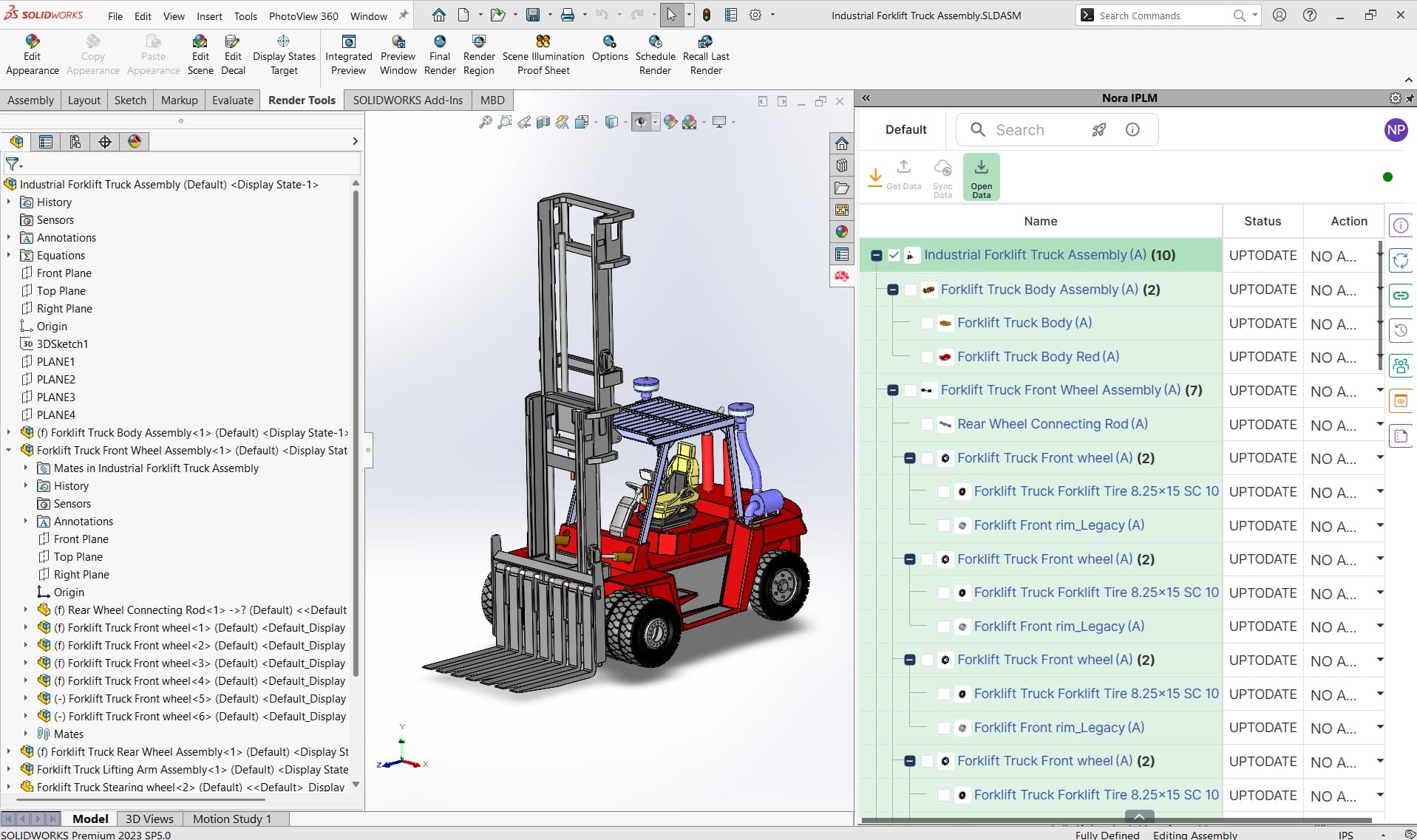 Image unavailable. Open the full-size image.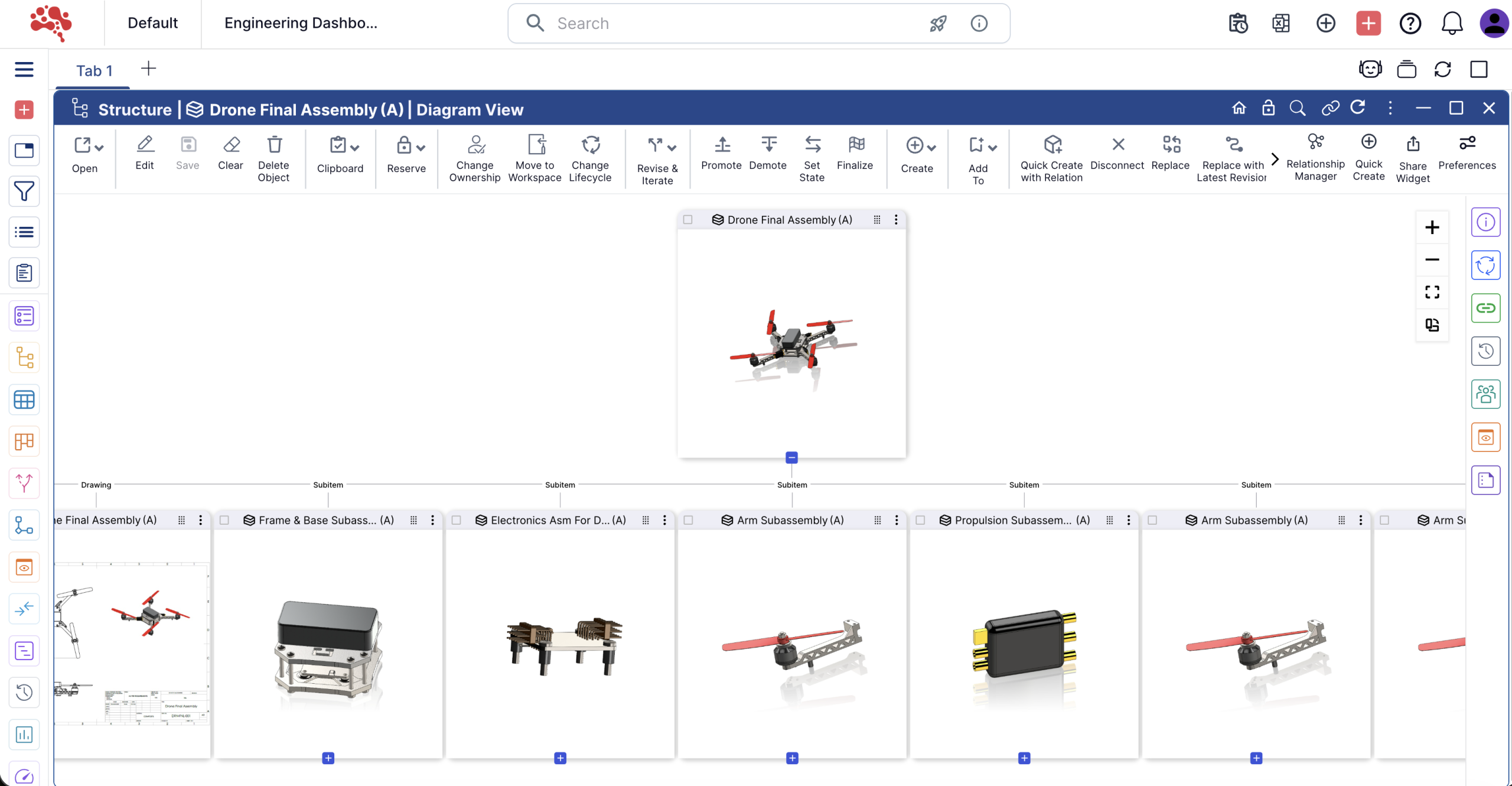
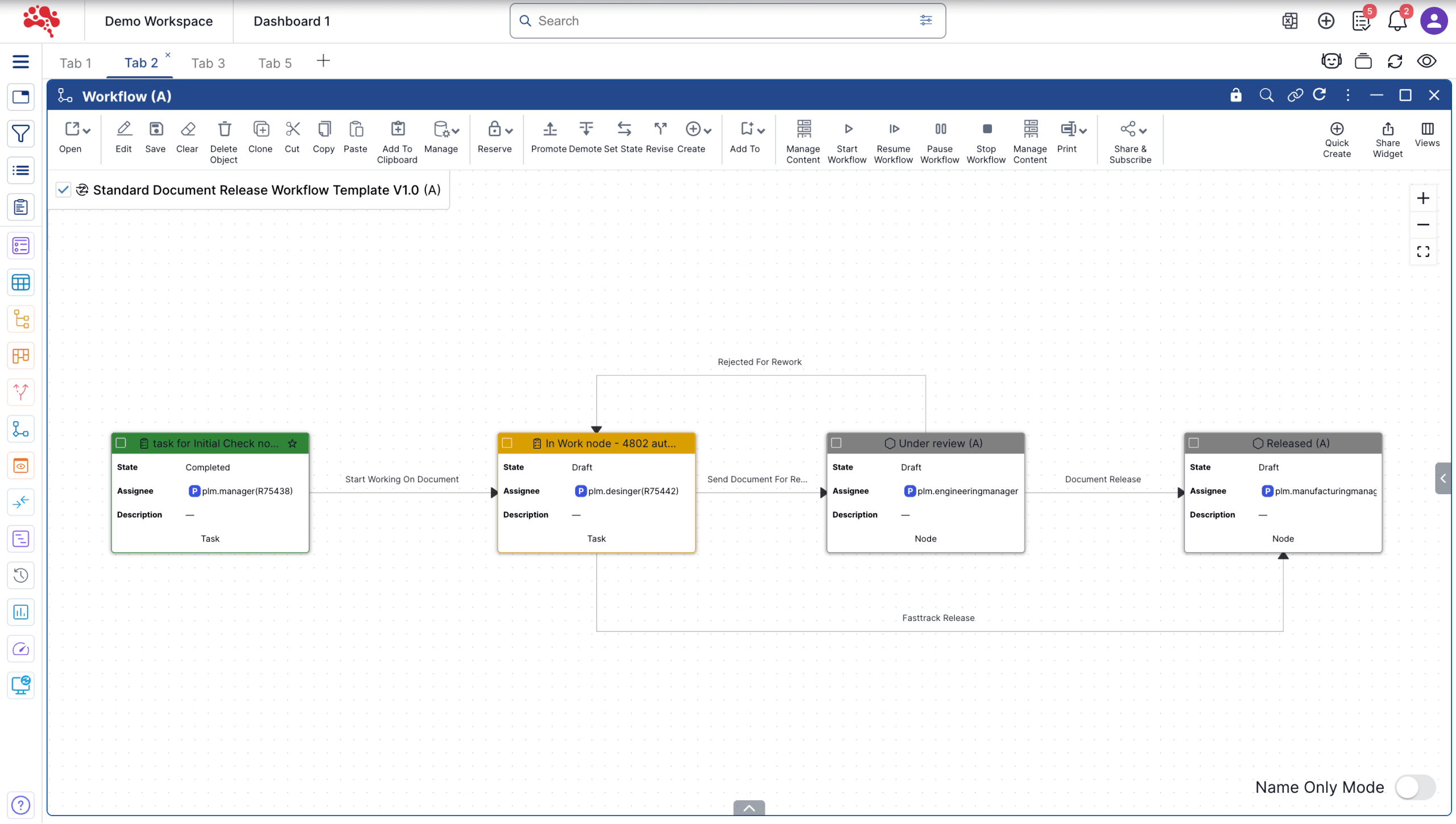
Every update has a history.
Every release has a reason.
Separate day-to-day iterations from formal revisions. Review what changed, keep earlier states accessible, and preserve the reference you need for a milestone.
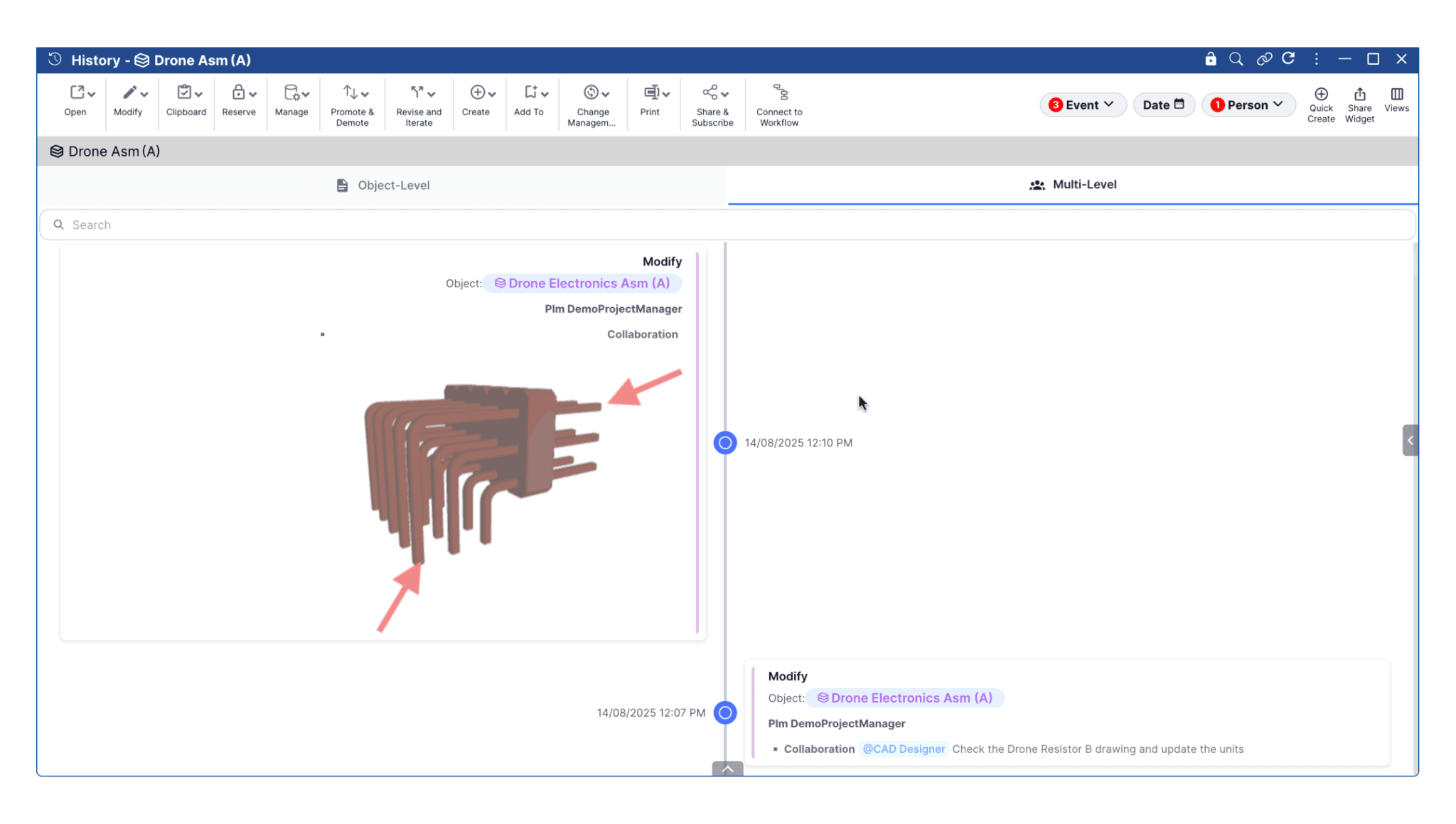
Keep the history behind every update.
Follow working iterations and formal revisions, with the author, activity, and product context kept together.
Iterations capture working updates within a revision.
Revisions track product evolution under your lifecycle rules.
See the change before the decision.
Compare revisions or iterations across files, attributes, and structures. Bring the difference into the review.
The illustration highlights an updated mounting bracket. Review actual product differences with Nora’s comparison tools.
A reference point you can return to.
Capture the product revision state at a milestone. Compare later changes against a controlled product reference.
Control beyond the CAD file.
Bring documents, access, and product impact into the same controlled process.
Document controlFiles, versions, and sign-offs
Link specifications, PDFs, Office files, and supporting documents to the product. Manage file versions and document states alongside object revisions.
Assign review responsibilities and required sign-offs. Preserve comments, timestamps, and decision history with the released documentation.
Access and editingRoles, reservation, and responsibility
Configure visibility and actions for the roles and teams that need them. Use reservation to control editing and distinguish work in progress from approved information.
Agree access, review ownership, and release responsibilities around your process. Keep accountable editing connected to your lifecycle rules.
Structure and where-usedRelationships, quantities, and product impact
Compare product structures and revisions to inspect changed relationships, quantities, and attributes. Use reverse BOM views to follow a component into its parent assemblies.
Keep connected documents and change records alongside the structure. Assess the product impact before choosing the next engineering action.
See the design.
Discover the next starting point.
Make product information visual. Review the model with its linked context, then explore existing designs worth reusing.
Put the review right on the model.
Pin issues, documents, requirements, and change context to a relevant model location. Save the visual reference for later.
Find the next design in what exists.
Start with a CAD part and explore geometrically similar candidates. Review potential reuse with the product details in view.
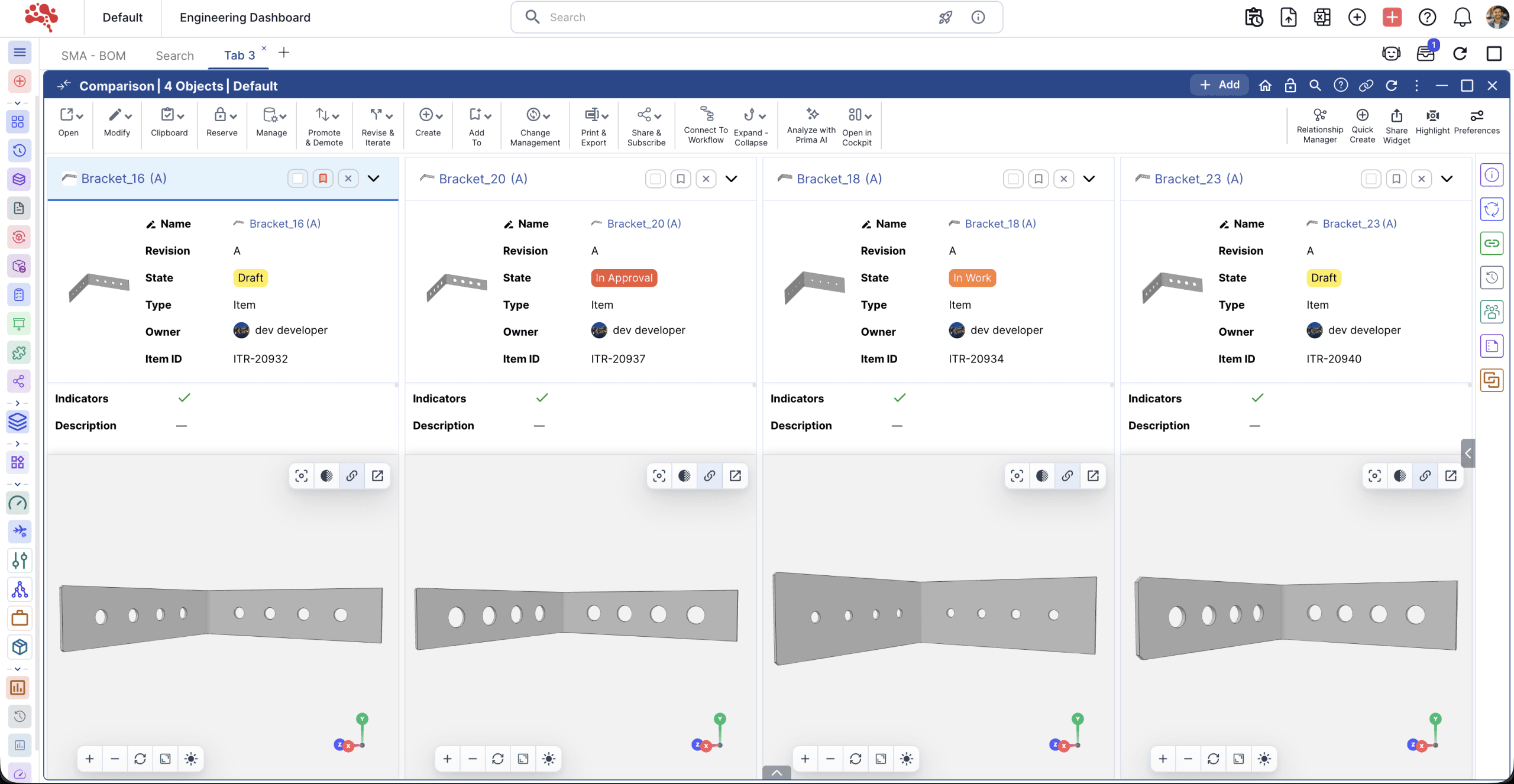 Image unavailable. Open the full-size image.
Similarity search prerequisites
Supported SOLIDWORKS and CATIA parts need shape signatures extracted through Nora Desktop Services, with similarity enabled. Matches remain candidates for engineering review.
Know the part beyond its geometry.
Keep identity, revision history, linked documentation, and where-used context connected before choosing your next starting point.
Start with design data.
Grow with context.
Nora’s PDM capabilities share a product foundation with the wider IPLM platform. Add the processes your team needs while keeping the engineering definition connected.
Explore the PLM platformDrawings · revisions
Shared product foundation in Nora IPLM
Keep the tools.
Connect the product data.
Work inside SOLIDWORKS or Solid Edge with Nora CAD add-ins. Use the browser workspace for wider product work, with the Desktop Widget and Desktop Services available for supported integrations.
A clear starting point.
Answers before you begin.
Explore a ready-to-use environment, then evaluate your own files, product structures, and review process.
Explore the sandboxPlan an evaluation around real work.
Choose a representative assembly. Review CAD references and part numbering, then test reservation, revisions, document approval, and the handoff your team needs.
Account access and a full rollout are different milestones. Migration, integration, permissions, and training need a scoped plan.
Is Nora PDM a separate product?
This page brings together the product data management capabilities within Nora IPLM: CAD and document control, parts and BOMs, revisions, and review workflows. They use the same connected platform as Nora’s broader PLM capabilities. Review plans and pricing.
Can we control who edits a design?
Yes. Reserve and Unreserve commands provide check-out and check-in control. Reserving an object prevents other users from modifying it while you work. Structure commands can reserve or unreserve a parent and its children together. Follow the CAD guide.
How are iterations different from revisions?
Iterations track work within a revision, such as A.0 to A.1. A revision represents a new revision level, such as A to B. Nora’s lifecycle rules govern how these updates behave and how connected relationships are managed. See revision and iteration management.
Is Nora entirely browser-based?
You access the cloud platform through a browser. Desktop CAD and Office connections use Nora Desktop Services. Supported CAD tools and setup requirements should be reviewed for your environment. Explore integrations.
Can we bring in our existing files and product data?
Existing documents can be imported. A wider migration needs a review of your CAD references, part numbering, BOM structures, revisions, and permissions. Agree the scope with the Nora team before planning a rollout. Discuss your migration.
Can we compare against an earlier product state?
Yes. Revision and iteration comparisons help review updates, while baselines capture a controlled reference at a milestone. Review the object types and comparison scope your process needs. Explore the revision controls.
Design with confidence.
Release with context.
Bring your engineering data together. See how Nora fits the way your team works.