MBOM Cockpit.
Connect design to manufacturing.
Bring engineering and manufacturing into the same view. Shape your manufacturing BOM, connect each usage to its engineering context, and keep the product in sight.
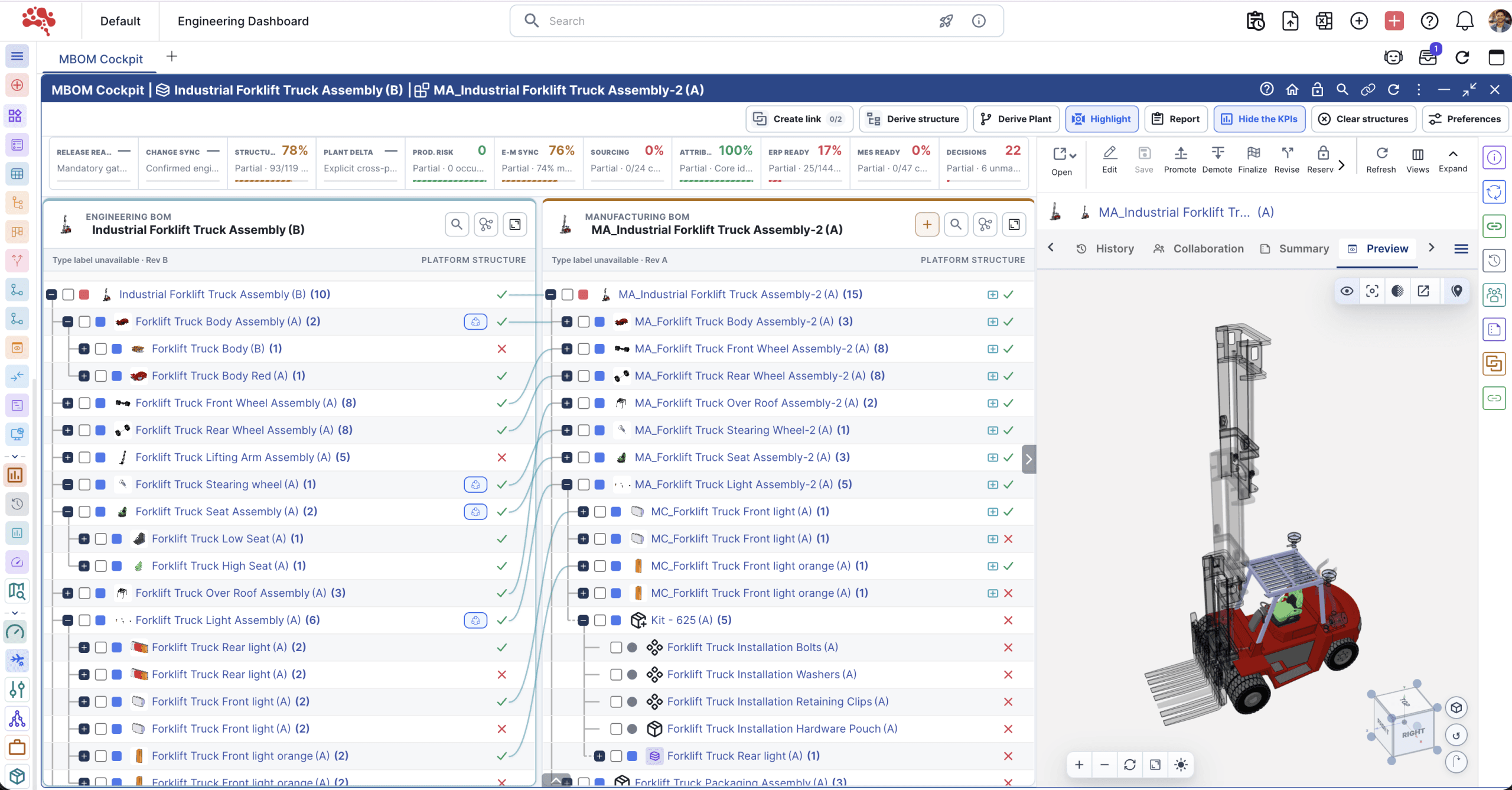
Two structures.
One connected product.
Compare the engineering BOM (EBOM) with the manufacturing BOM (MBOM). Trace each usage, review quantities, and see how the two structures connect.
Different structures.
One product.
Compare the engineering design with its manufacturing organization. The roots and assembly names can differ while the correspondence keeps individual usages connected.
Select any row to inspect its saved counterpart.
The same part.
The right usage.
A bearing appears under both Drive Shaft and Gear Set. Each is a separate occurrence, with its own path through the engineering and manufacturing structures.
Select either bearing. The matching usage is highlighted on the other side.
Less repetition.
Clear quantities.
Switch from individual instances to grouped rows. The two bearing occurrences become one row with a total quantity of two, while each BOM keeps its own manufacturing or engineering identity.
Return to Instances when you need to trace a particular usage.
Find the gap.
Keep the context.
A component may have no correspondence in the data you are reviewing. Inspect its assembly context before deciding whether it needs a manufacturing counterpart or a different relationship.
Housing has no manufacturing counterpart in this sample. Select it to inspect the context.
Engineering BOM
Gearbox Assembly ASM-100
Drive Shaft · Bearing / shaft · Gear Set · Bearing / gears · Housing
Manufacturing BOM
Gearbox Manufacturing MFG-100
Shaft Assembly · Bearing / shaft · Gear Assembly · Bearing / gears
The same bearing appears in two engineering branches. Each usage has its own manufacturing context.
Illustrative records only. This example does not connect to a live Nora IPLM workspace.
See both sides.
Separate hierarchies, together in one workspace.
Trace the usage.
Specific occurrences, with their assembly context.
Choose the view.
Individual instances or grouped quantities.
Build for manufacturing.
Keep the design in reach.
In Nora IPLM, start from engineering, organize the manufacturing hierarchy, and review the links that connect the two.
A starting point.
With the context attached.
Load an existing manufacturing BOM or create a manufacturing root. Use the engineering structure as the source for a configured derivation.
Your administrator’s type mappings and relationship rules guide the available choices.
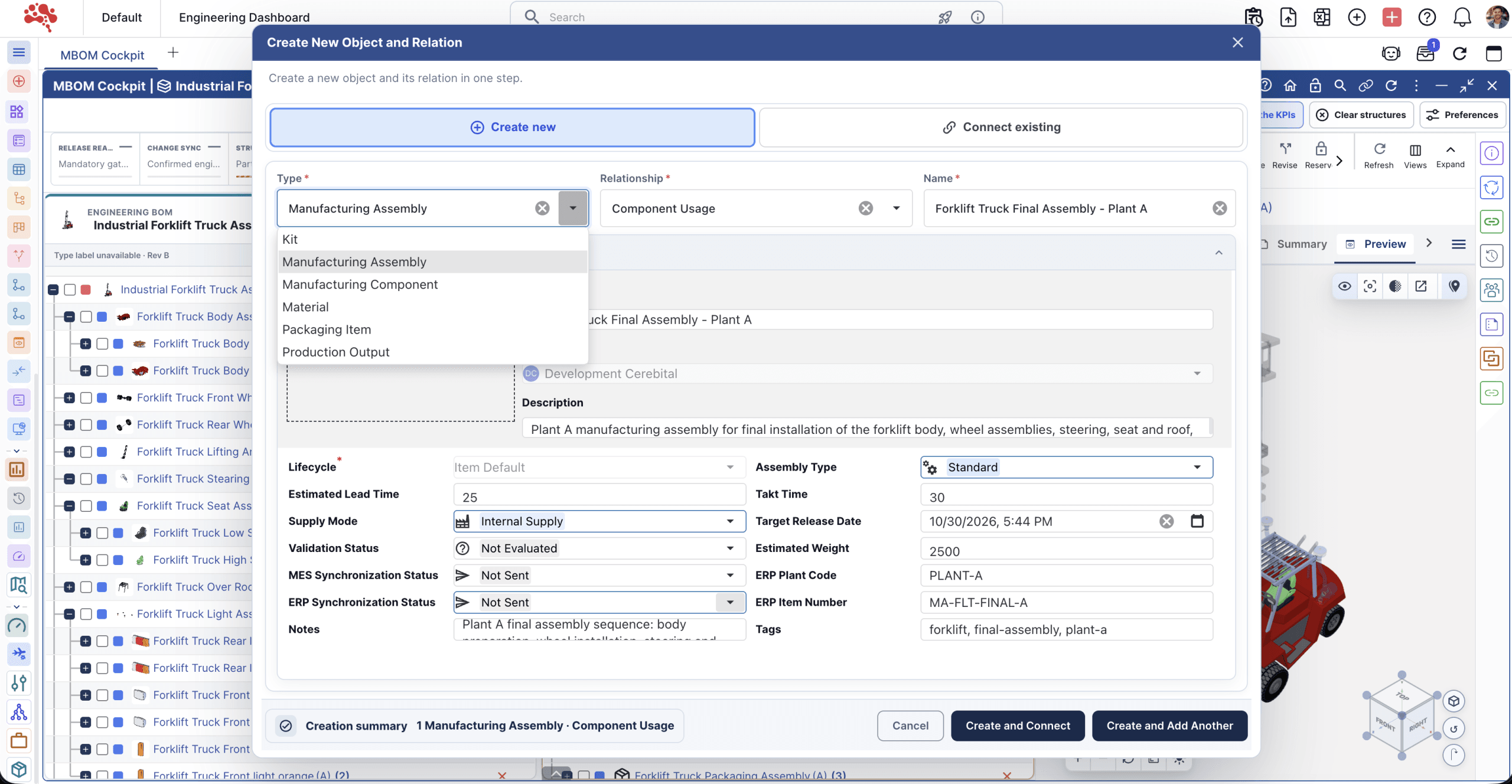
Reuse the engineering work.
Choose a source and destination. Configure intermediate assembly levels, leaf elements, and the relationships your manufacturing structure needs.
Derivation and preview
Review the proposed structure before choosing Generate. Manufacturing Scope and occurrence links are separate options. Available types and mappings depend on your workspace configuration.
Connect the intended usage.
A part number can appear more than once. Link the specific engineering and manufacturing occurrences so their assembly context stays clear.
Occurrence relationships
Use Instances view and select the engineering and manufacturing pair. Review the occurrence paths, scope, and available relationship type before creating the link.
Follow the product in 3D.
Use Highlight to inspect manufacturing selections against the engineering model and the correspondence available in the loaded structures.
Model preview and highlighting
Highlight requires a supported engineering preview file and a loaded manufacturing root. Engineering parts without a manufacturing counterpart can appear transparent. What you see depends on available files, loaded rows, and relationship evidence.
Give each BOM room.
Find a component in either structure. Focus the engineering or manufacturing side, then return to both when you need the wider picture.
Navigation and context
Each loaded BOM has its own Find control. Open Relationship Manager from either root to inspect its connections. Focusing one side changes the workspace view while keeping the BOM contents intact.
From engineering intent.
To manufacturing context.
Start with your engineering and manufacturing structures. Shape the hierarchy, connect the usages, and inspect the result against the model.
Start with the right product context.
Load the engineering and manufacturing roots. Check the product and revision, then explore each hierarchy side by side. Each BOM keeps its own structure.
Find a component in either BOM. Give one side more room when you need it, then return to both to review the connection.
Reuse the design.
Shape the build.
Derive a manufacturing structure from the engineering BOM. Choose the source, destination, assembly levels, and leaf elements for the work ahead.
Review the proposed hierarchy and relationship options before choosing Generate. Available types and mappings follow your workspace configuration.
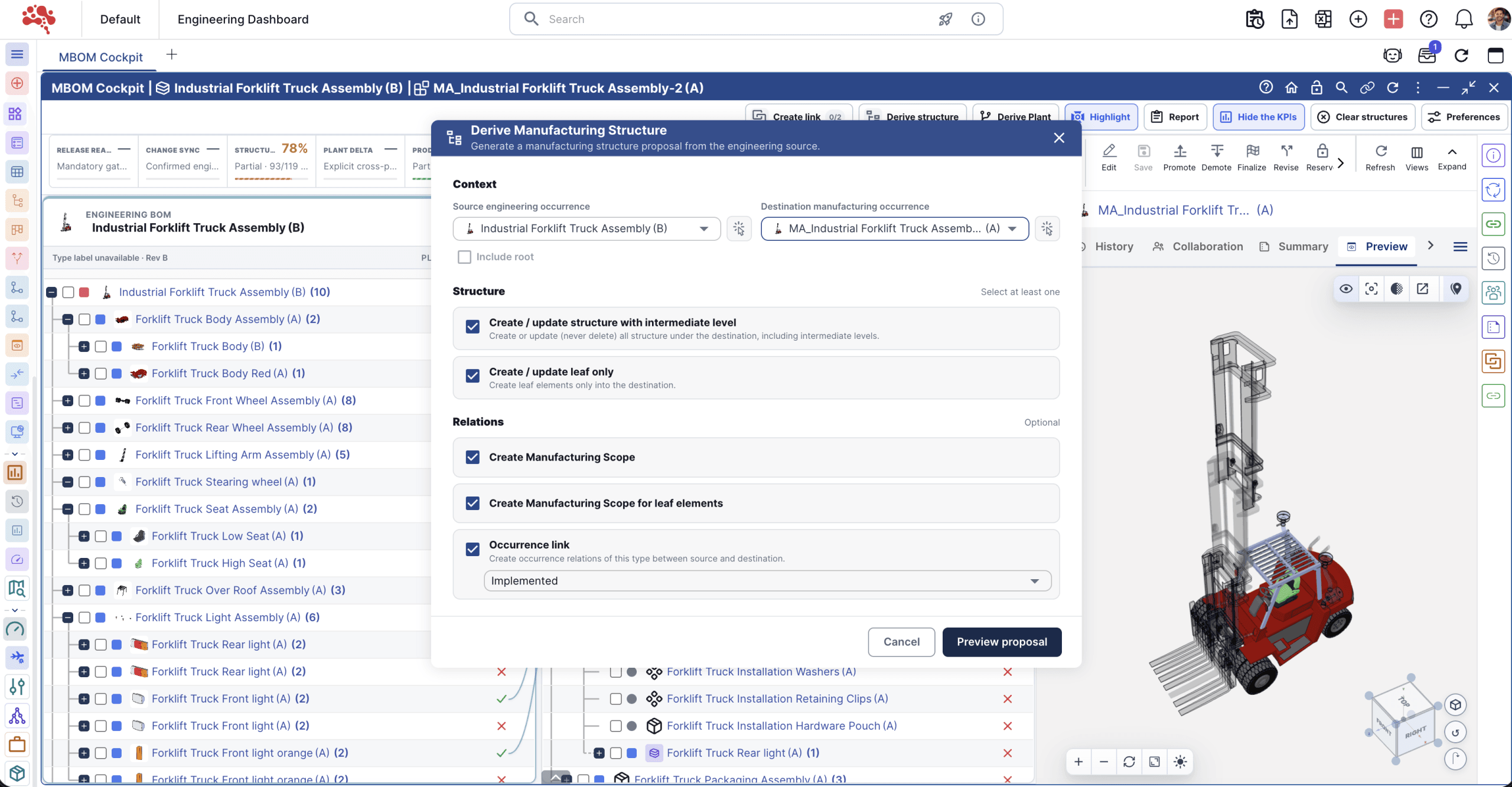
A new assembly.
Its own place in the build.
Start from an existing MBOM or create a manufacturing root. Add assemblies with the attributes and relationship information that place them in the hierarchy.
Available manufacturing types and required fields follow your workspace configuration.
The same part.
The right connection.
A part can appear in more than one assembly. Connect specific engineering and manufacturing occurrences so each usage keeps its context.
Use Instances view to review the pair and its paths. Manufacturing Scope connects items; occurrence links identify their specific usages.
One part number. Two usages. Two contextual links.
Illustrative mapping · sample data See the model.
Check the connection.
Highlight manufacturing selections against the engineering model. Parts without a manufacturing counterpart can appear transparent, helping you investigate the gaps.
Model highlighting depends on a supported engineering file, loaded rows, and available correspondence. Open Relationship Manager to inspect the links behind the view.
Get to know
MBOM Cockpit.
What to know before you connect your first engineering and manufacturing structures.
Are EBOM and MBOM just two views of the same BOM?
They are separately managed structures with different purposes. The engineering BOM describes the design, while the manufacturing BOM organizes manufacturing. The cockpit brings them together and shows their correspondence.
Do I need an existing manufacturing BOM?
You can load an existing manufacturing root or choose Create MBOM root when the manufacturing side is empty. Available manufacturing types, required fields, and EBOM-to-MBOM mappings must be configured in your workspace.
Why connect occurrences instead of just part numbers?
The same item can appear in multiple assembly branches. An occurrence link identifies a particular usage and its manufacturing counterpart, including their paths and structure scope.
When should I use Instances or Rolled-up?
Use Instances to inspect and connect individual usages. Use Rolled-up to group matching occurrences and total their quantities. Switch to Instances before creating occurrence links.
Does deriving a structure change the manufacturing BOM?
Yes. Review the source, destination, proposed hierarchy, and relationship options before choosing Generate. Opening the dialog or reviewing the preview alone does not generate the structure.
What do I need for the 3D highlight view?
A supported preview file on the engineering root, a loaded manufacturing root, and available correspondence. Highlighting uses the engineering model and relationship evidence for the loaded rows.
Your product.
Connected from design to build.
Bring engineering and manufacturing into the same conversation. Start with the structures your team already knows.