Structure Widget.
See how everything connects.
Nora IPLM’s Structure Widget brings complex product hierarchies and object relationships into one view. Explore what connects, trace dependencies, and make changes in context.
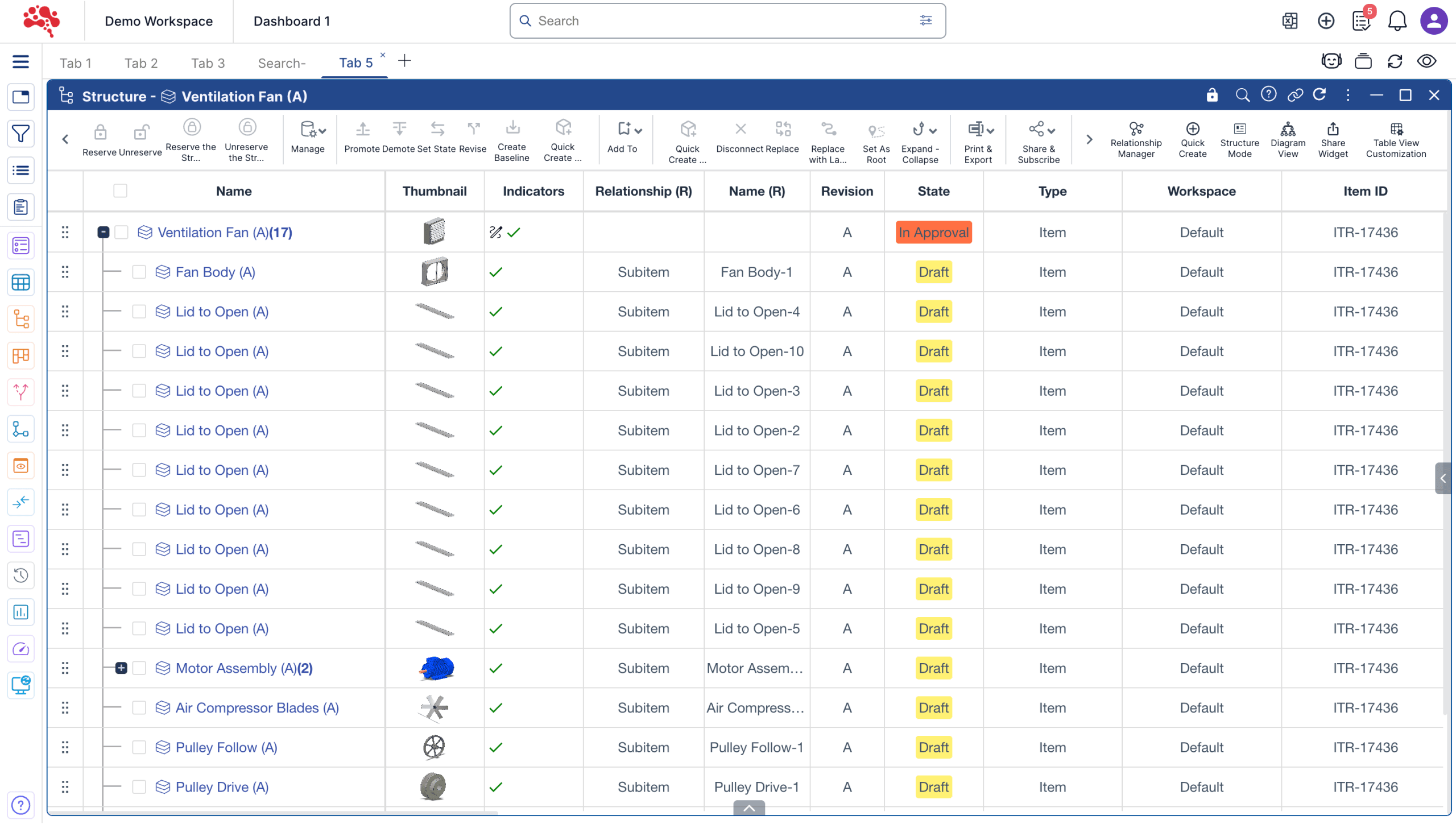
One structure.
Every perspective.
Follow the hierarchy. Trace a shared part. Scan the whole list. See the connections. Choose the view that answers your question.
The big picture.
Down to the part.
Start at the root and open each level. See components and subassemblies together with revisions and lifecycle states.
Try collapsing a branch or selecting an object.One shared part.
A wider impact.
Before changing a component, follow its parent references. Reverse direction shows the assemblies that use it, across multiple levels.
Same bearing. Two branches. One connected view.Skip the branches.
Keep the detail.
Scan every item in a flat list. The Level column keeps its depth visible, and repeated instances stay in view.
The structure stays intact when the view changes.| Object | Level | Revision | State |
|---|---|---|---|
| 0 | C | In review | |
| 1 | B | Released | |
| 2 | A | Released | |
| 1 | C | Released | |
| 2 | A | Released | |
| 1 | A | Released |
Connections,
made visible.
See object relationships as connected cards. Keep key details on display, or simplify the diagram with Name Only mode.
Select a card. Follow its context below.Select an object to inspect its context
Make the change.
Keep the context.
Move from understanding a structure to working on it. The right objects, relationships, and commands are already in view.
Parts. Projects.
One connected picture.
In Nora IPLM, the Structure Widget connects ideas, documents, projects, tasks, and workflows. Explore the relationships that support the product lifecycle and make the work part of a bigger picture.

Find your focus.
Open the levels that matter. Expand a branch, choose a depth, or make one object the starting point of your view.
Navigation tools
Expand or collapse selected nodes or the whole structure. Expand with Levels lets you choose a depth. Set as Root changes the focus temporarily, without changing the actual relationships.
Reshape the relationships.
Add an object. Move a connection. Copy what you need. Edit directly in the structure while keeping the surrounding work visible.
Editing tools
Use drag and drop within Structure or bring objects from another widget. Cut, copy, paste, create relations, and edit attributes through the command bar or right-click menu. Relationship warnings show what an operation will change. Disconnect removes a link; Delete removes the object and its existing relationships.
Start with the work
you already have.
Reuse an existing hierarchy with Clone with Structure. Keep your BOM hierarchies current and support MBOM management by updating referenced revisions with Replace All Revisions.
Revision and reuse tools
Clone an object together with its hierarchy and relationships. Replace All Revisions updates the objects referenced in the structure to their latest revisions. Review the resulting structure before using it for downstream work.
Keep every edit
coordinated.
Coordinate work with Structural Reserve and Unreserve. Inspect the selected object’s details and connections in the Information and Relation panes.
Collaboration and context tools
Reserve or unreserve objects across the structure to coordinate modifications. Both panes follow the selected object; for a multiple selection, they show the last selected object. Commands adapt to object types, with shared actions available for mixed selections.
Your data.
Your point of view.
A focused review starts with the right information. Bring the attributes and relationships you need to the front.
Keep what matters in view.
Choose views for different object and relationship types, including the detail you need for product configurations and variants. Add, resize, reorder, group, or freeze columns. Wrap text so the detail stays readable.
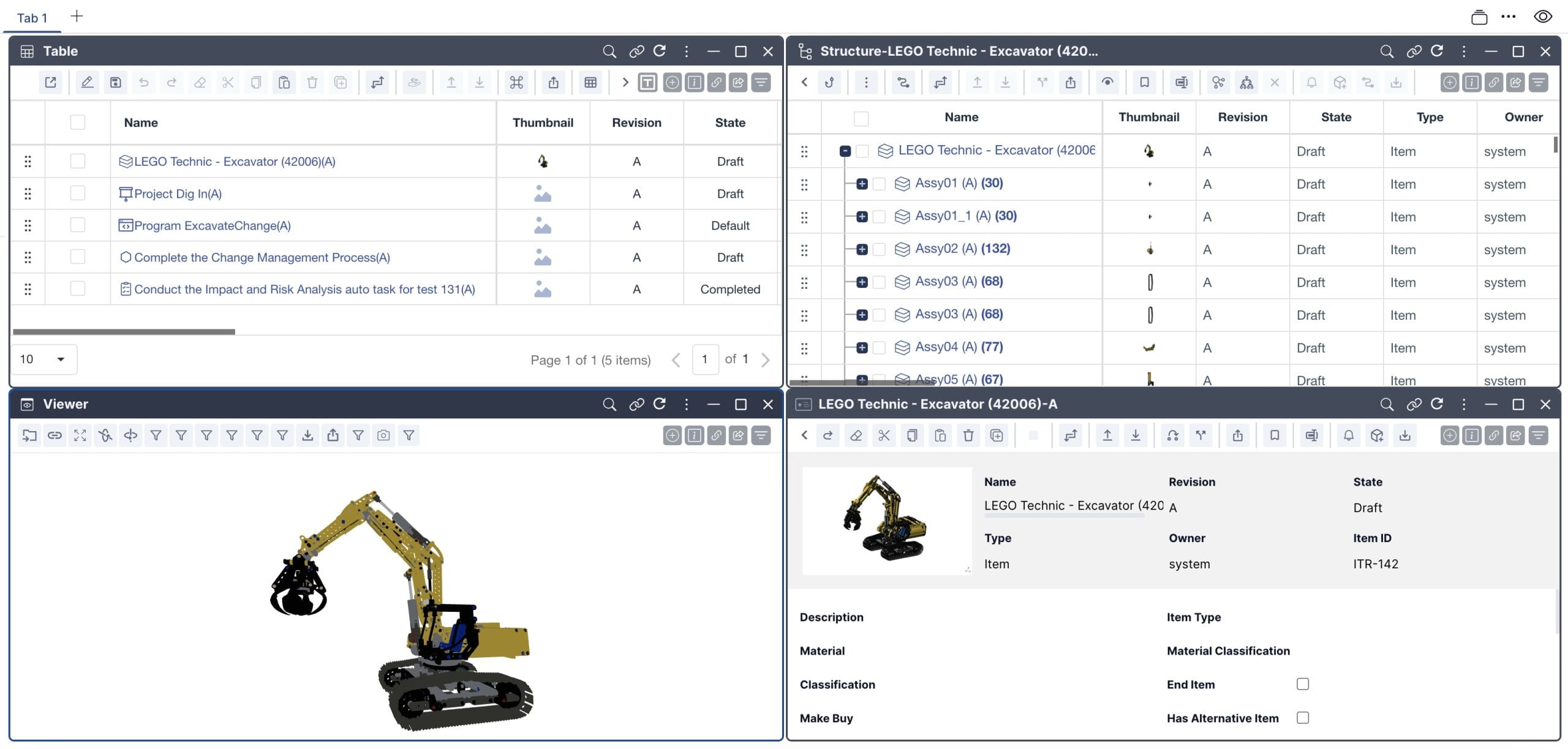
Show the right connections.
Use the Relationship Manager to include or exclude relationship types. Bring an item’s attachments into view alongside its structural children.
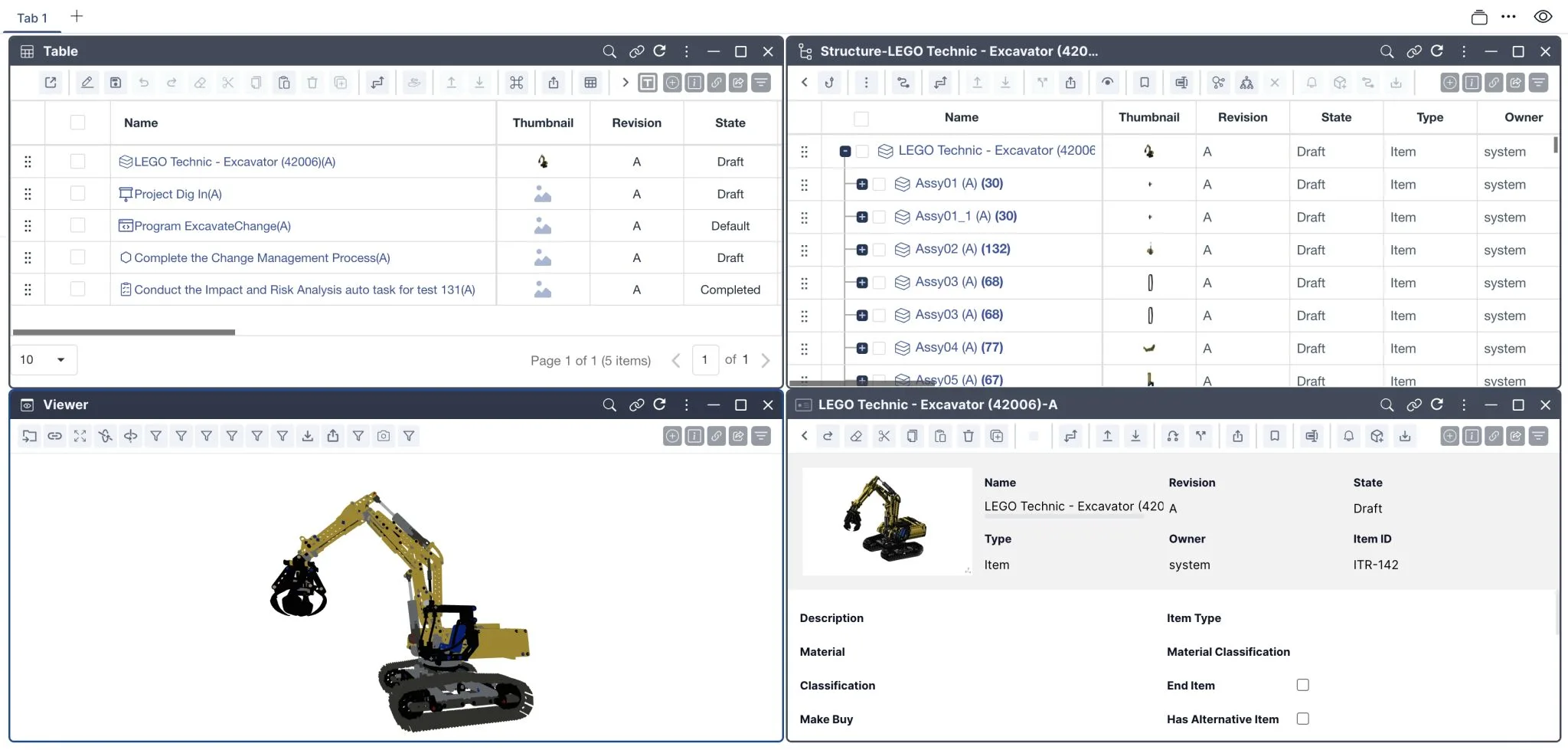
Let the structure add it up.
Configured dynamic fields bring in data from Nora or connected systems through integrations. Roll-up attributes summarize values across hierarchy levels.
Take the detail with you.
Export the hierarchy to Excel for further analysis, or print the structure for an offline review.
Get to know
Structure Widget.
What to know before you open your first structure.
Is Structure Widget only for BOMs?
No. It can show hierarchical and non-hierarchical relationships between items, documents, ideas, projects, tasks, and workflows. An assembly BOM is one of its uses.
Does switching views change the structure?
No. Normal direction follows children, reverse direction follows parent usage, and flat mode lists the objects with their level information. These are different ways to view the relationships, rather than changes to the data.
Can I edit objects and relationships here?
Yes. Edit object attributes, create or modify relationships, and use drag and drop or cut, copy, and paste. Disconnect removes a relationship. Delete removes the selected object and its existing relationships from the platform.
How do I focus on a deep structure?
Open selected branches, choose a depth with Expand with Levels, or use Set as Root to focus on an object temporarily. For diagrams, Name Only mode simplifies the cards.
Can I see a 3D model with the structure?
Yes. With widget pairing configured, selecting an object in Structure can update Viewer. Content needs an accessible, supported file or compatible model preview. Attached documents can also be viewed when their format is supported.
Your next product.
A clearer picture.
Open a structure you know. Discover a better way to see it, understand it, and work on it.