
Introduction
Designs move fast, and often you need to generate new documents on the fly. Nora IPLM makes that simple.
Open Quick Create, pick “Document,” and instantly spin up new items with the right metadata, file attachments, and relationships – no context switching required. Whether you’re making specs, work instructions, or supporting files, Nora’s PLM system lets you keep everything structured and linked.
Now, let’s walk through how to do this step by step.
What Is Document Management in PLM?
Document management in PLM controls product-related files and records together with their metadata, revisions, lifecycle states, permissions, relationships, and approval history. Unlike a shared drive, PLM keeps documents connected to the items, BOMs, changes, projects, requirements, or CAD data they support.
When to Use Quick Create
- Create a specification while reviewing the related product item.
- Add a design-review note without leaving the current widget or context.
- Create supporting documentation for an engineering change.
- Upload a supplier, quality or test document and connect it to the relevant product record.
- Create a controlled document directly where the work is happening, reducing later filing and linking.
Area | Shared Folder / Drive | PLM Document Control |
Product context | File location provides limited context | Document linked to items, BOMs, changes and other records |
Revision control | Filename or folder conventions | Controlled revisions and lifecycle states |
Approvals | Often email or separate tools | Workflow and approval history |
Traceability | History can be fragmented | Changes and relationships remain connected |
Access | Folder-level sharing | Role/workspace/product-context access controls |
Search | Mostly filename/content | Metadata plus product relationships |
How to create documents using Quick create
- Click on “Quick Create”.
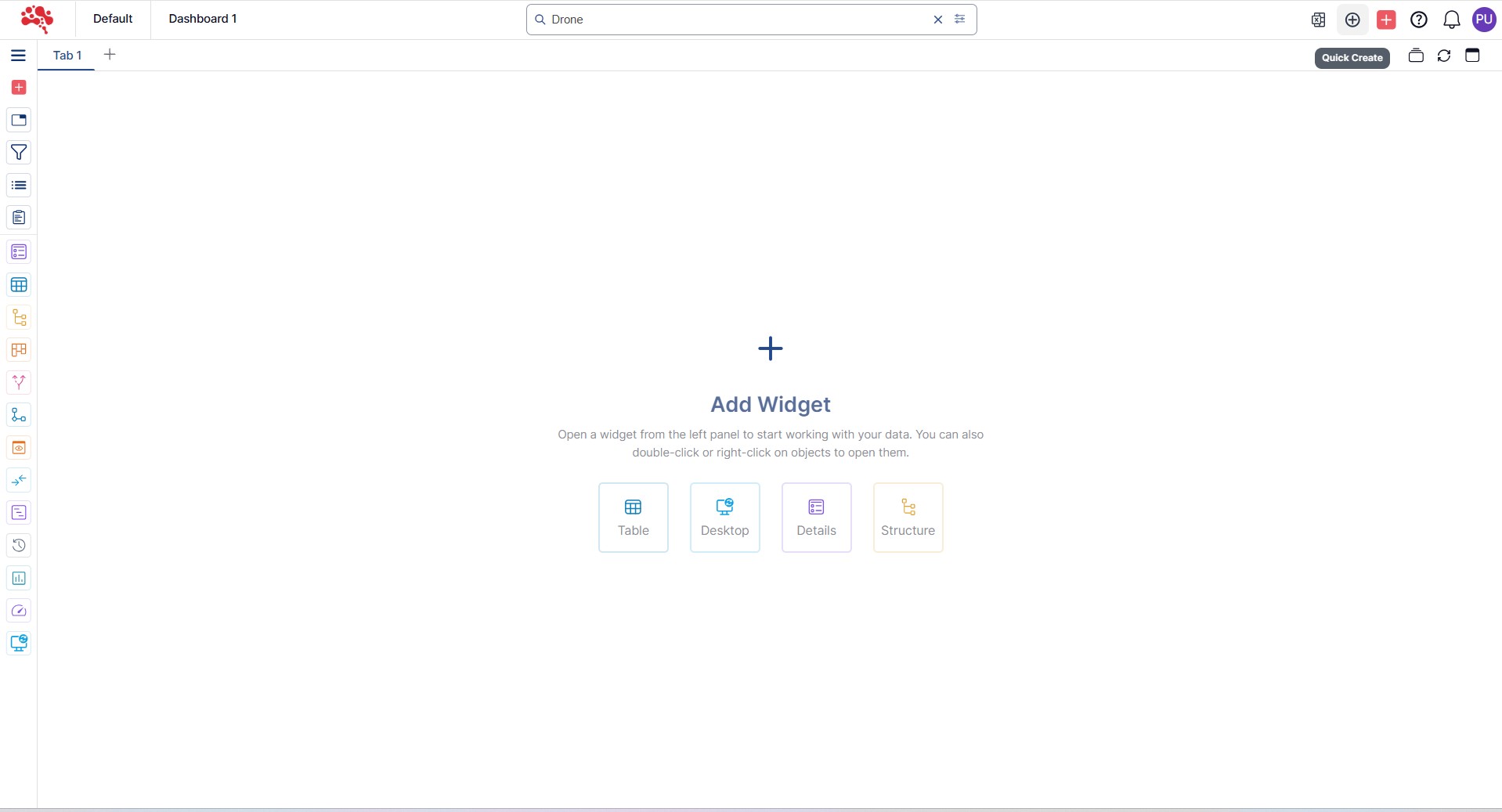
2. In the Quick Create pop-up, select Type as Document and enter the document name and relevant details.
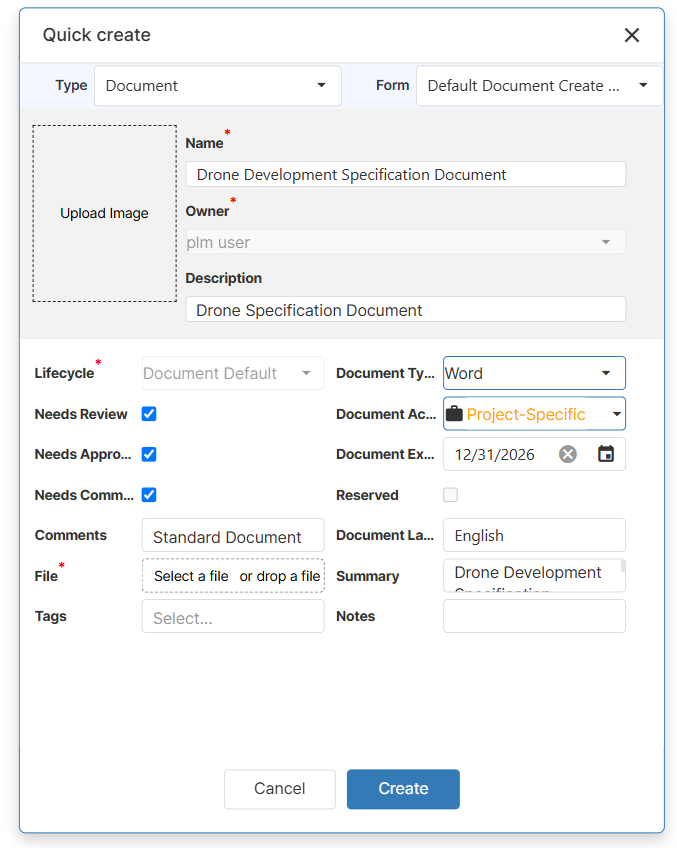
3. Click on the File field to browse (or drag and drop) the document you want to upload, then click Open.

4. Click Create to upload and register the document in Nora IPLM.

5. The document is uploaded successfully.
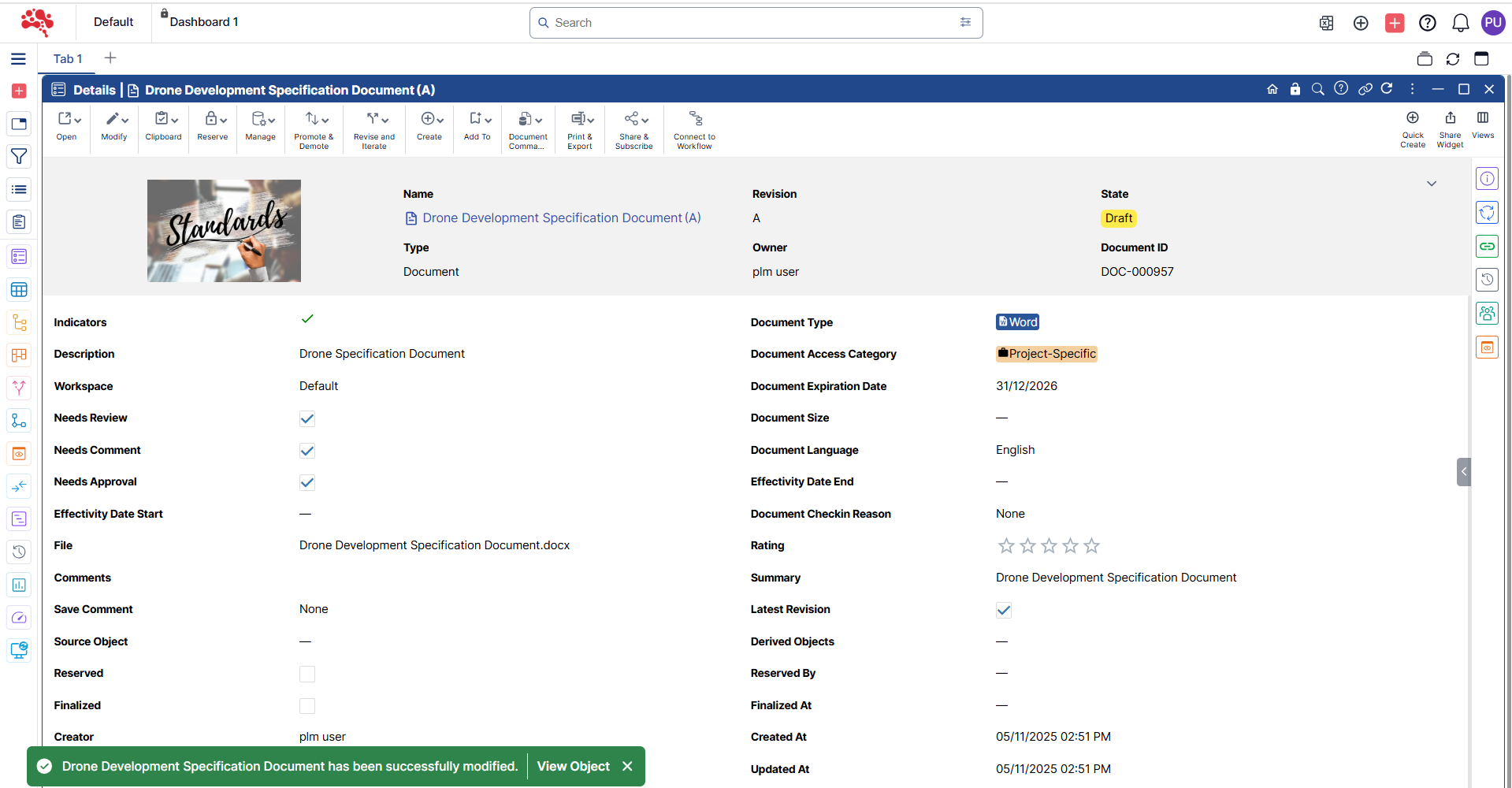
6. Click the Viewer icon to open a preview of the uploaded document.
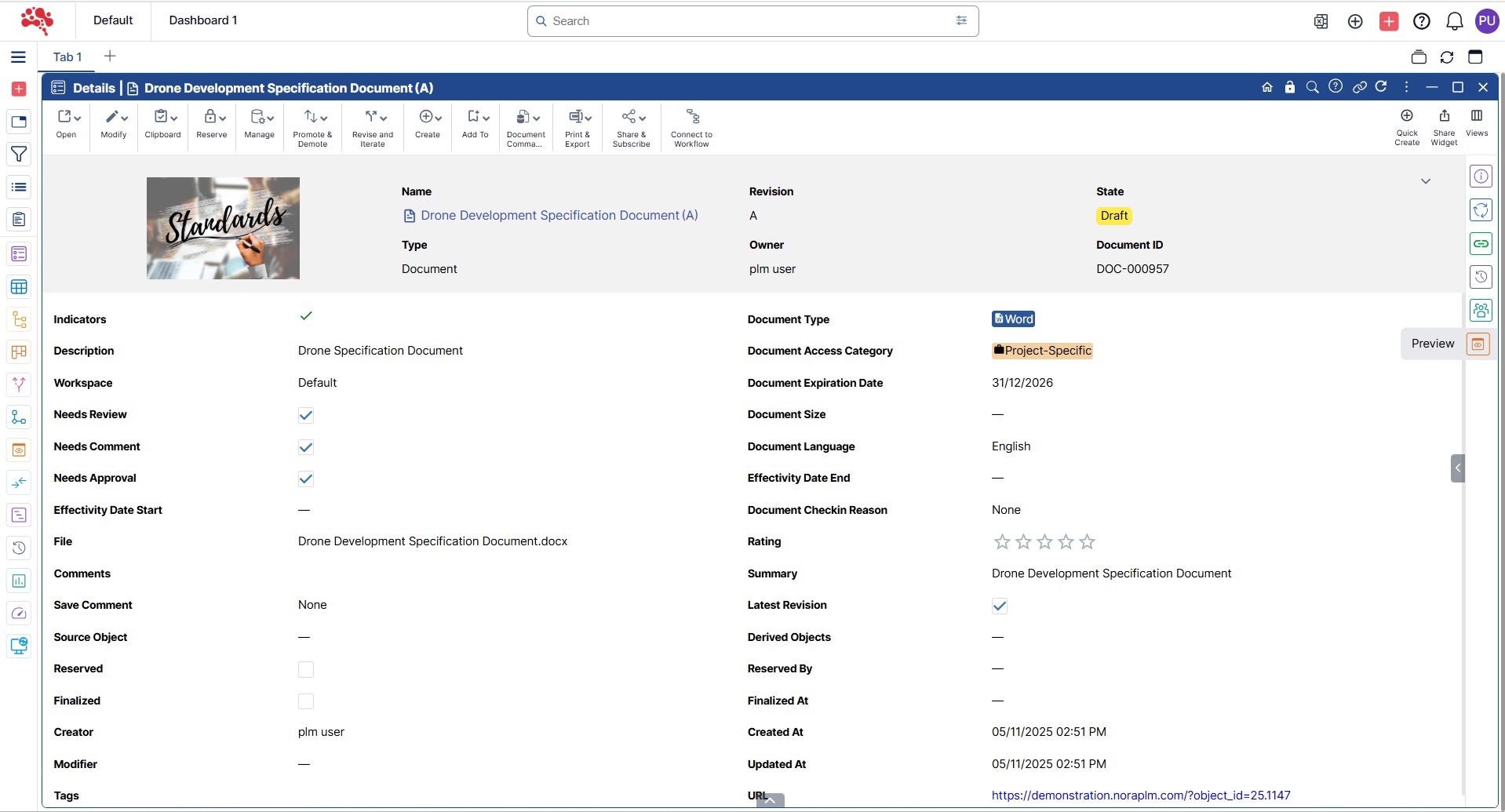
7. Scroll up and down to easily preview the document within the viewer.
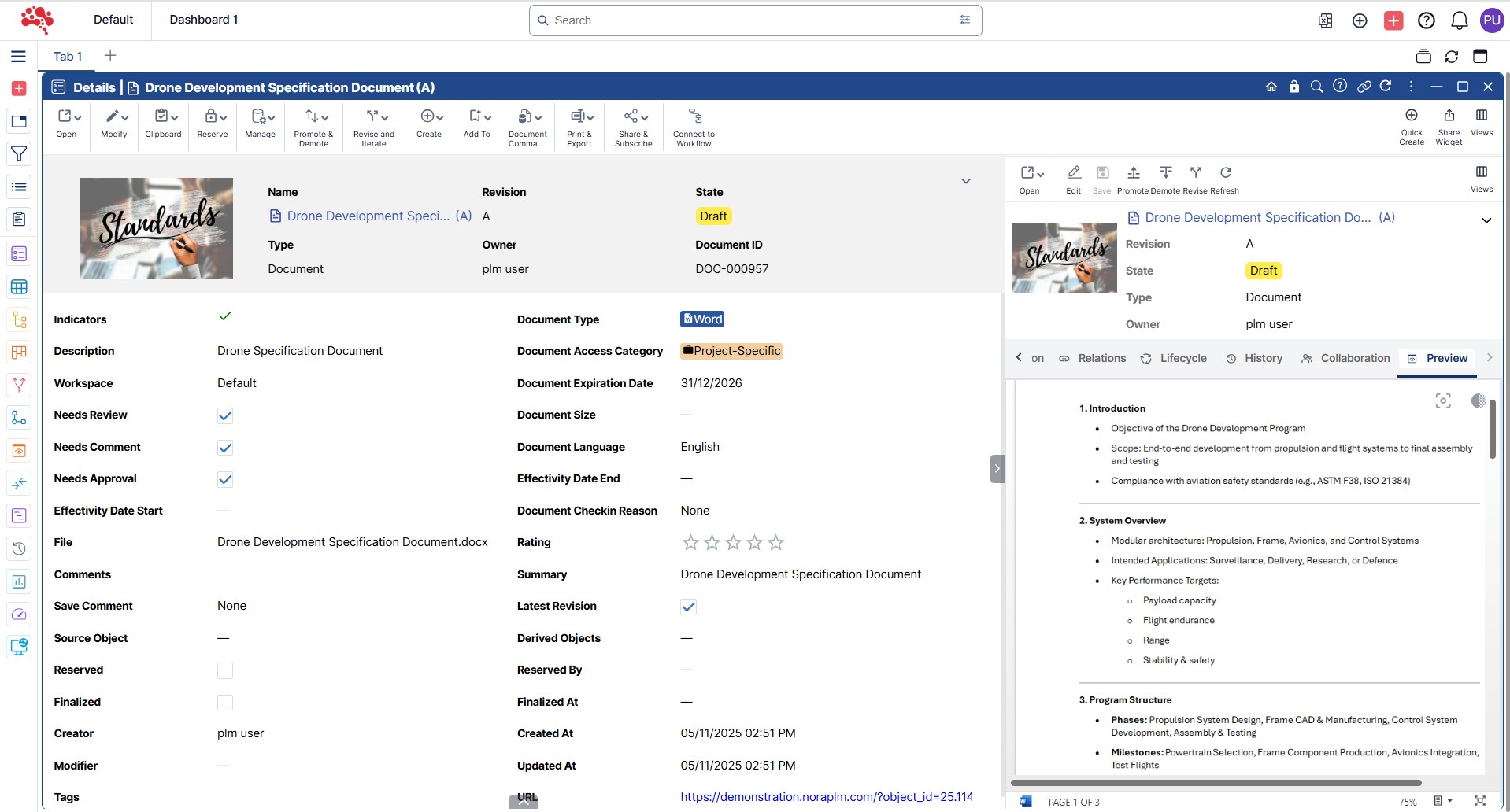
8. Use “Open in Viewer” for enhanced readability and full document access.
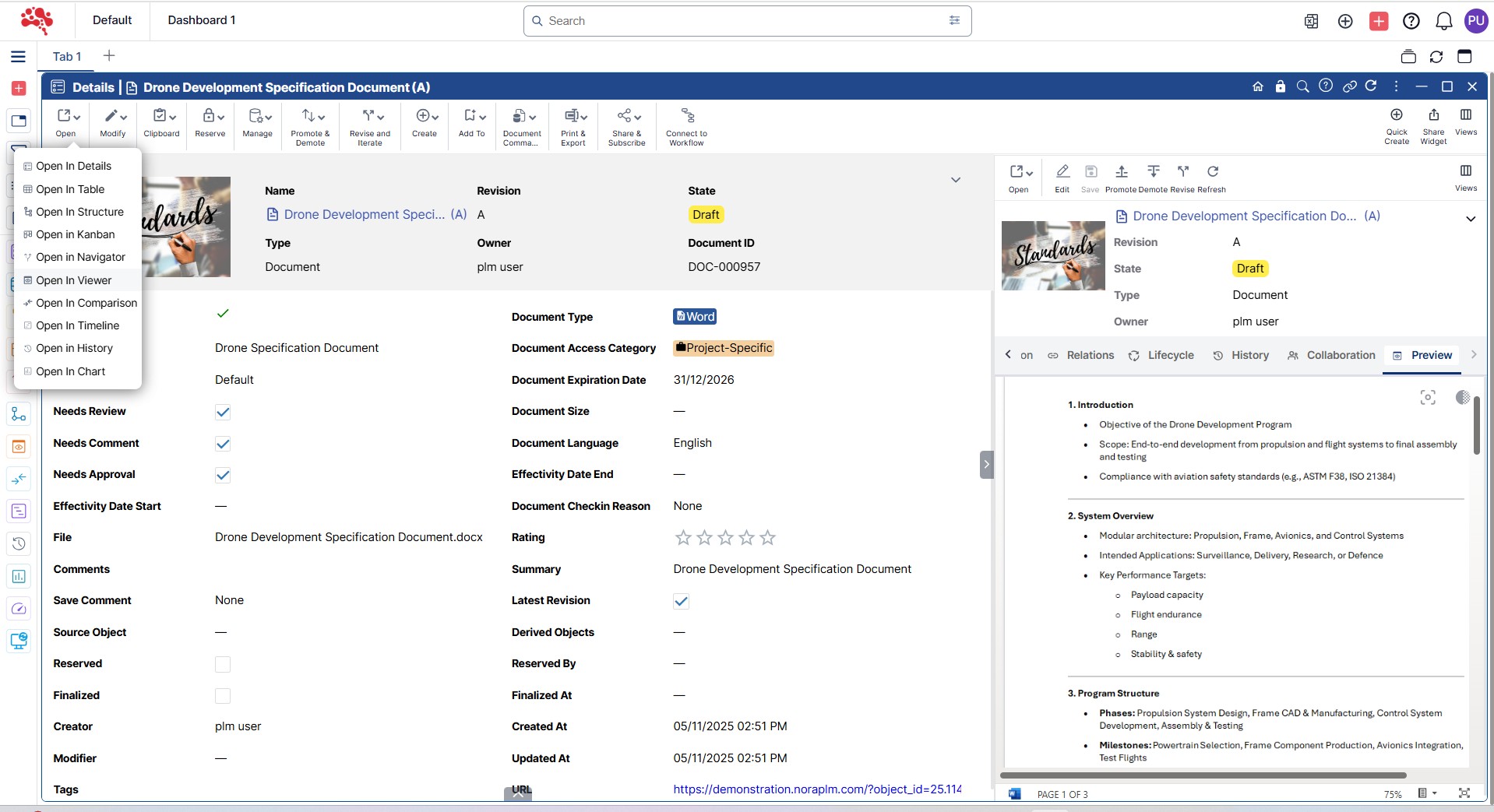
9. The document is displayed in the viewer, allowing smooth scrolling and full preview.
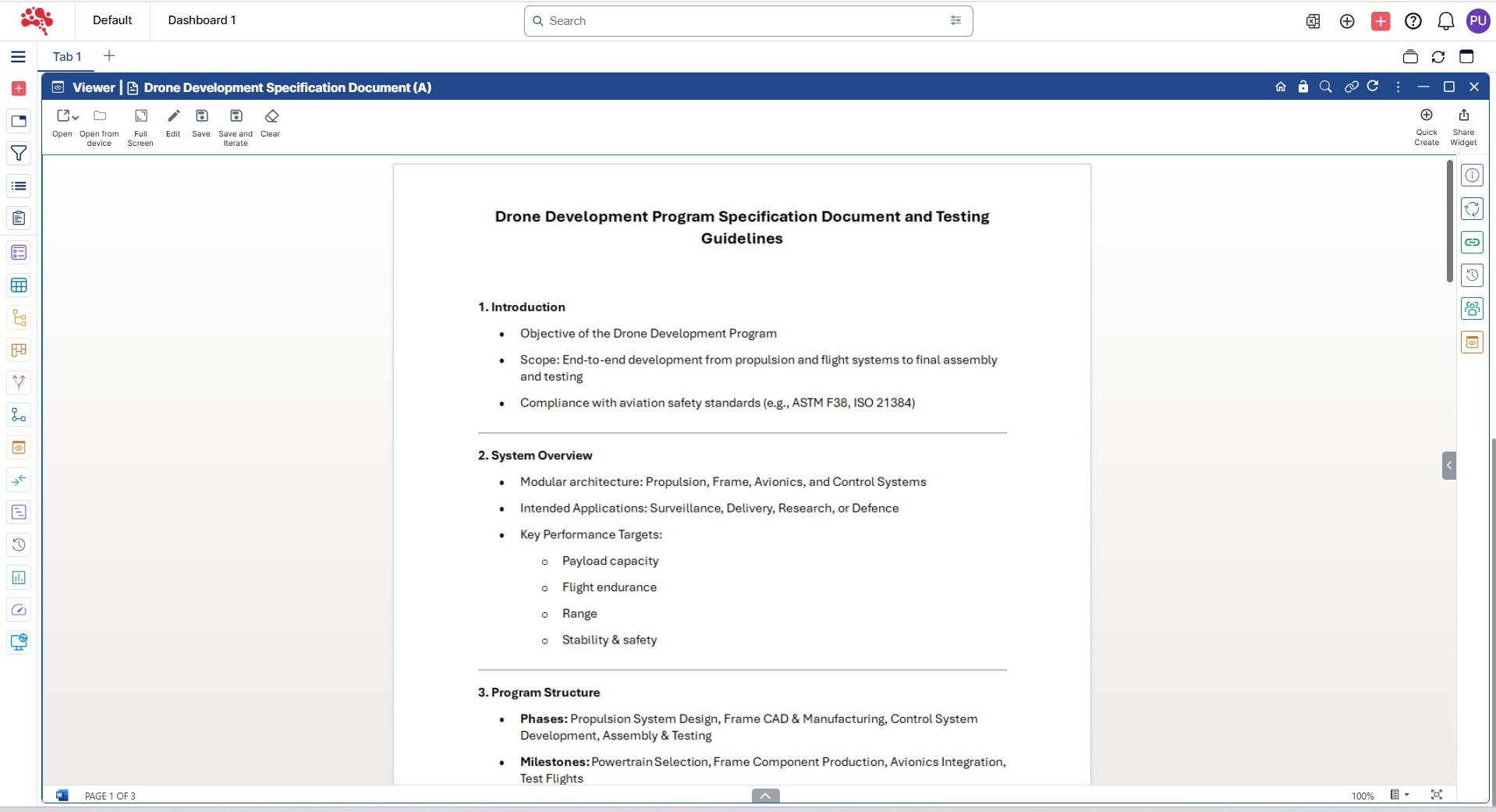
How to Edit Documents Inside the Platform
1. Open the document you want to edit in the Viewer.
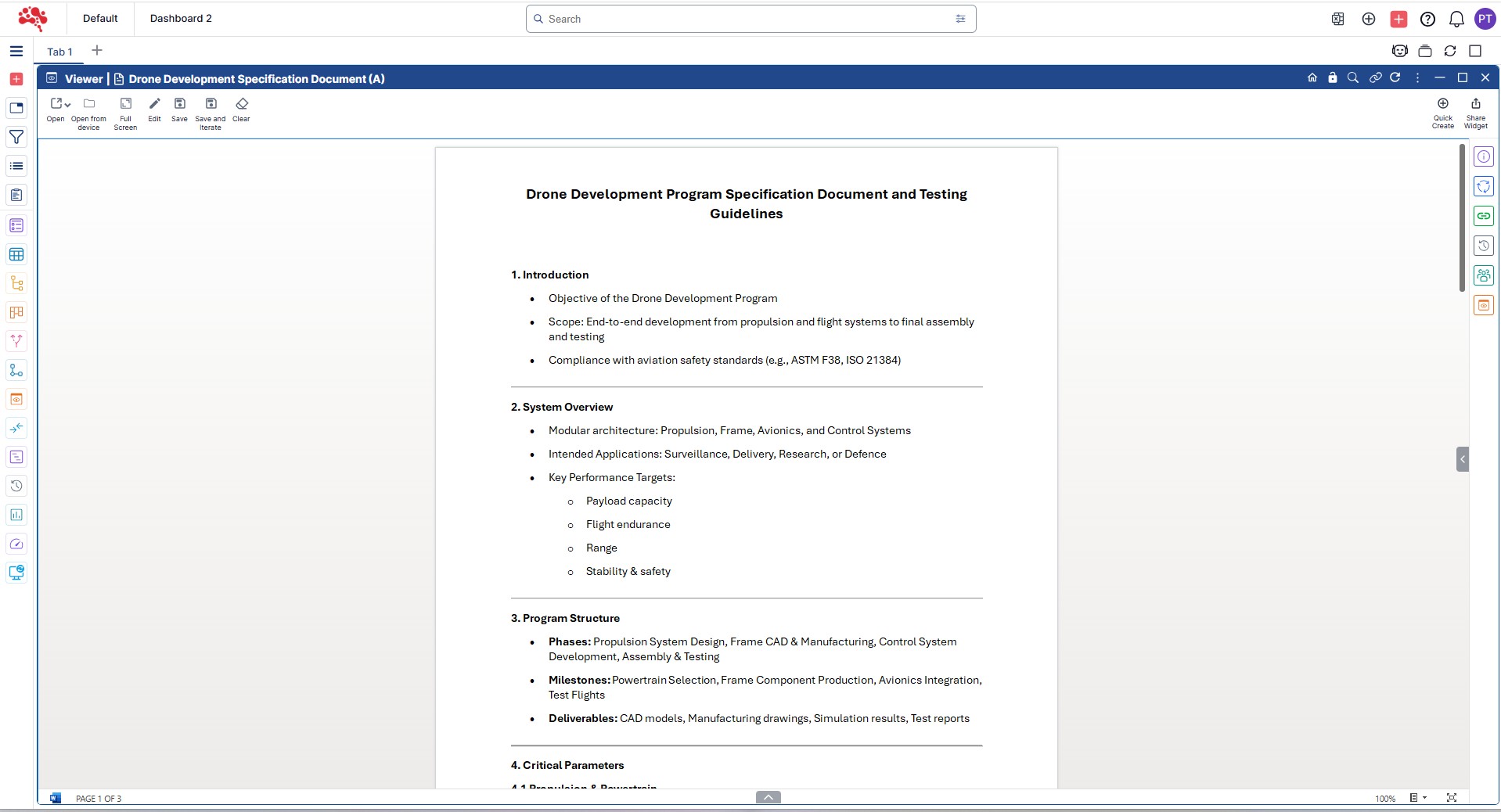
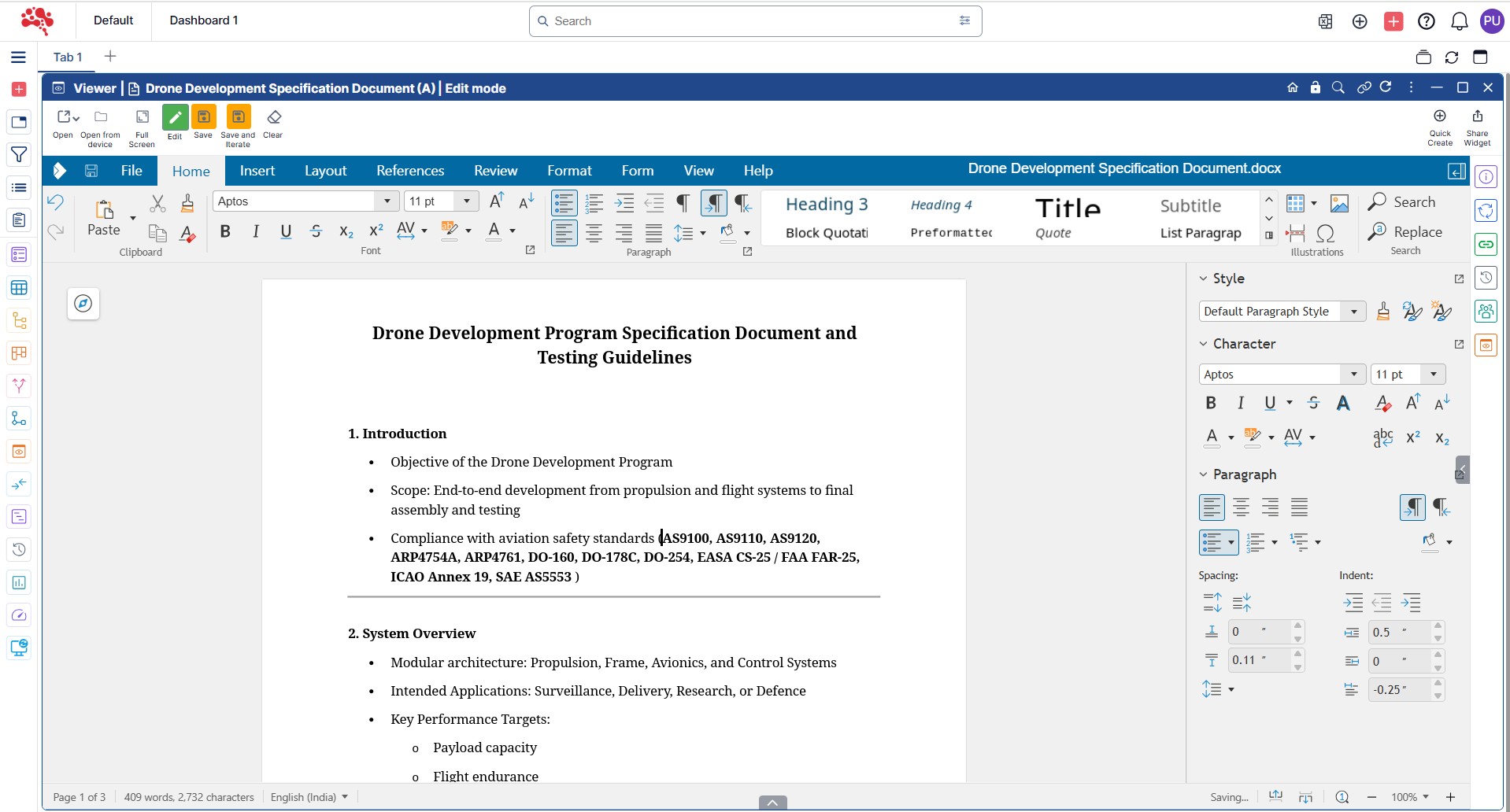
2. Click on “Edit” to enable document editing mode.
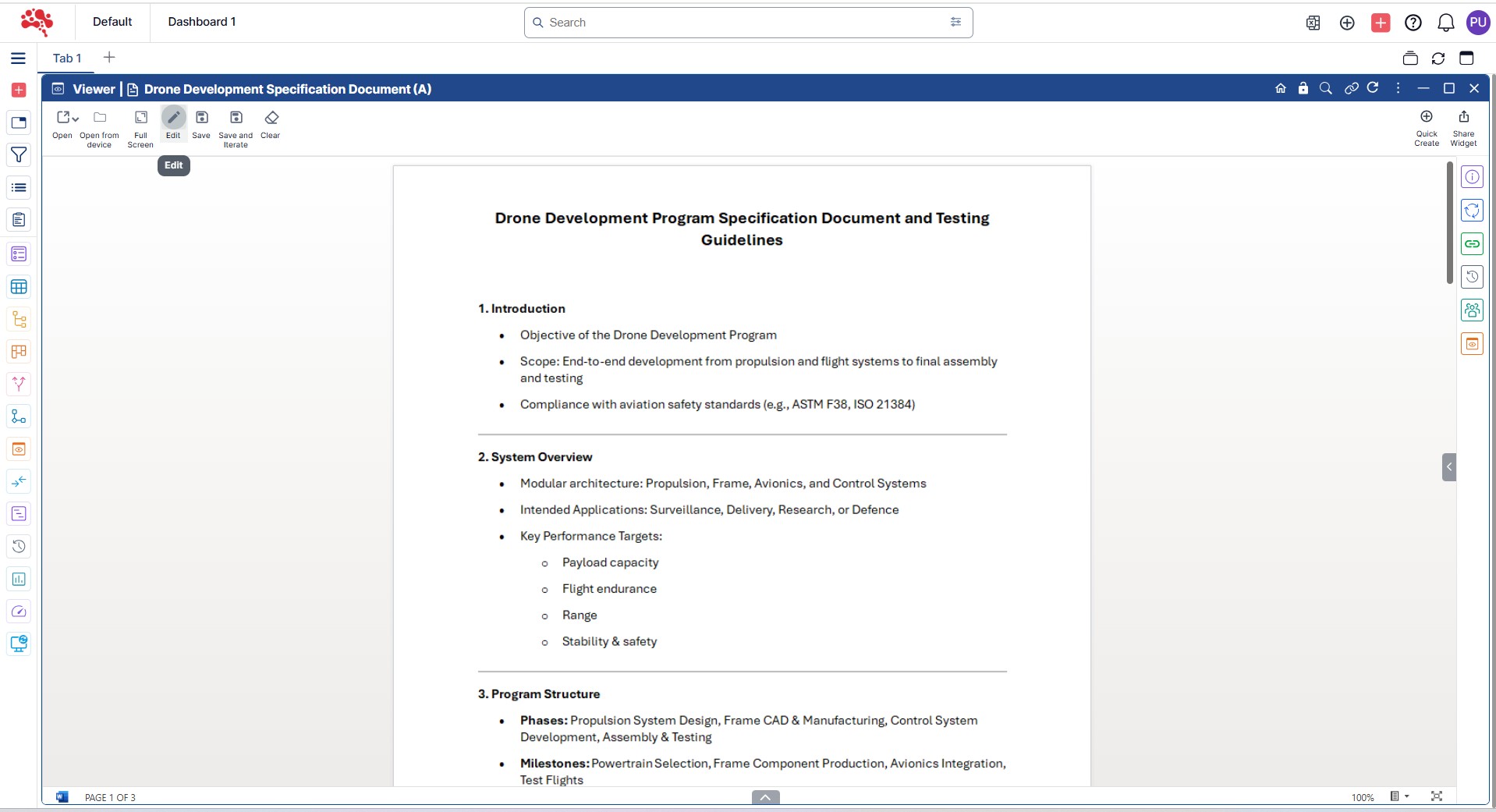
3. After making the necessary changes, click “Save” to update the document or “Save and Iterate” to create a new iteration with the latest updates.
How to Edit a Document Using Check-In and Check-Out
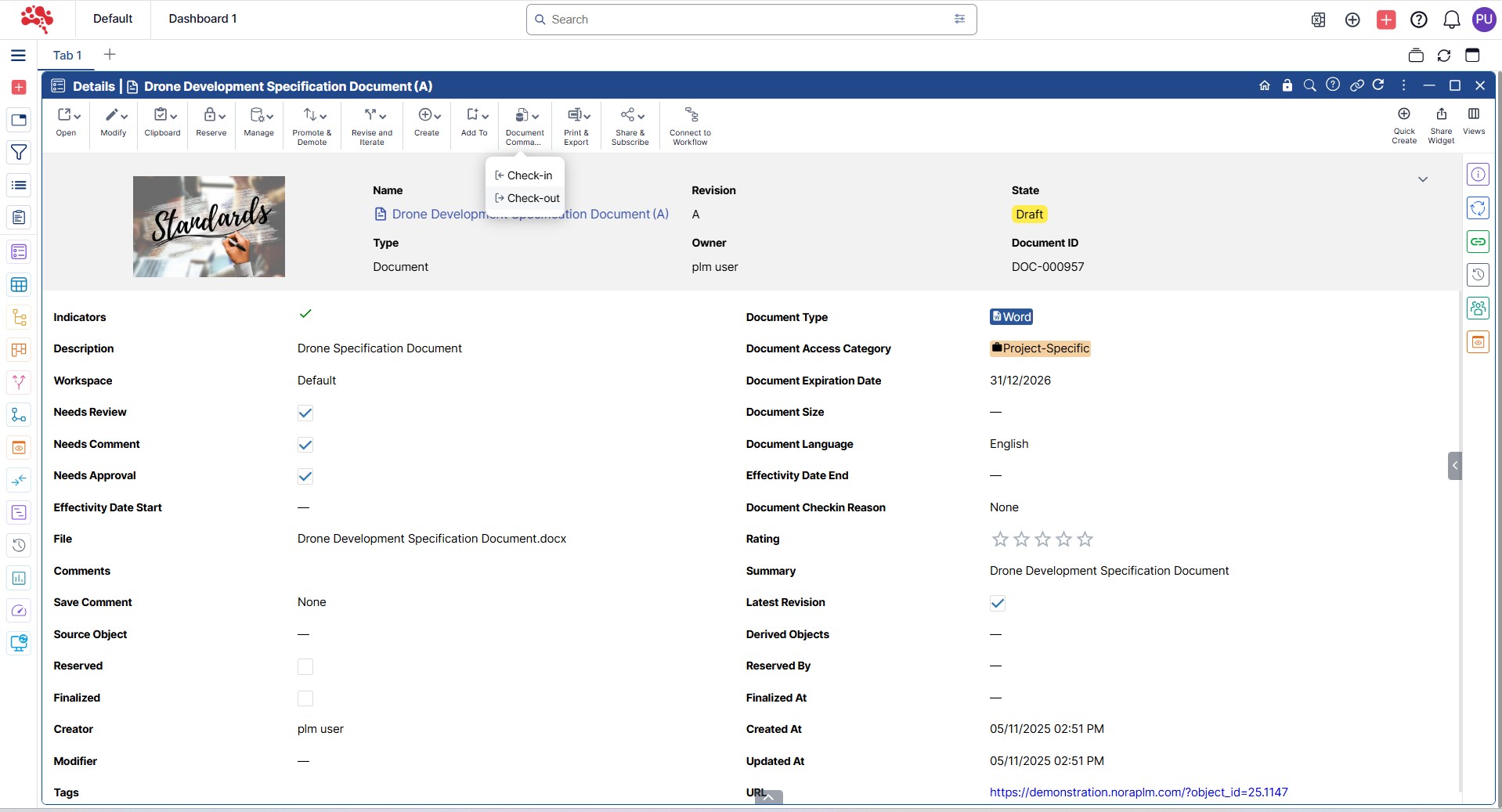
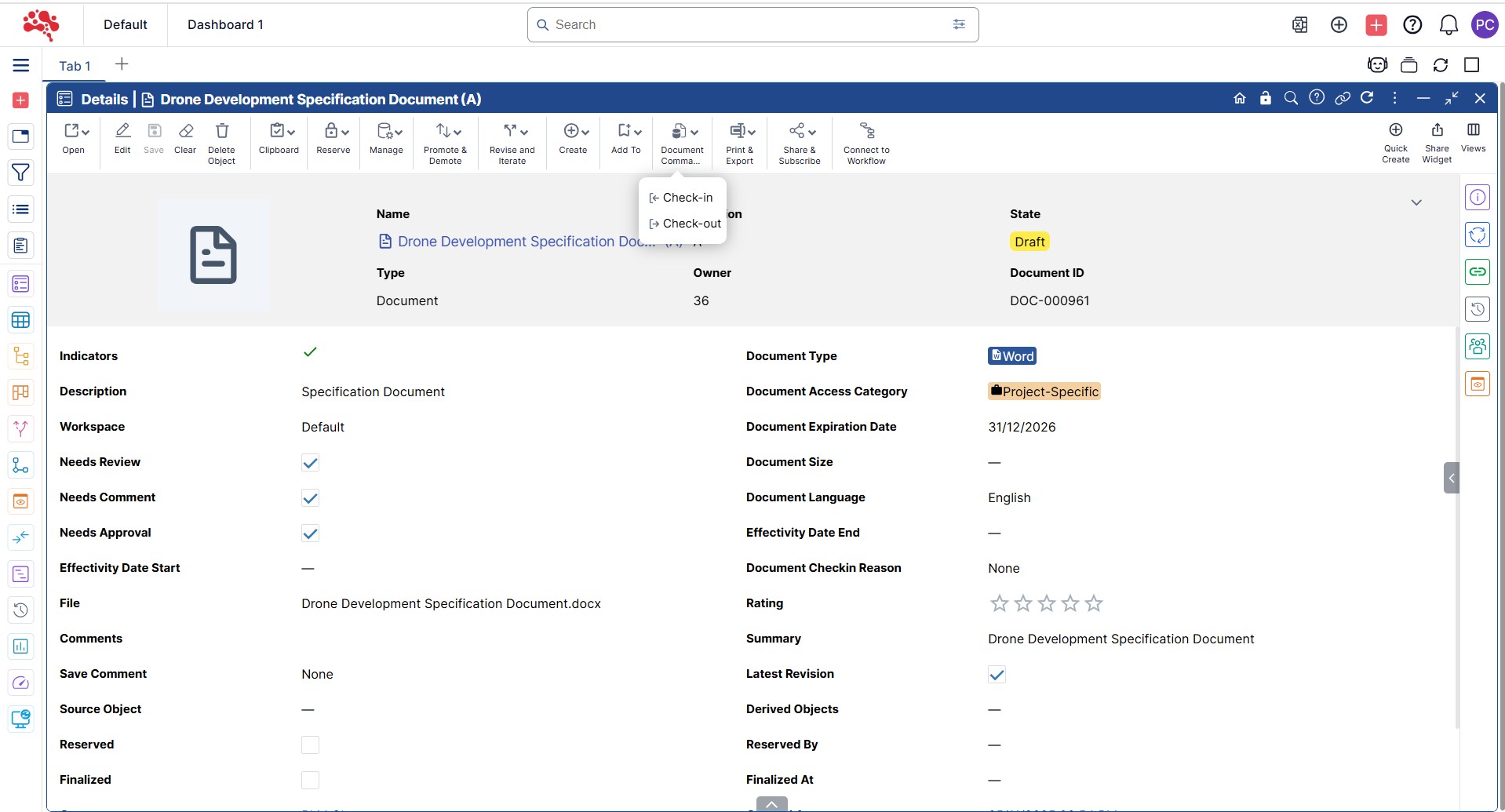
1. Open the document that needs modification in any widget and select “Check-Out” from the Document commands.
2. Browse to a suitable location on your system to download the file and click Save.
3. Locate the downloaded file and open it in Microsoft Word (or the respective application).
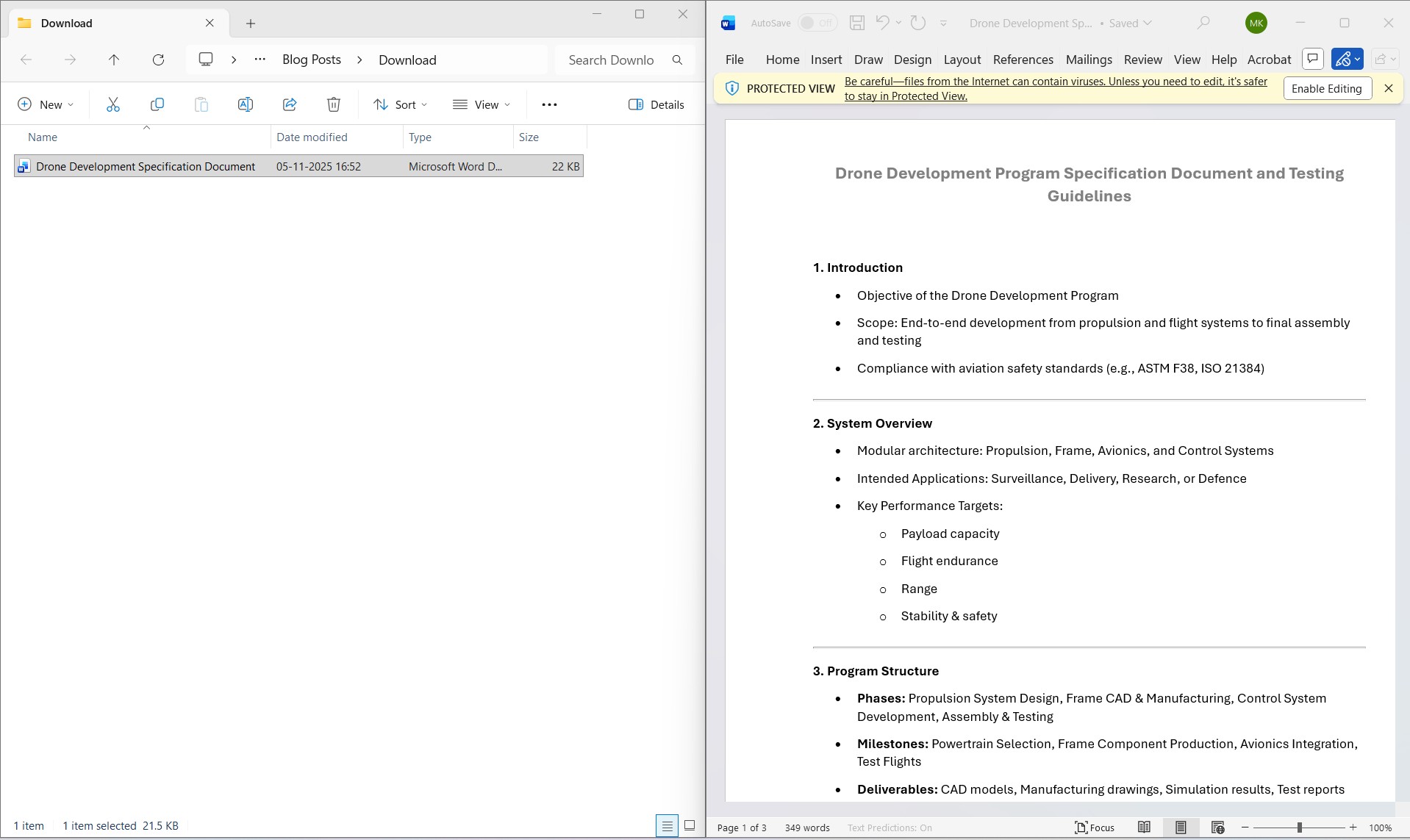
4. Make the required edits, save your changes, and close the document. Then click “Check-In” in the platform.
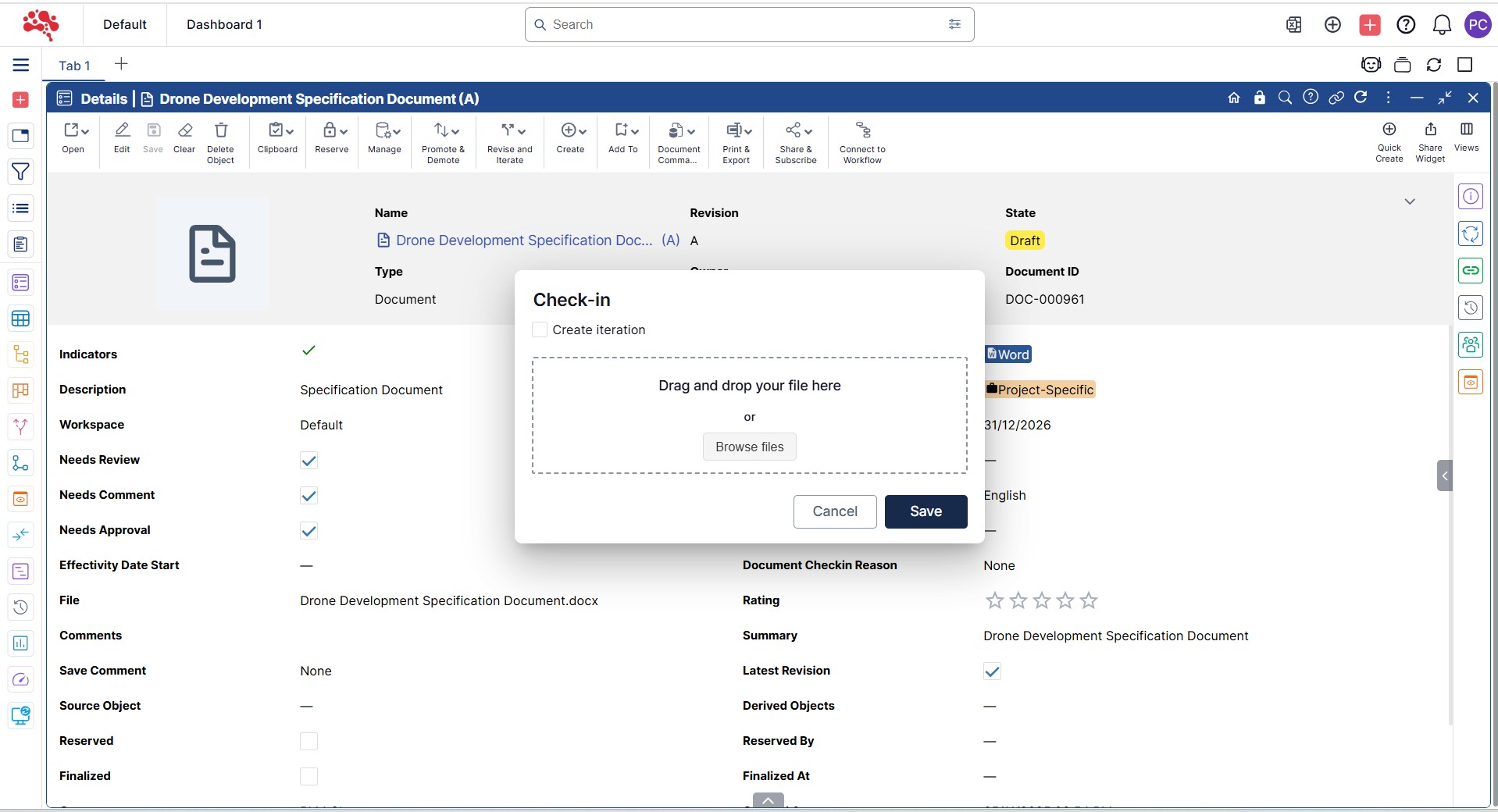
5. Browse or drag and drop the updated document for upload.
6. After selecting the file, choose “Create Iteration” to save it as a new version and complete the Check-In process.
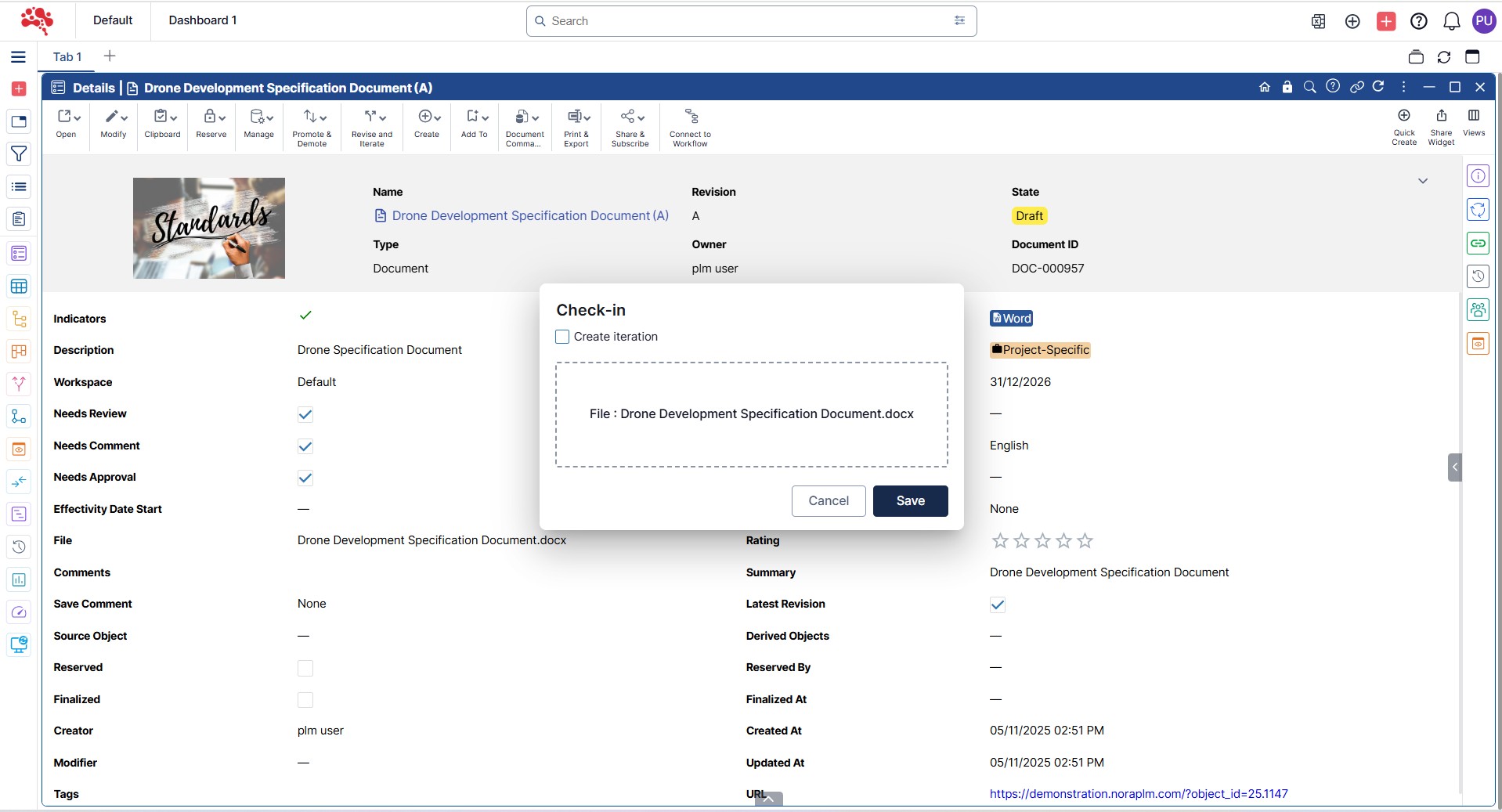
7. The document has now been successfully updated and checked back into Nora IPLM.
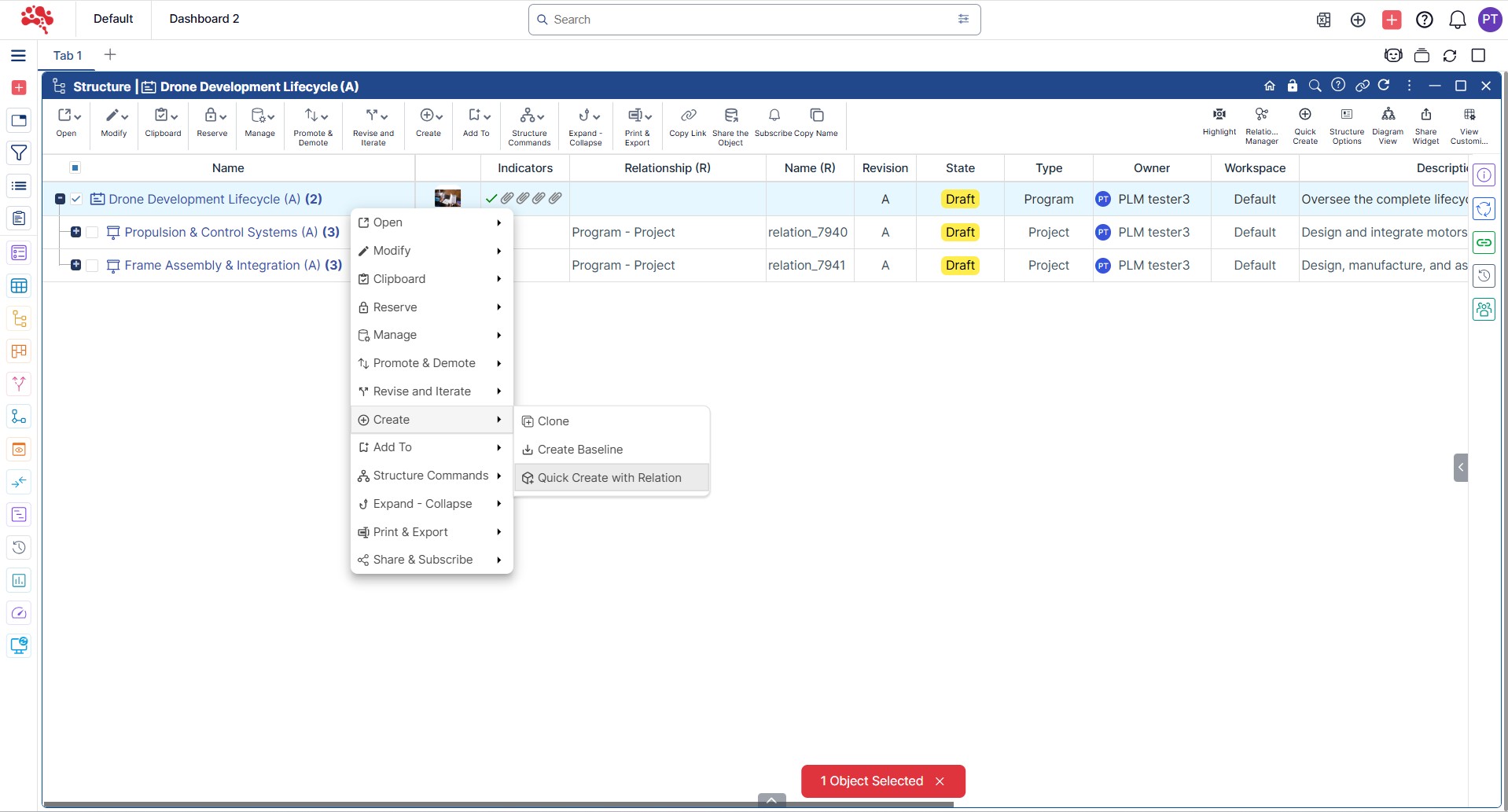
How to Connect Documents to an Object
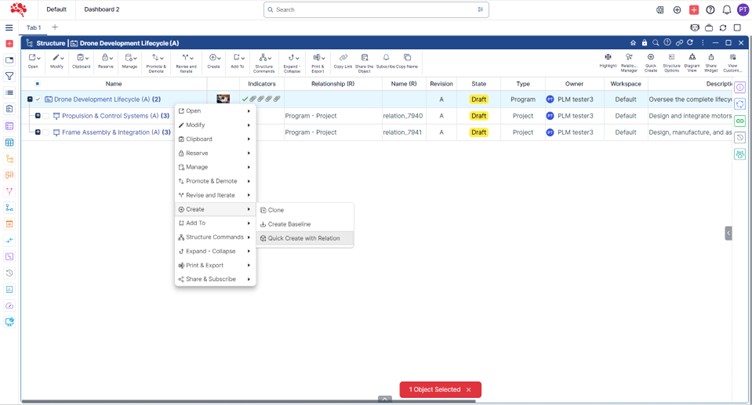
- Open the Program, Project, or Item to which you want to associate a document. In this Example: Open a Program, right-click, and select “Quick Create with Relations”.
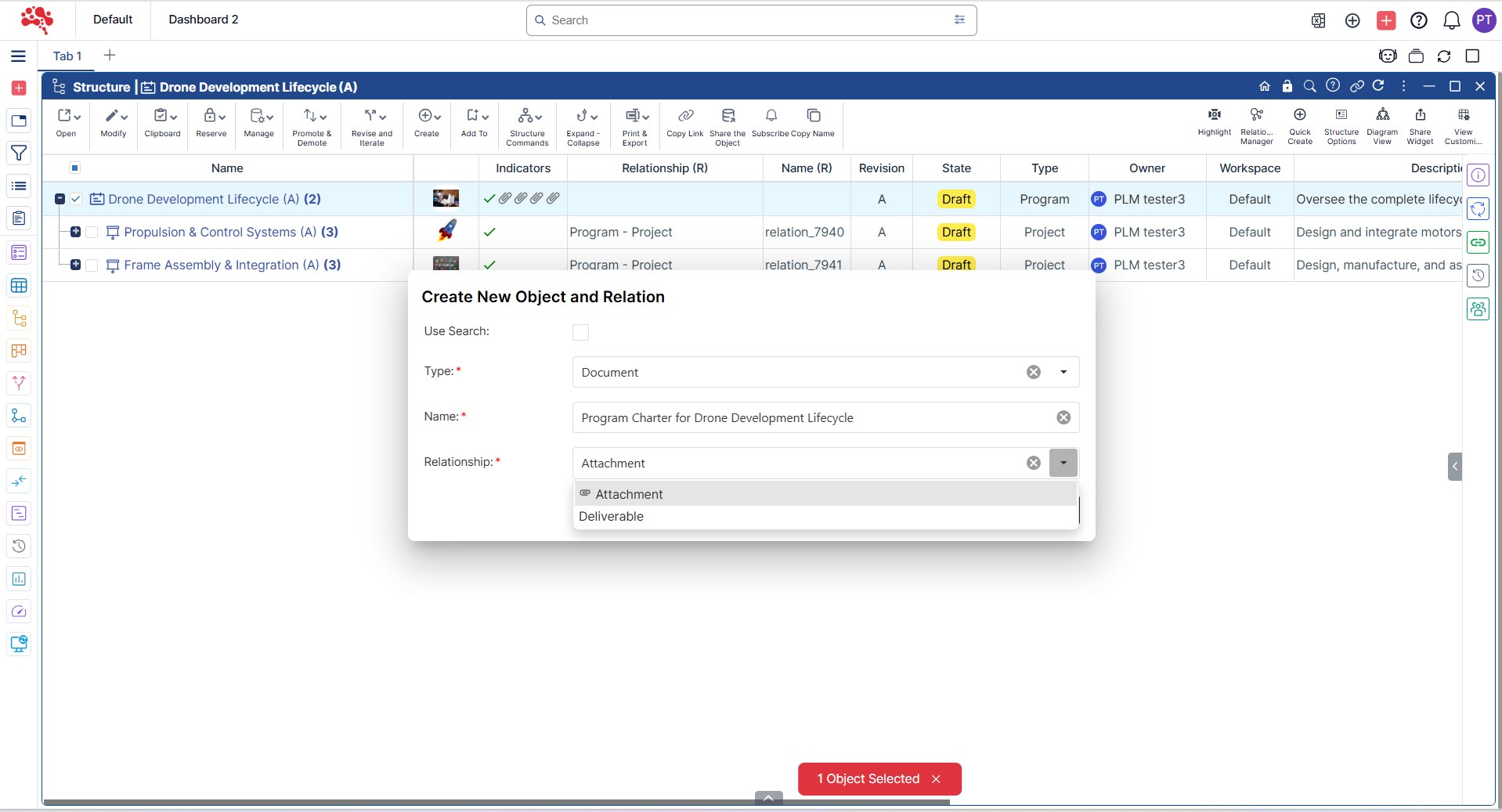
2. Set the Type as Document, provide a suitable name, and choose the correct Relationship type based on the document’s purpose.
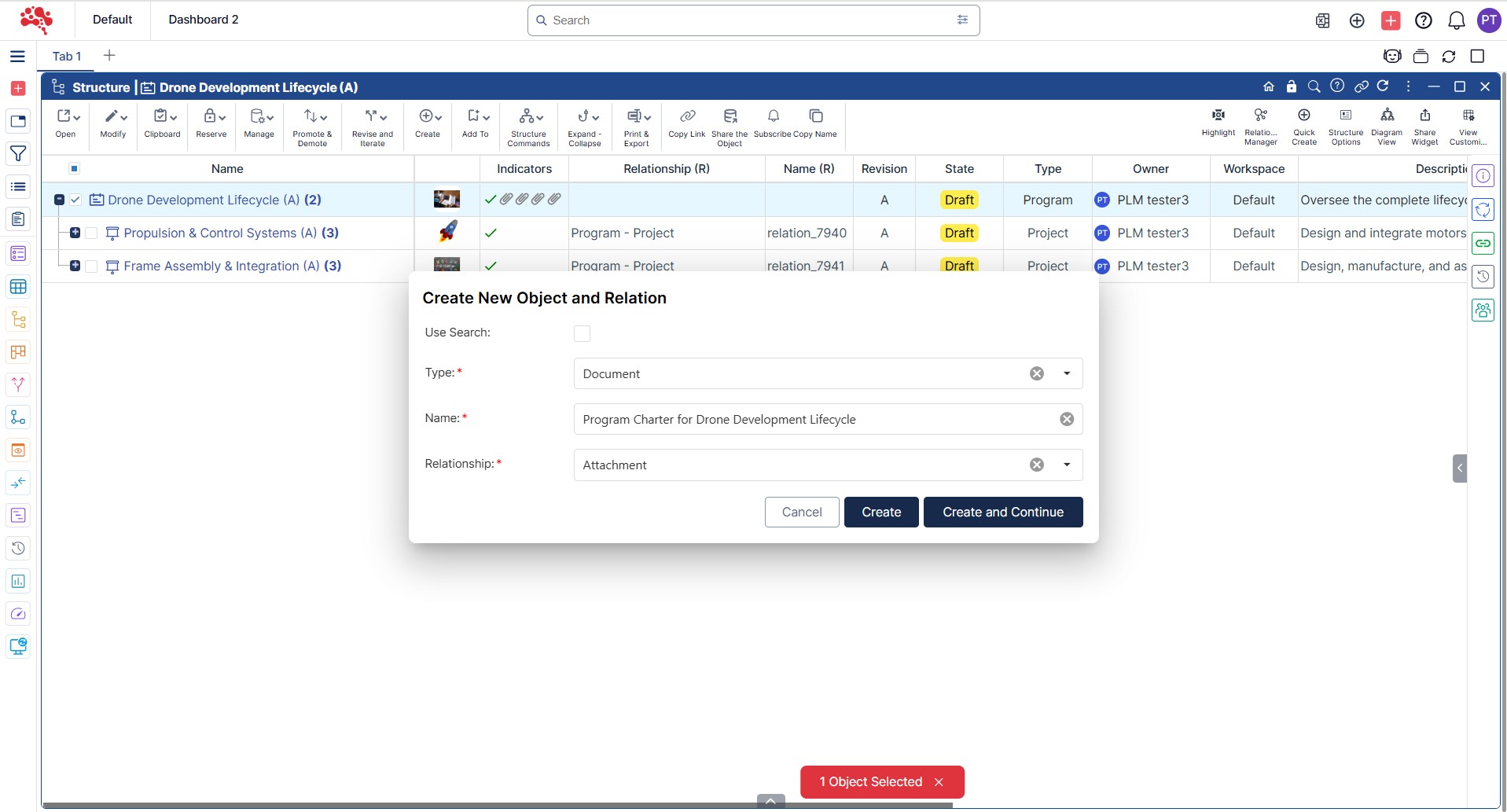
3. Click Create to confirm the document creation.
4. The new document is successfully created and linked.

5. Update the Relationship Manager filter to display the associated document in the structure view.

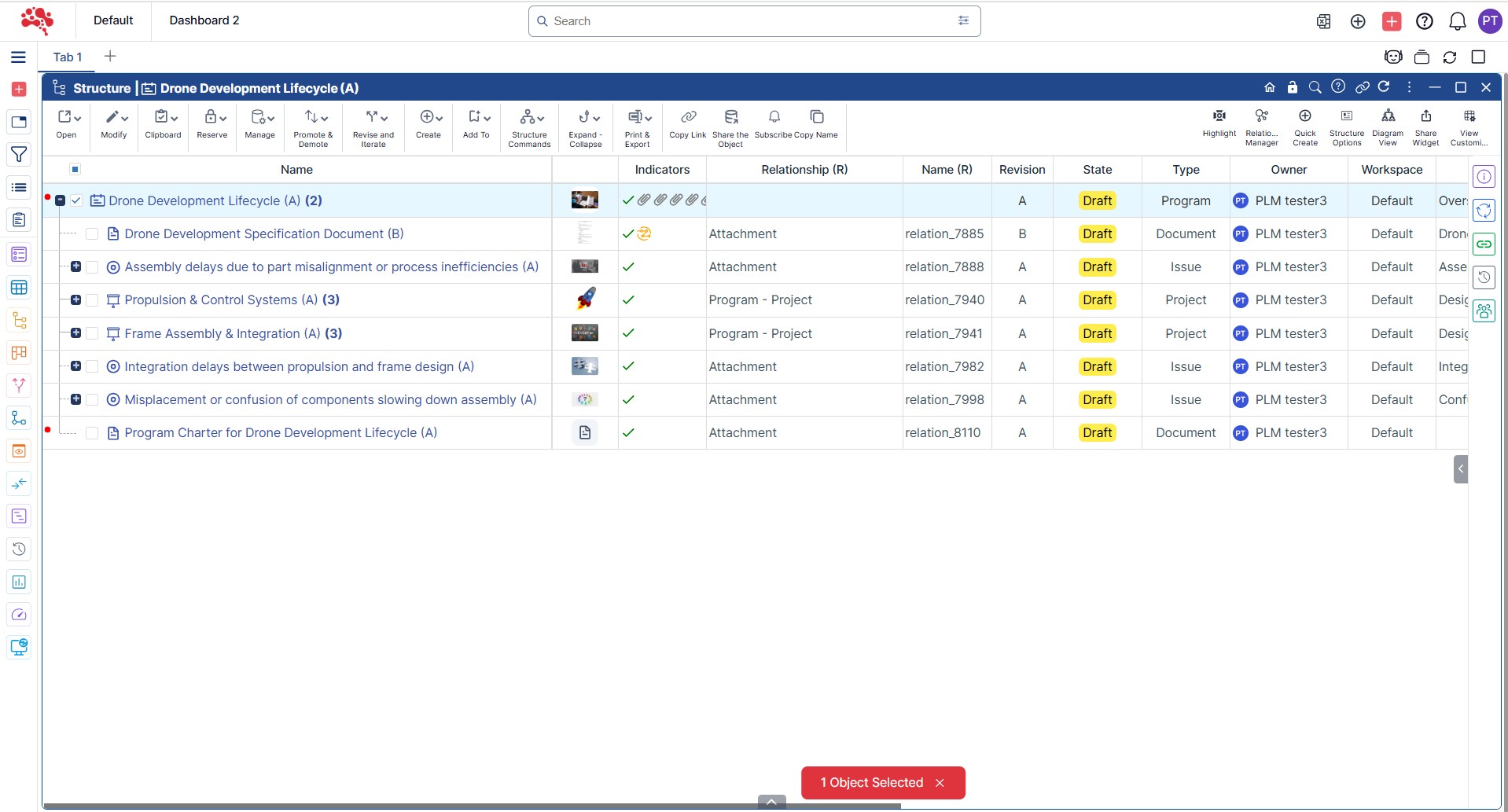
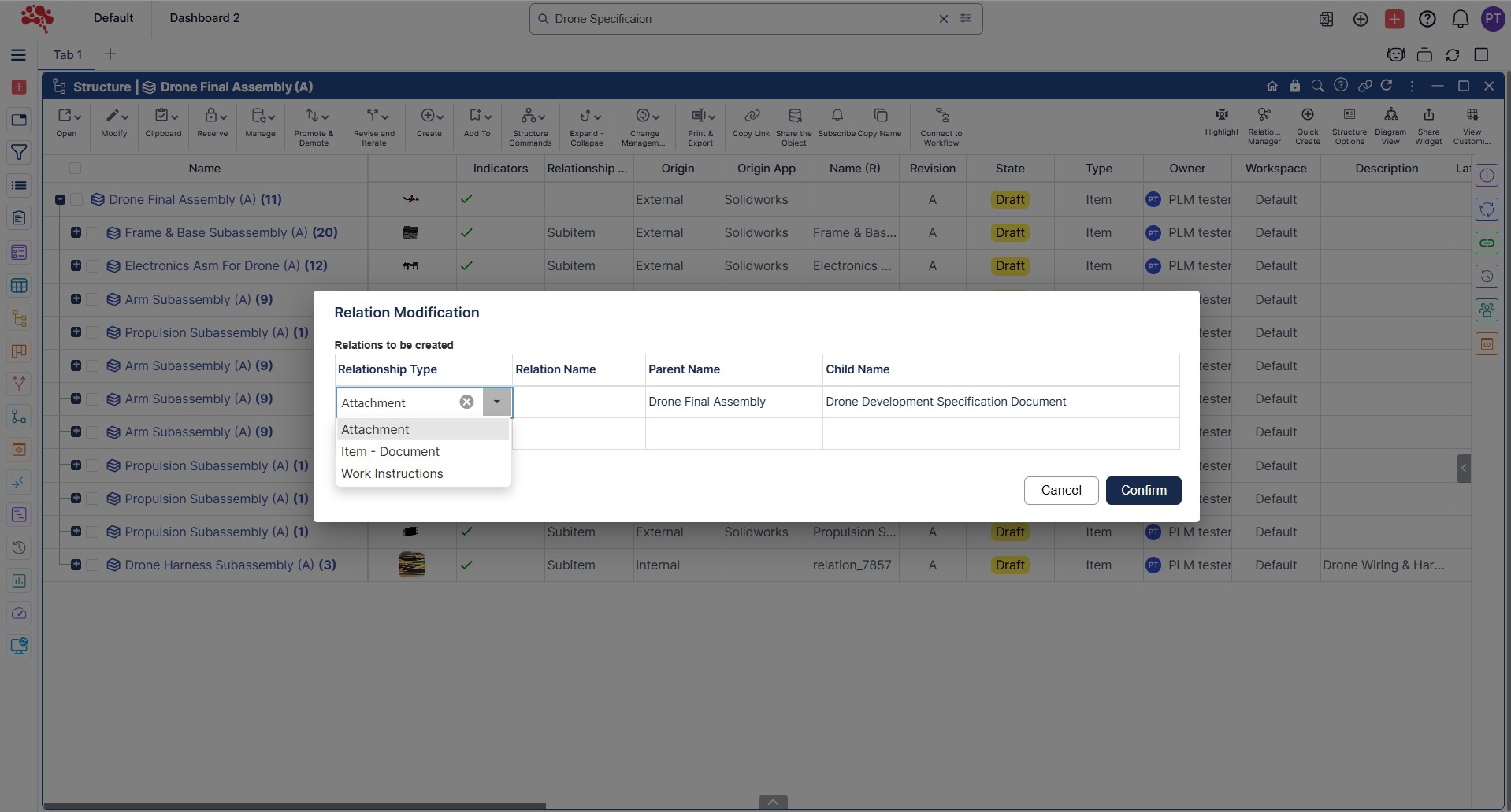
6. Alternatively, a document can be dragged and dropped directly onto an Item to automatically create a relation based on its type.
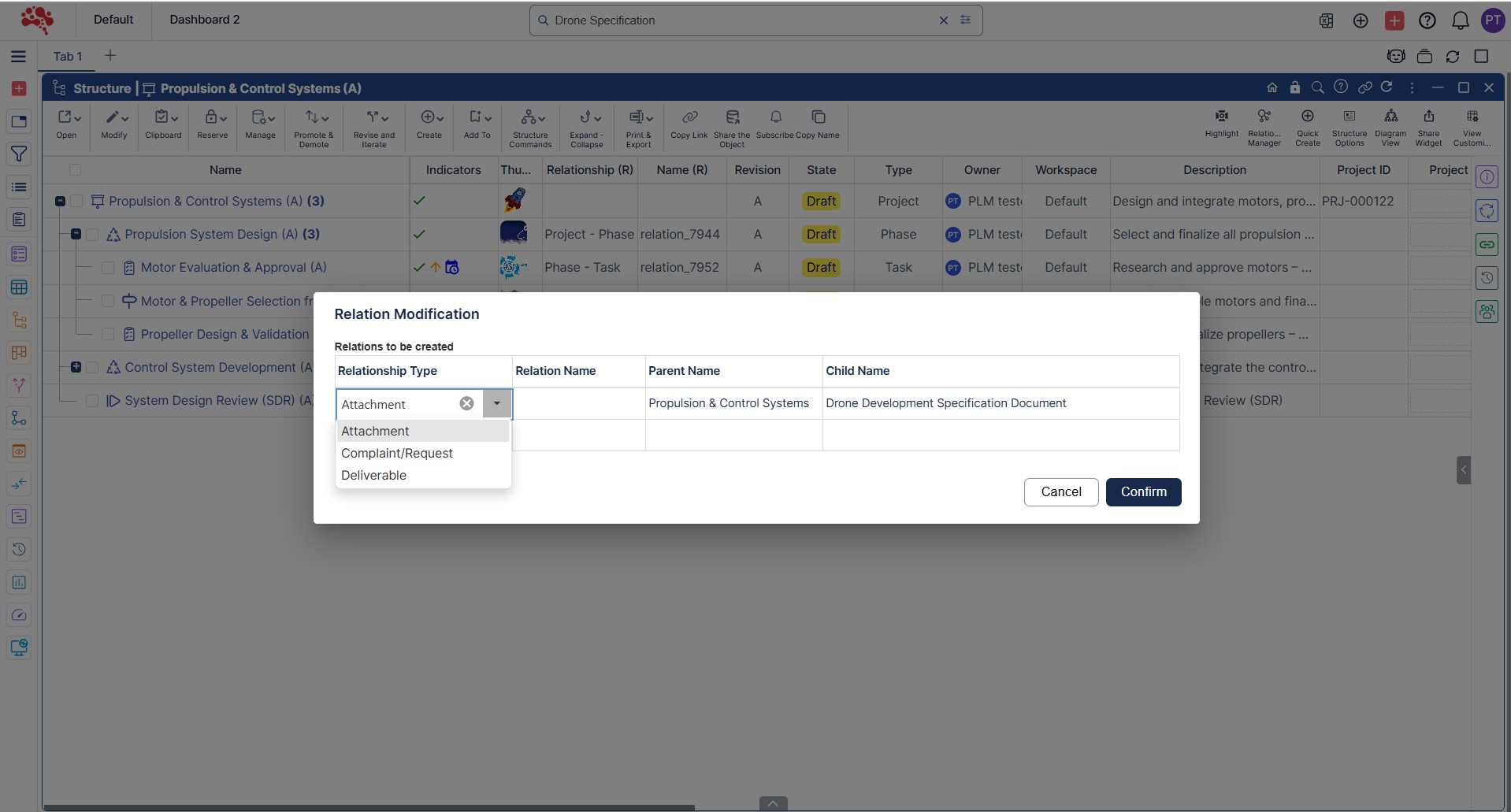
7. Similarly, a document can also be dragged and dropped to a Project, and the relation can be defined according to the document type.
Document Control Best Practices
- Use consistent document types and naming rules.
- Capture meaningful metadata instead of relying only on filenames.
- Connect documents to the product objects they support.
- Separate work-in-progress updates from released revisions.
- Use approval workflows for controlled specifications and instructions.
- Apply role-based access to sensitive or supplier-facing documentation.
- Preserve prior revisions rather than overwriting released files.
- Review related documents when an engineering change affects the product definition.
Strengthen Nora IPLM Context
Nora IPLM’s product model connects documents and files with items, BOMs, changes, tasks and other lifecycle objects. This makes Quick Create more than a shortcut: it helps users create controlled information in the product context where it is needed, reducing the gap between authoring a file and governing it as part of the product record.
Conclusion
By following these steps, you’ll gain a clear, repeatable process for creating documents using Quick Create in Nora IPLM – from naming, categorizing, and adding metadata, to linking files and defining permissions. The outcome is an efficient, consistent document-management workflow where important information is captured correctly and securely, helping your team collaborate faster, make better decisions, and maintain compliance.
Ready to streamline how you manage your documentation? Start using Quick Create today and let Nora IPLM elevate the way you create, organize, and share your documents.
See the consequence before you commit to the change
Discover how Nora IPLM Knowledge Thread turns connected product data into a traceable AI Change Impact Simulation, from qualified evidence and visual propagation to alternate-item, carbon, and AI-assisted analysis.


