
Introduction
Every successful product evolves through iterations, feedback, and controlled adjustments. In Part 1 of this guide, you will learn how to start a structured change process in Nora IPLM by creating a change request and clearly defining what needs to change.
Changes are constant. Requirements shift, suppliers replace parts, and design reviews uncover issues. Nora IPLM turns that activity into an organized flow where every change has a reason, an owner, and a clear history.
You can capture proposed changes in one place, route them for review, and connect each change to affected items so nothing gets lost. Built in change specific commands, workflows, versioning, and traceability give engineers and managers the context they need to understand impact, estimate cost, and make confident decisions.
Whether you are initiating an engineering change, reviewing impact, or closing out approvals, Nora IPLM keeps the process transparent and aligned with your product and business goals.
Let’s start now.
What Is an Engineering Change Request (ECR)?
An Engineering Change Request is a controlled record used to propose and evaluate a product change before implementation is authorized. It captures why the change is needed, what product data may be affected, who needs to review it, and the information required to decide whether the request should proceed.
Clarify ECR vs ECO
| ECR | ECO |
Purpose | Evaluate a proposed change | Authorize and control implementation |
Main question | Should we make this change? | How will the approved change be executed? |
Typical content | Reason, scope, affected items, impact, reviewers | Implementation plan, resulting revisions, tasks, verification |
Nora guide | Part 1 | Part 2 |
What Information Should Be Ready Before Creating the Change Request?
- Clear problem statement or reason for the proposed change.
- Known affected item, assembly, BOM, document or product area.
- Requested operation such as revise, replace or another configured action.
- Change type/category used by your organization.
- Supporting evidence such as issue details, supplier notice, test result, drawing or customer requirement.
- Initial view of urgency, risk and stakeholders who should review the request.
How to Create a Change Request and connect an Affected item?
- Open the Affected Item that is to be connected to a Change process in a structure Widget.
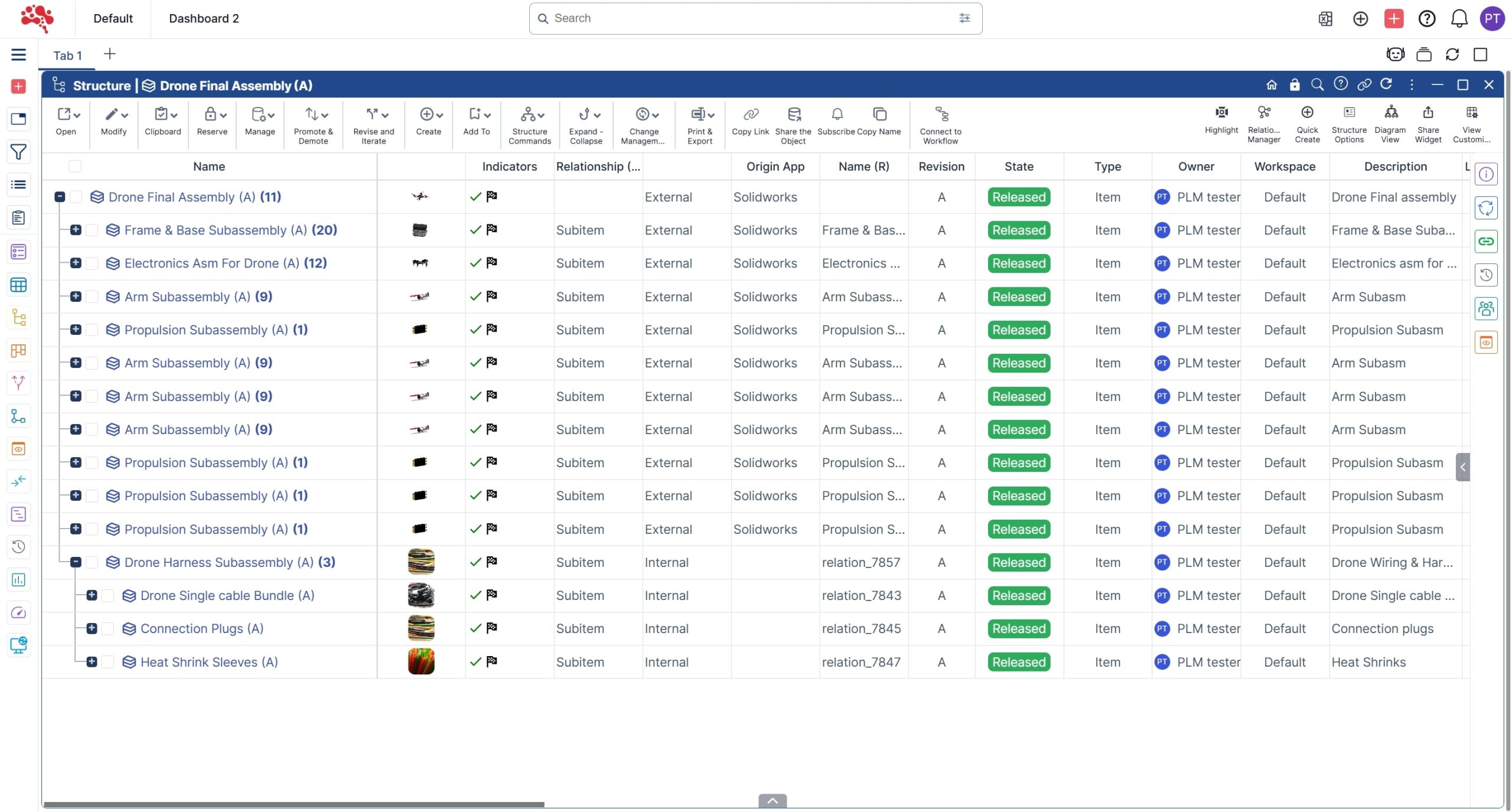
2. Select the Affected Item and connect it to the new Change Request.
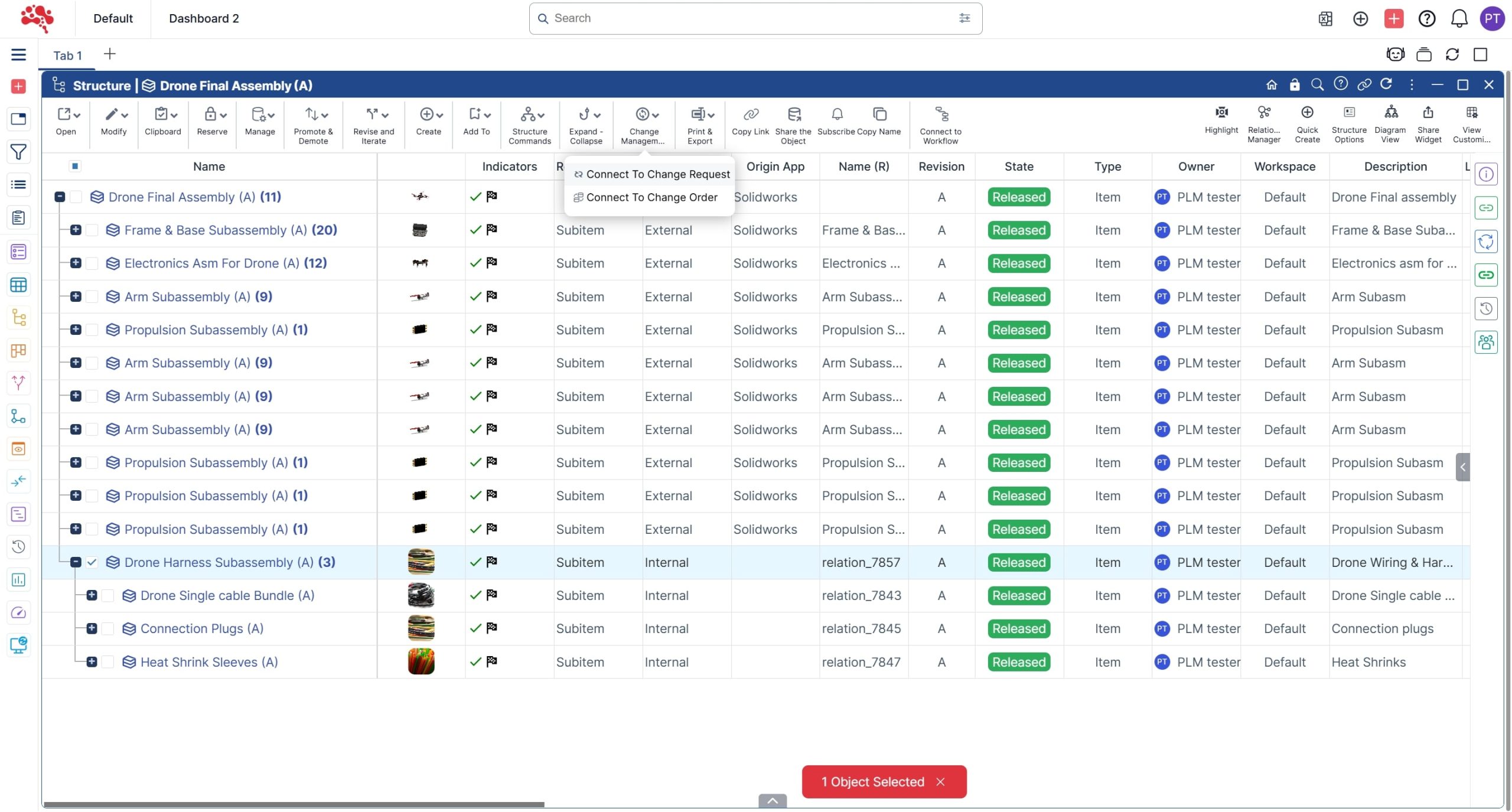
3. In the “Connect to Change Request” pop-up, enter an appropriate name and a suitable Operation Category.

4. Select the operation category as “Revise” to revise the released affected item and apply changes/modifications. Click on Create initiate the Change request.

5. Change Request created successfully.
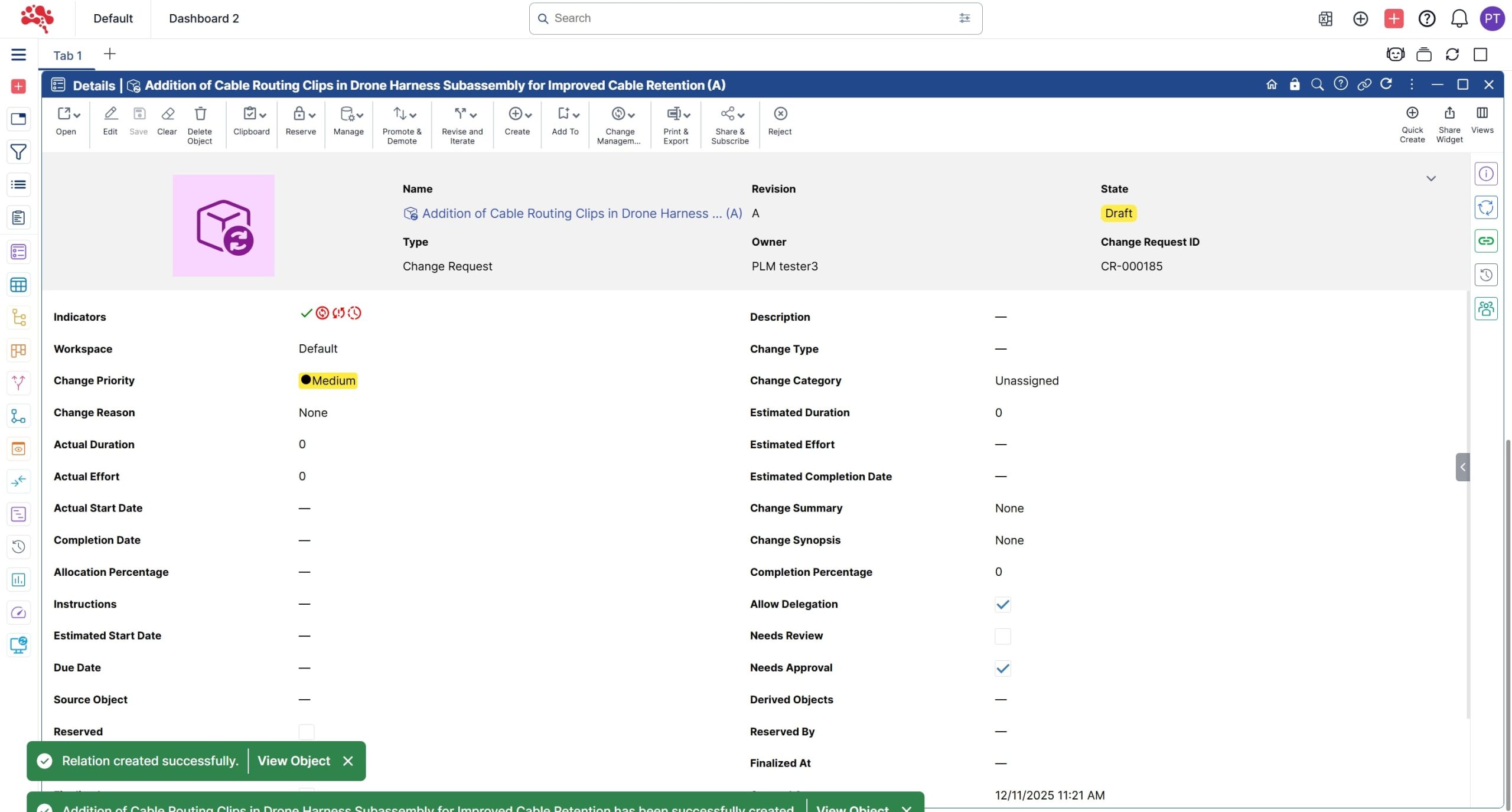
6. Click the Edit to update Change Request details and specifications.
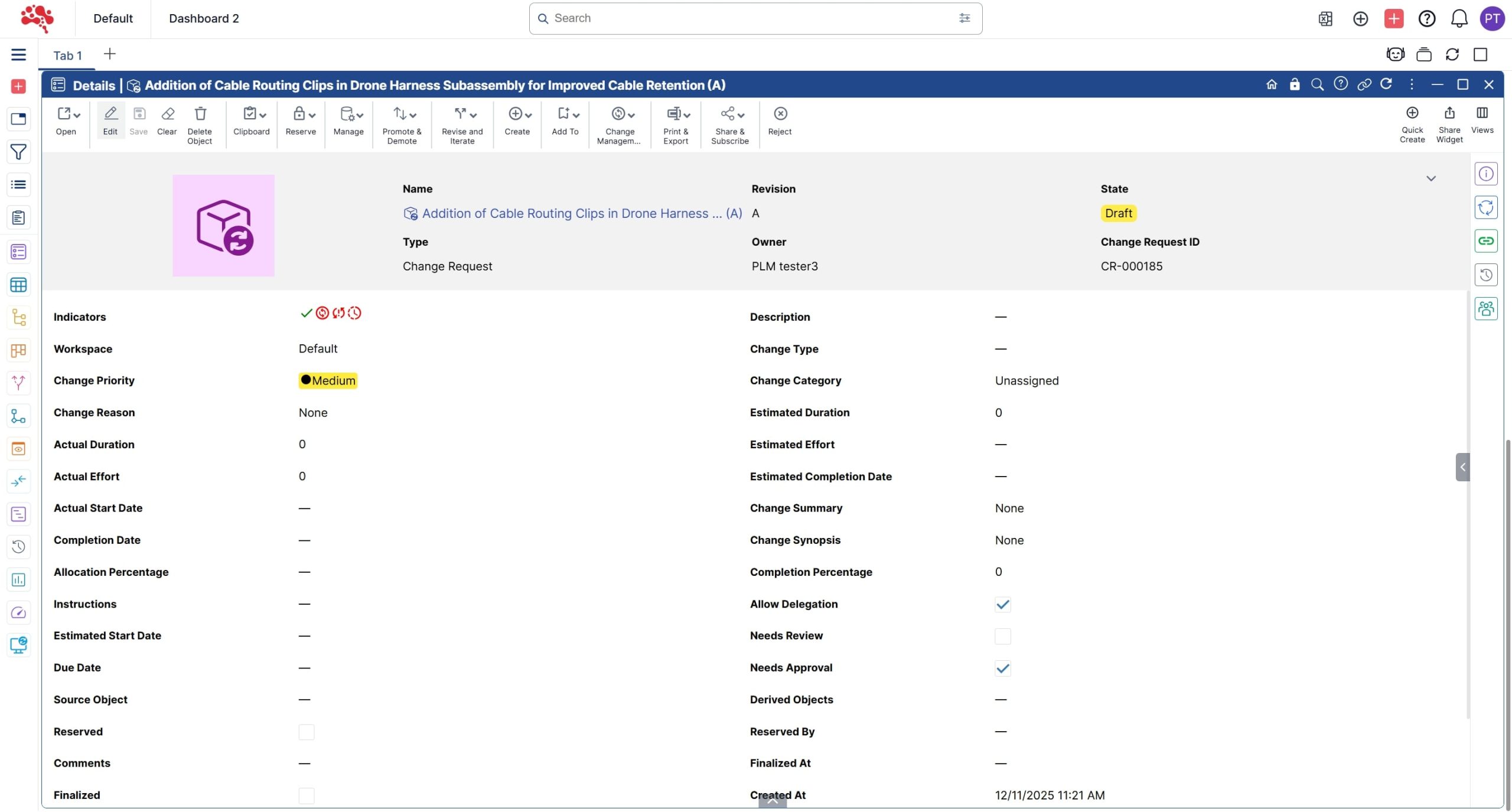
7. Add an appropriate Description and select the relevant Change Type.
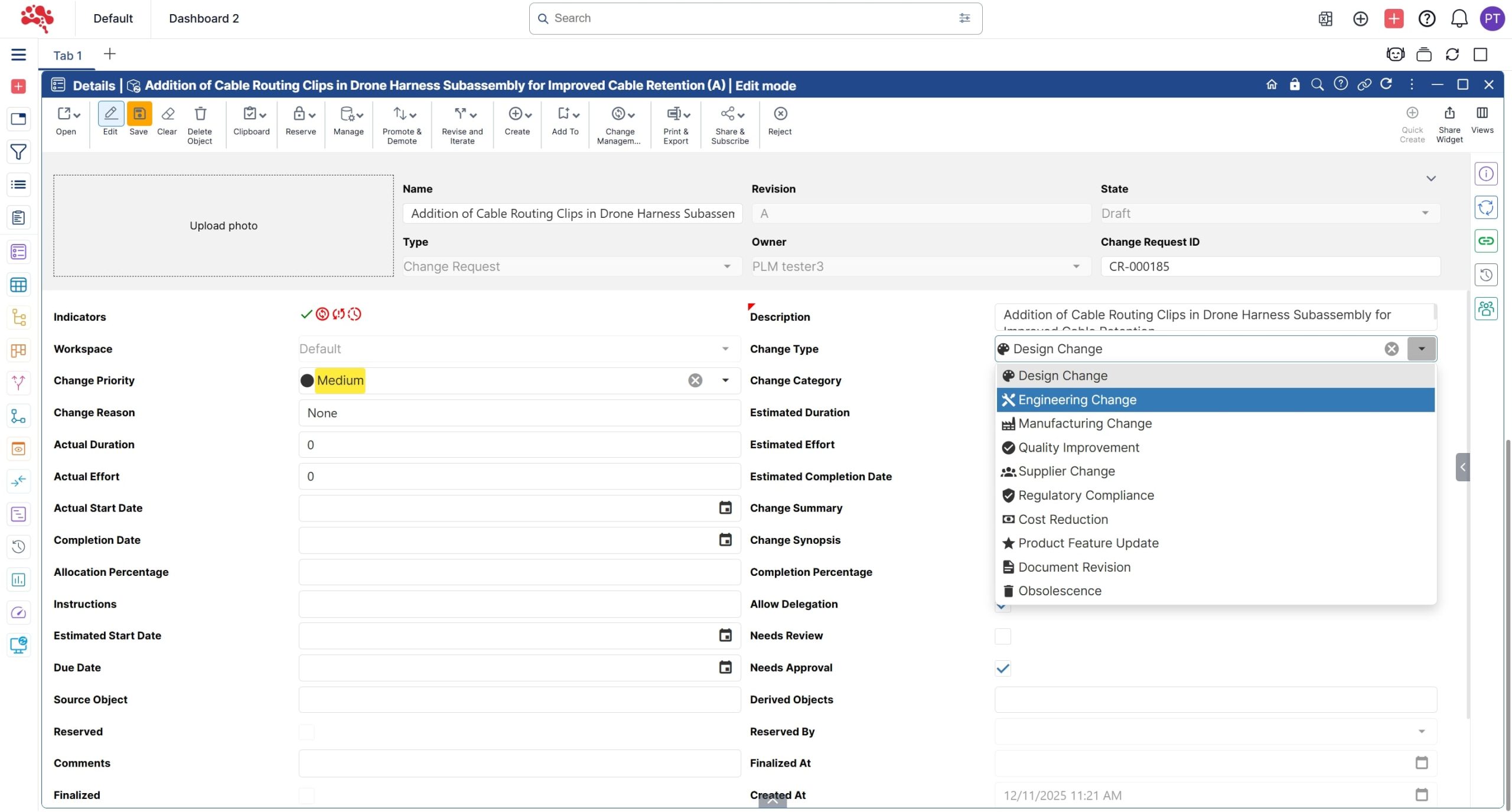
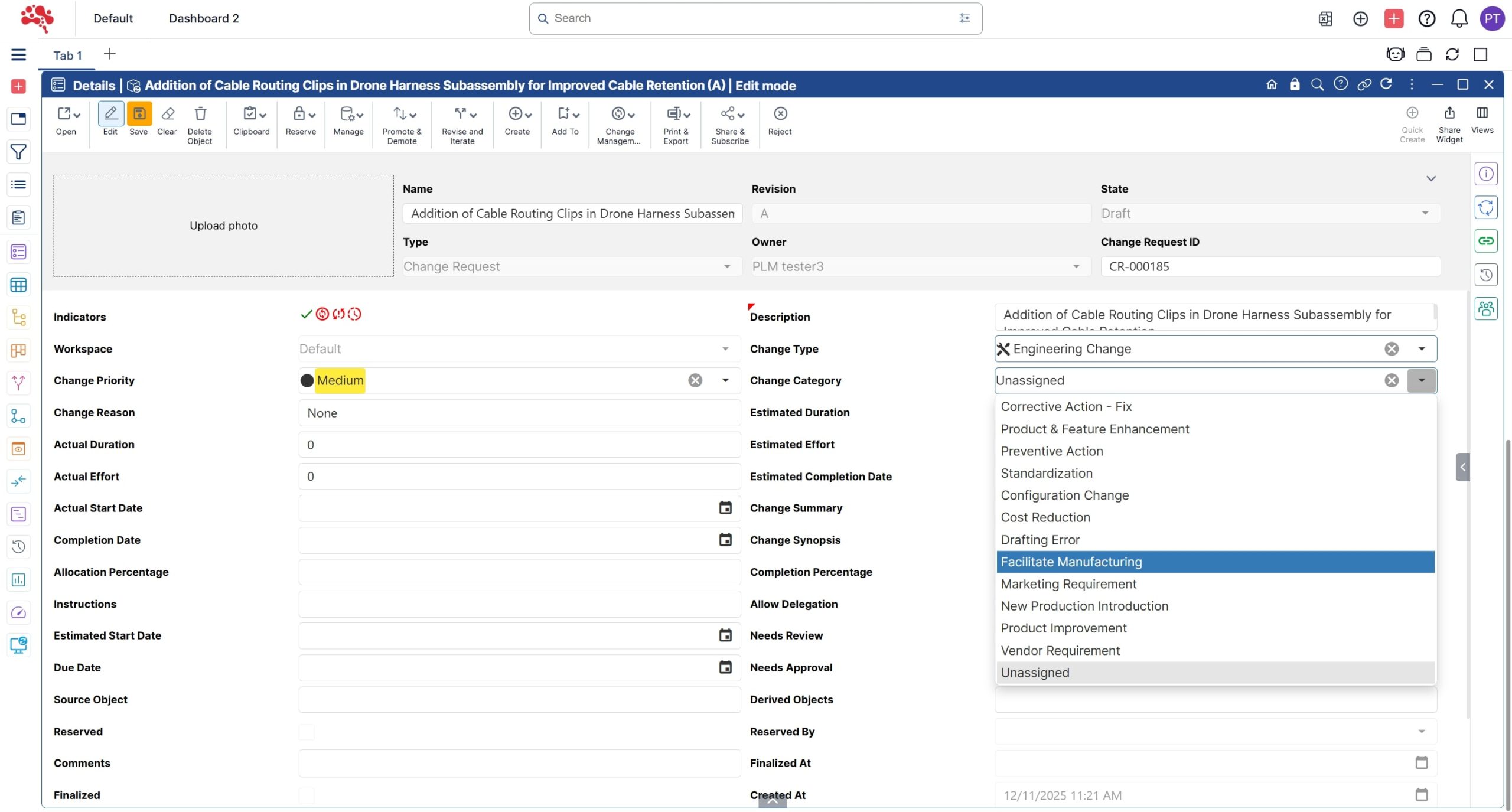
8. Similarly, select an appropriate Change Category.
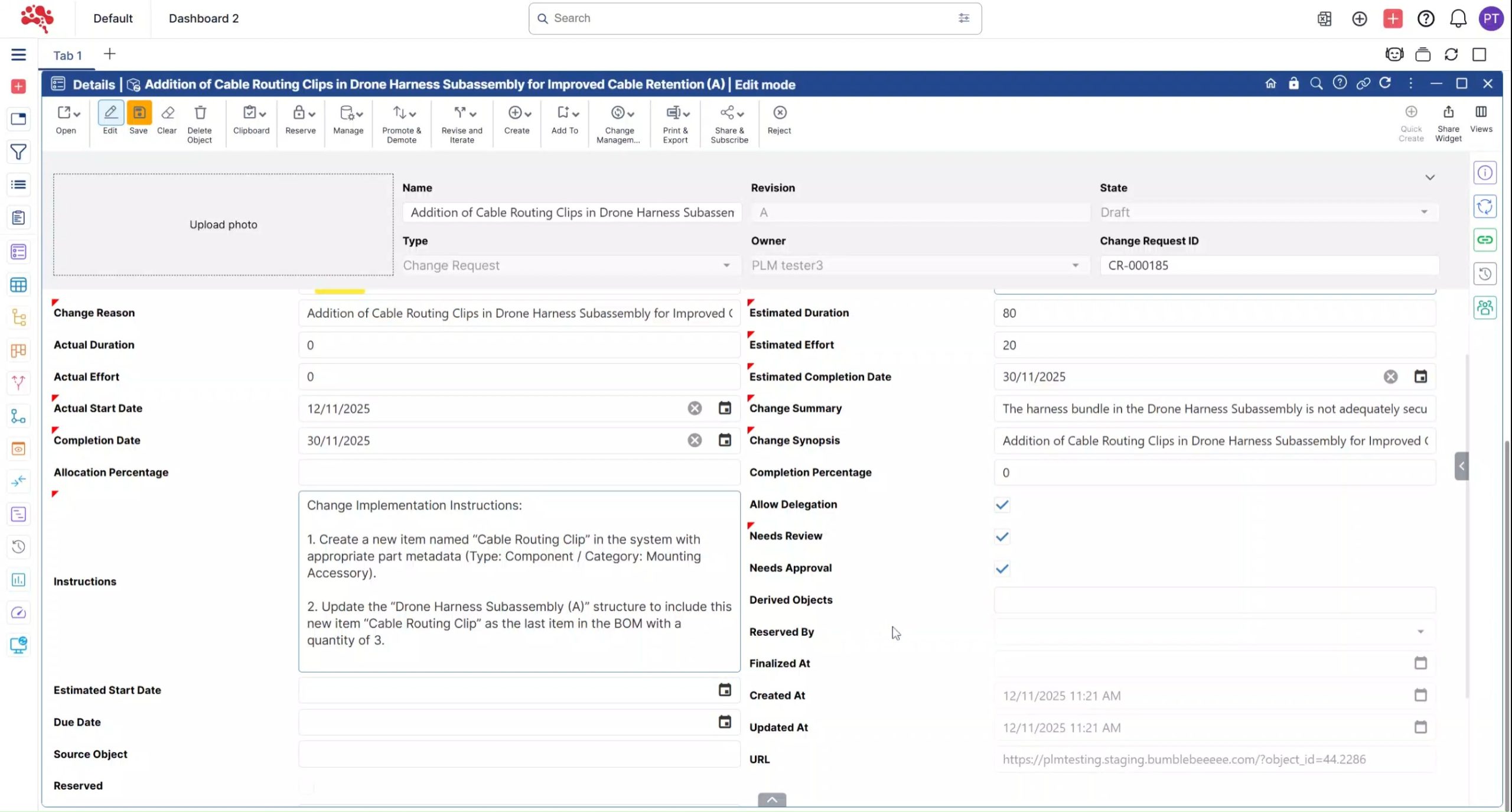
9. Add all the remaining details and include clear instructions outlining the objective and the actions required to complete this Change Request.
10. After adding all relevant details and specifications, click Save to update the Change Request.
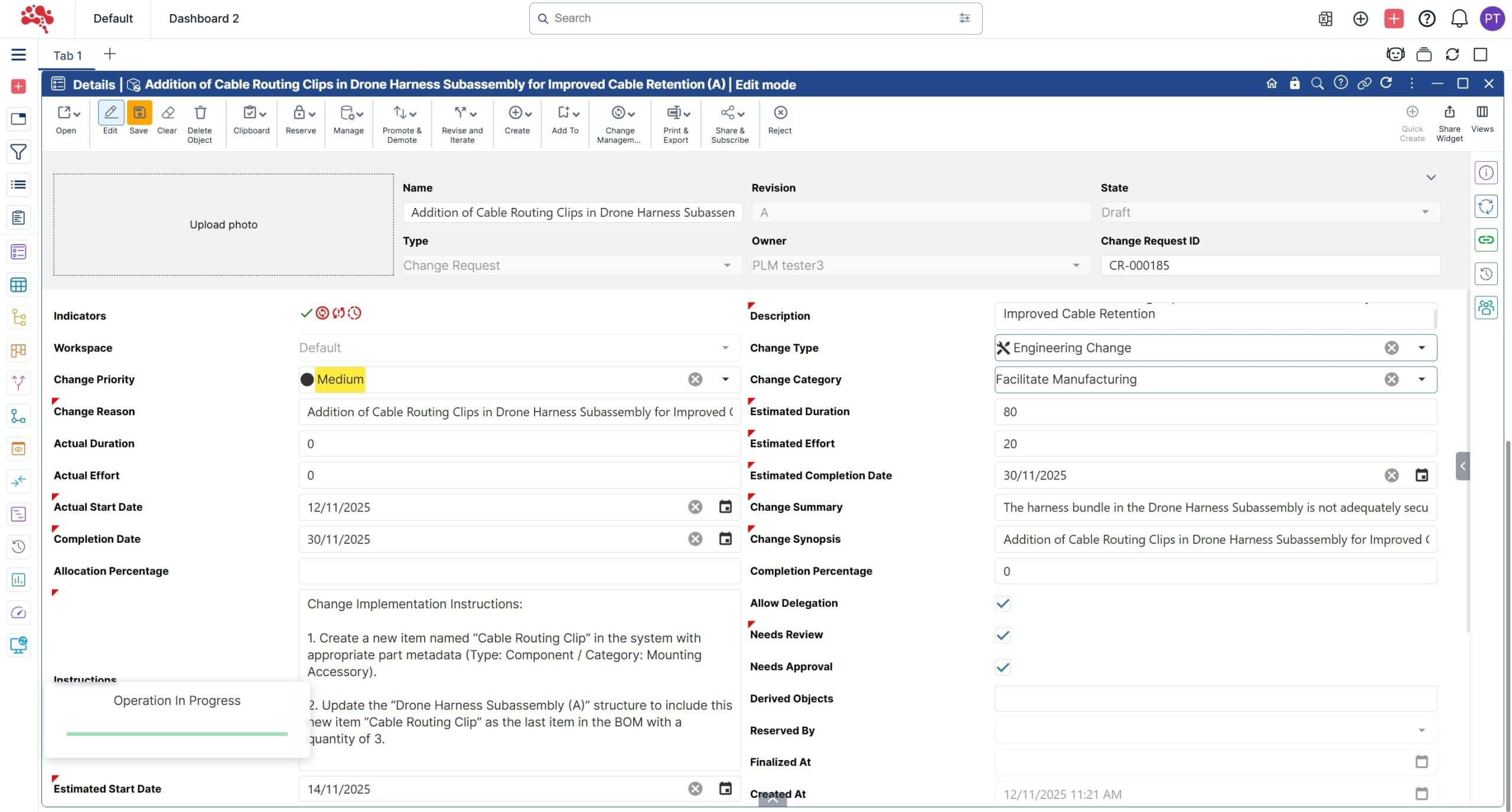
11. Change Request updated successfully.
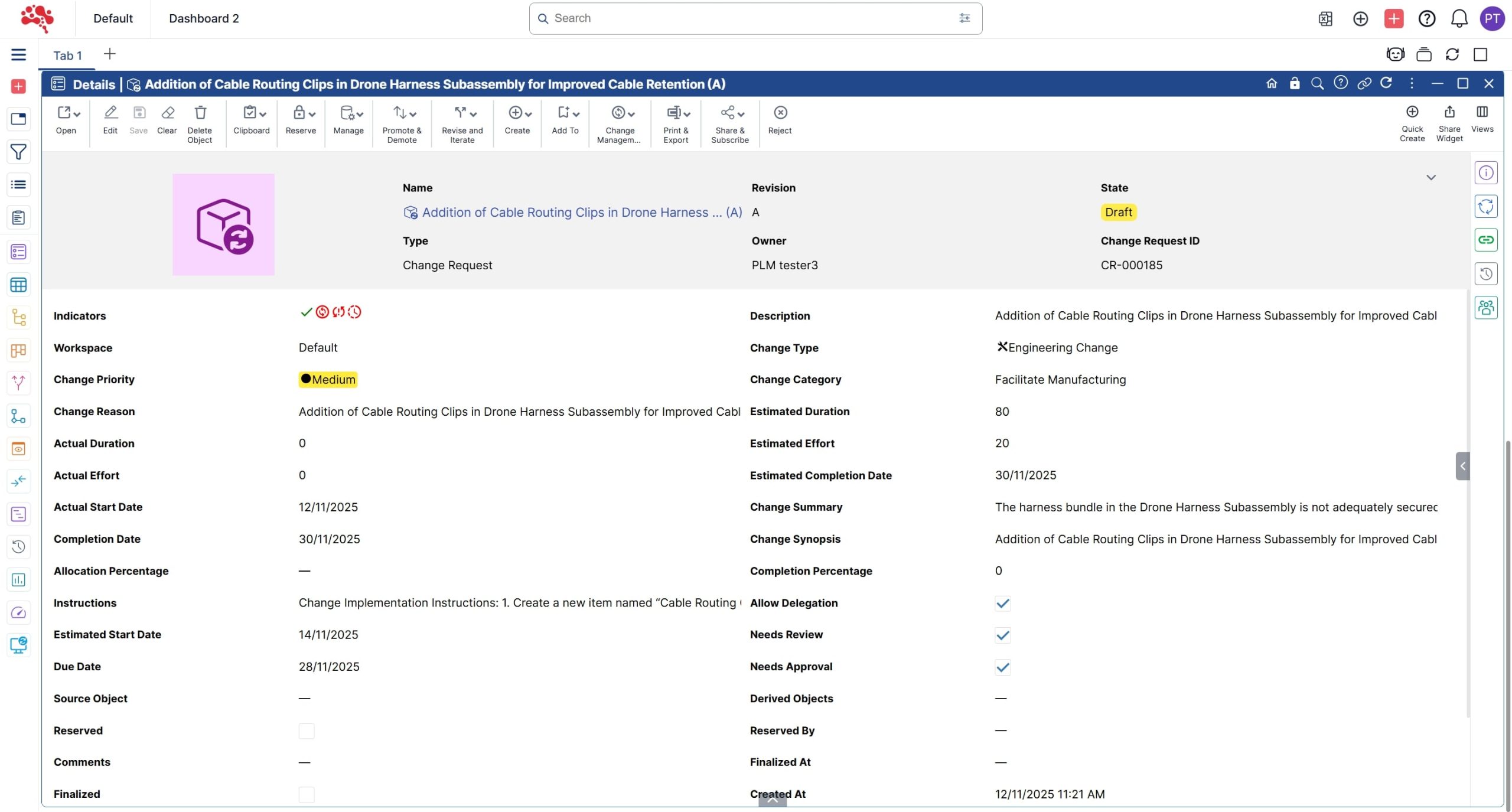
12. Click on “Affected Items” tab of the relations pane of the “Change Request” to verify that the correct item is added.
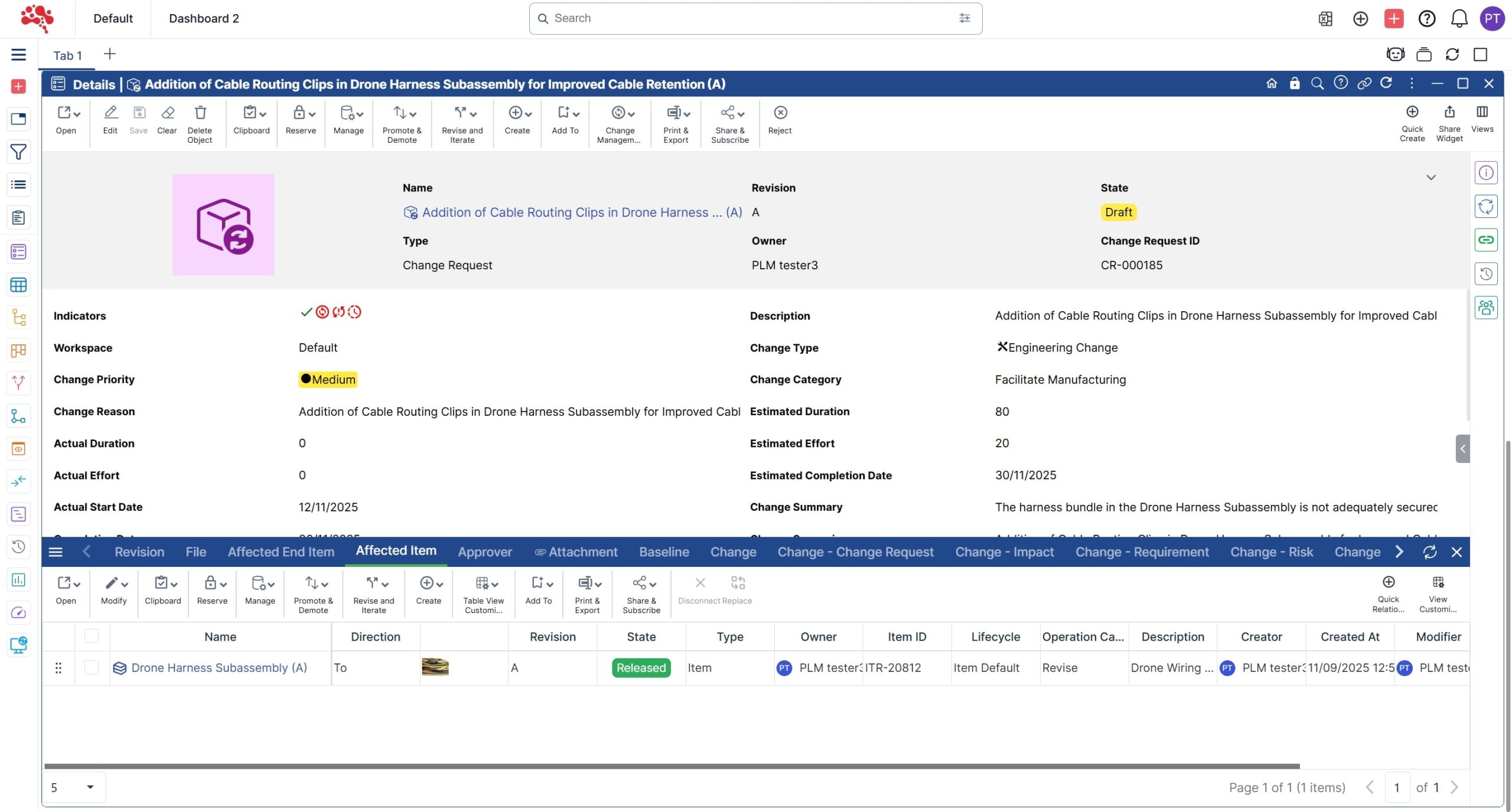
Why Connecting Affected Items Matters
Affected items turn a change request from a generic approval record into a product-context record. Reviewers can see what the proposal touches, investigate where the item is used, understand related BOMs and documents, and assess downstream exposure before authorizing implementation.
How to share the Change request and request for approval?
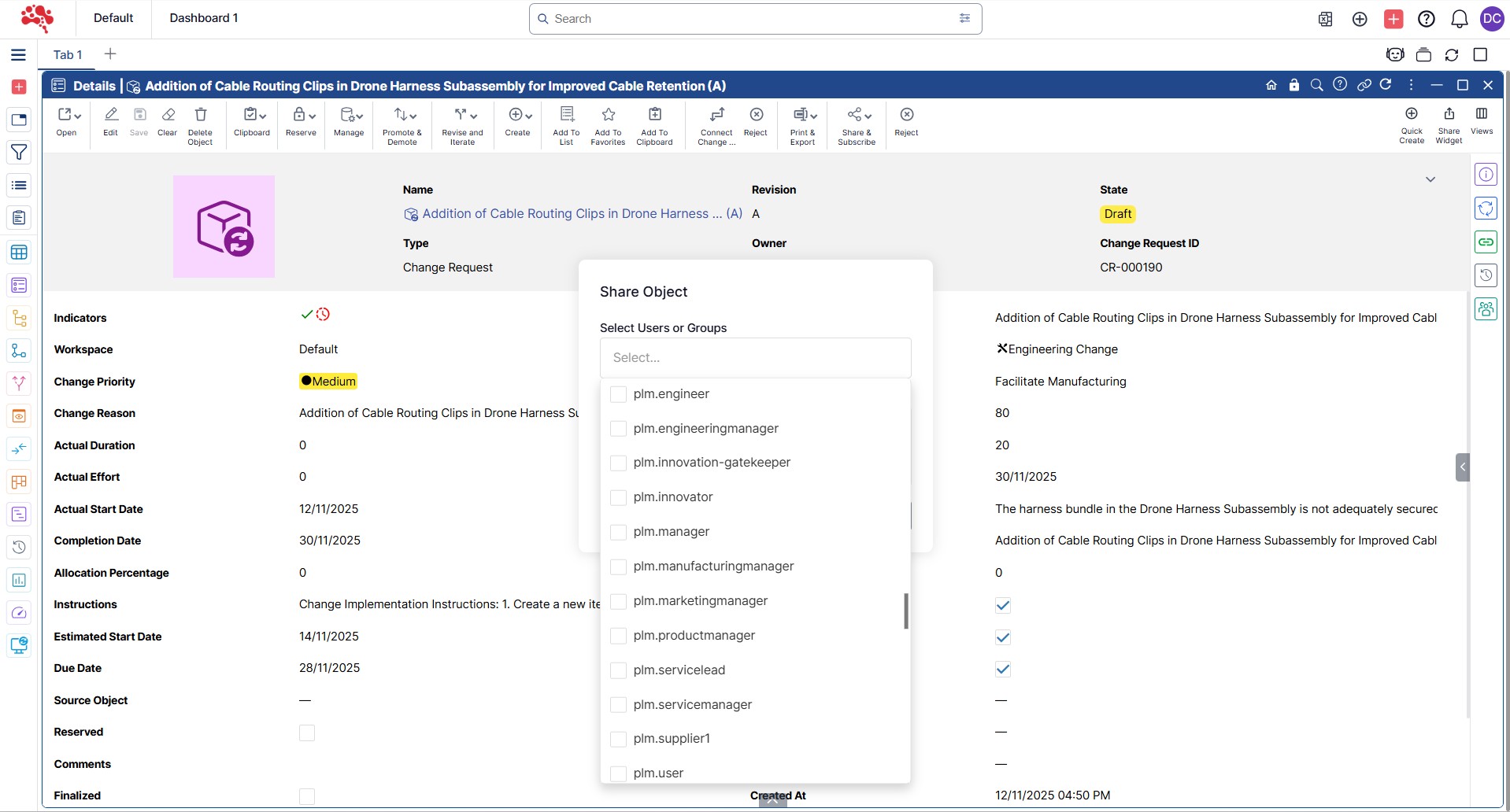
1. Click Share Object to distribute the Change Request with collaborators.

2. Select the appropriate users or groups to share the Change Request.
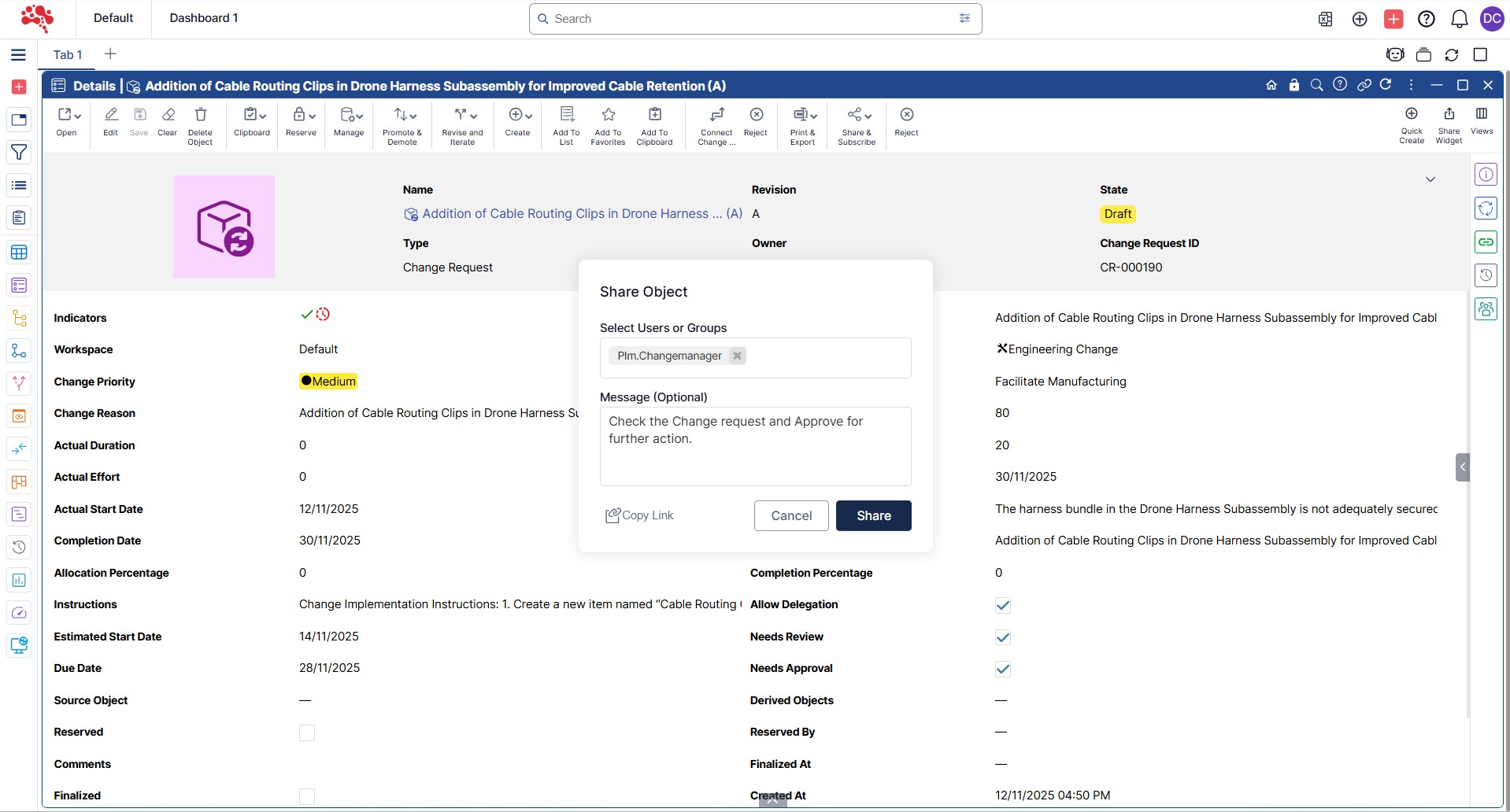
3. After adding a message, click Share to send the Change Request to the selected users.
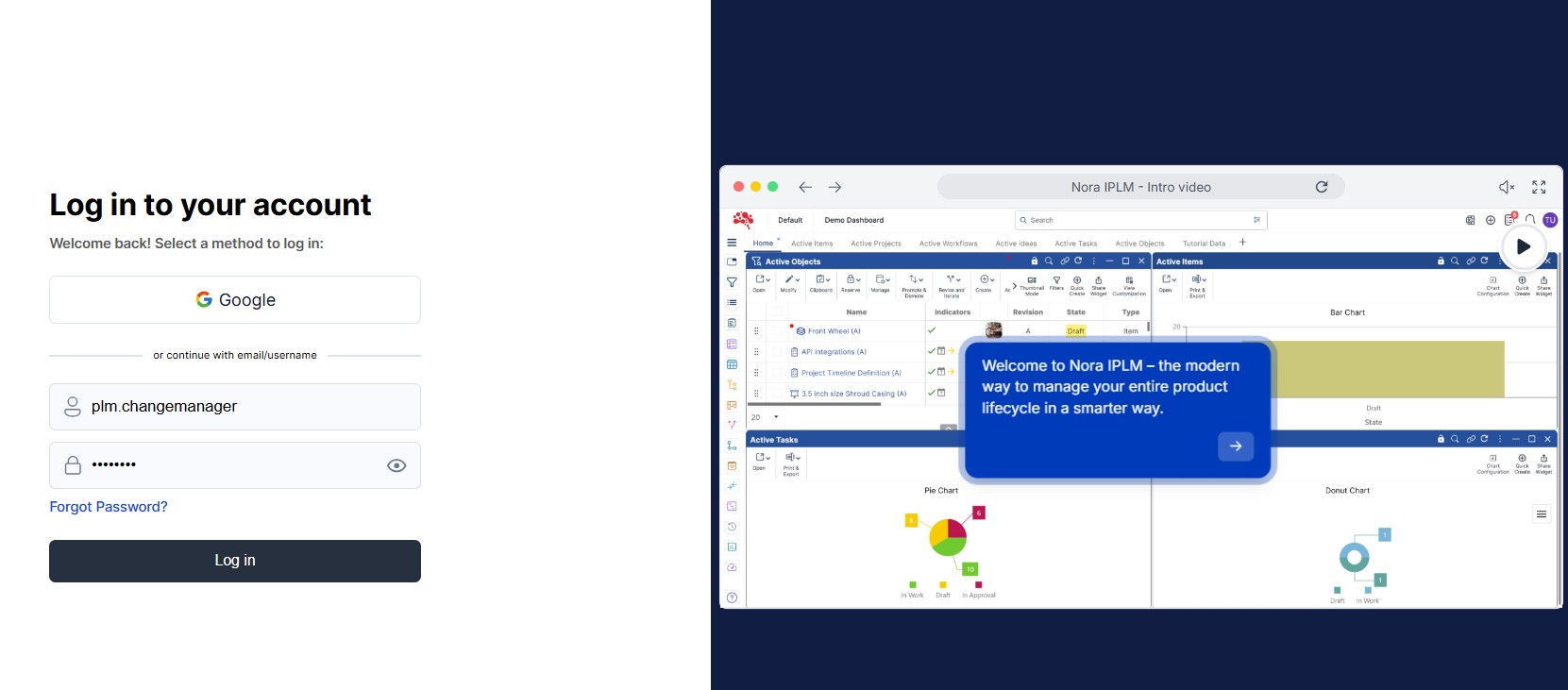
4. Click the Login button to authenticate and access your account to act on the Change Request.
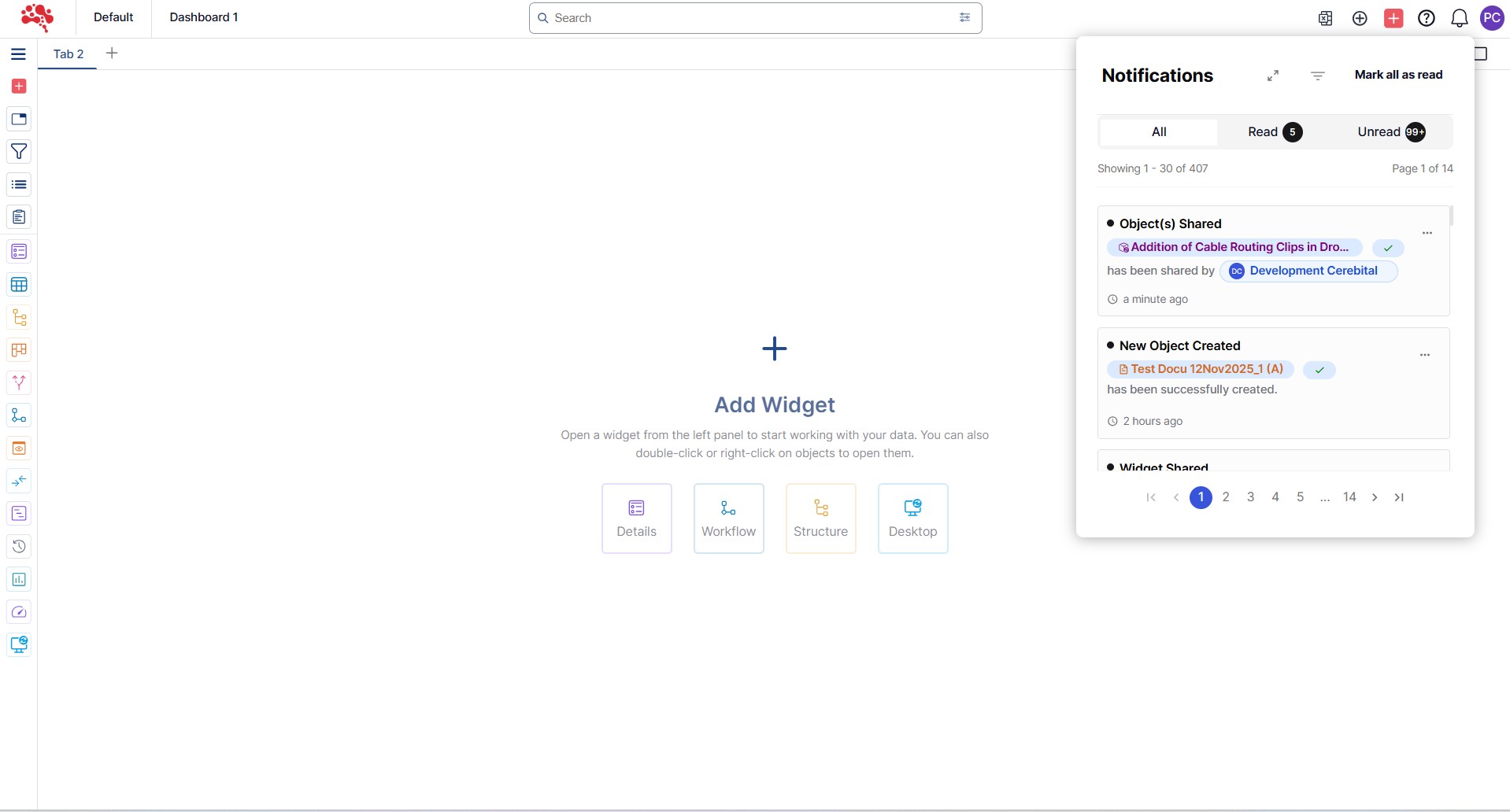
5. Click the notification to open the shared Change Request.
5. Review the change implementation instructions and perform the tasks to complete the Change Task.
Part 1: Completion Checklist
- The ECR clearly states why the change is needed.
- The correct affected item(s) are connected.
- Change type, category and operation are accurate.
- Instructions and supporting evidence are complete.
- Required reviewers or collaborators have access.
- The request is ready for an informed approval decision-not implementation yet.
Conclusion
These foundational actions set the stage for the next phase of the process – reviewing, approving, and executing the change. In Part 2, we’ll walk through how to approve a change request, create a change order, assign tasks, and carry the change through to completion with full traceability.
With Nora IPLM, change management becomes a strategic advantage, empowering you to innovate faster while maintaining product quality and compliance.
Ready to bring more clarity and control to your product structure workflow?
Start with these steps and let Nora IPLM turn complexity into confidence. Try now FREE for 30-Days
See the consequence before you commit to the change
Discover how Nora IPLM Knowledge Thread turns connected product data into a traceable AI Change Impact Simulation, from qualified evidence and visual propagation to alternate-item, carbon, and AI-assisted analysis.


