
Introduction
Designs move quickly in SolidWorks. Sometimes you need to add an item that wasn’t in the original model. Nora IPLM makes that simple.
Extend product structures imported from SolidWorks directly in your PLM workspace. Add new items and subcomponents, including software items and documents, keep them linked to your CAD data, and keep the structure complete and accurate.
Whether you are building a BOM, managing design changes, or planning production, Nora IPLM keeps your structure organized, current, and ready for what comes next.
Now, let’s walk through how to do this step by step.
Why Add Non-CAD Items to a SolidWorks-Integrated Product Structure?
CAD assemblies rarely represent every item needed to define a complete product. A product structure may also need software, documents, supplier-related records, materials, packaging, purchased components, or other non-CAD items that do not originate directly from the SolidWorks model.
Adding these items in the PLM-controlled structure allows engineering teams to keep the design view and the broader product definition connected. Instead of maintaining separate spreadsheets or disconnected records, the additional item can become part of the same governed structure used for BOM management, revisions, changes, and downstream collaboration.
What You Need Before You Start
- A SolidWorks structure already connected to Nora IPLM.
- Nora IPLM Desktop Services running on the workstation used for CAD integration.
- Access to the relevant Nora IPLM tenant and product structure.
- The correct item type and relationship type for the new record you want to add.
- Permission to create or update the target product structure.
How to Insert a New Item into a Structure Imported from SolidWorks
1. Open the “Drone Final Assembly” in the Structure Widget.
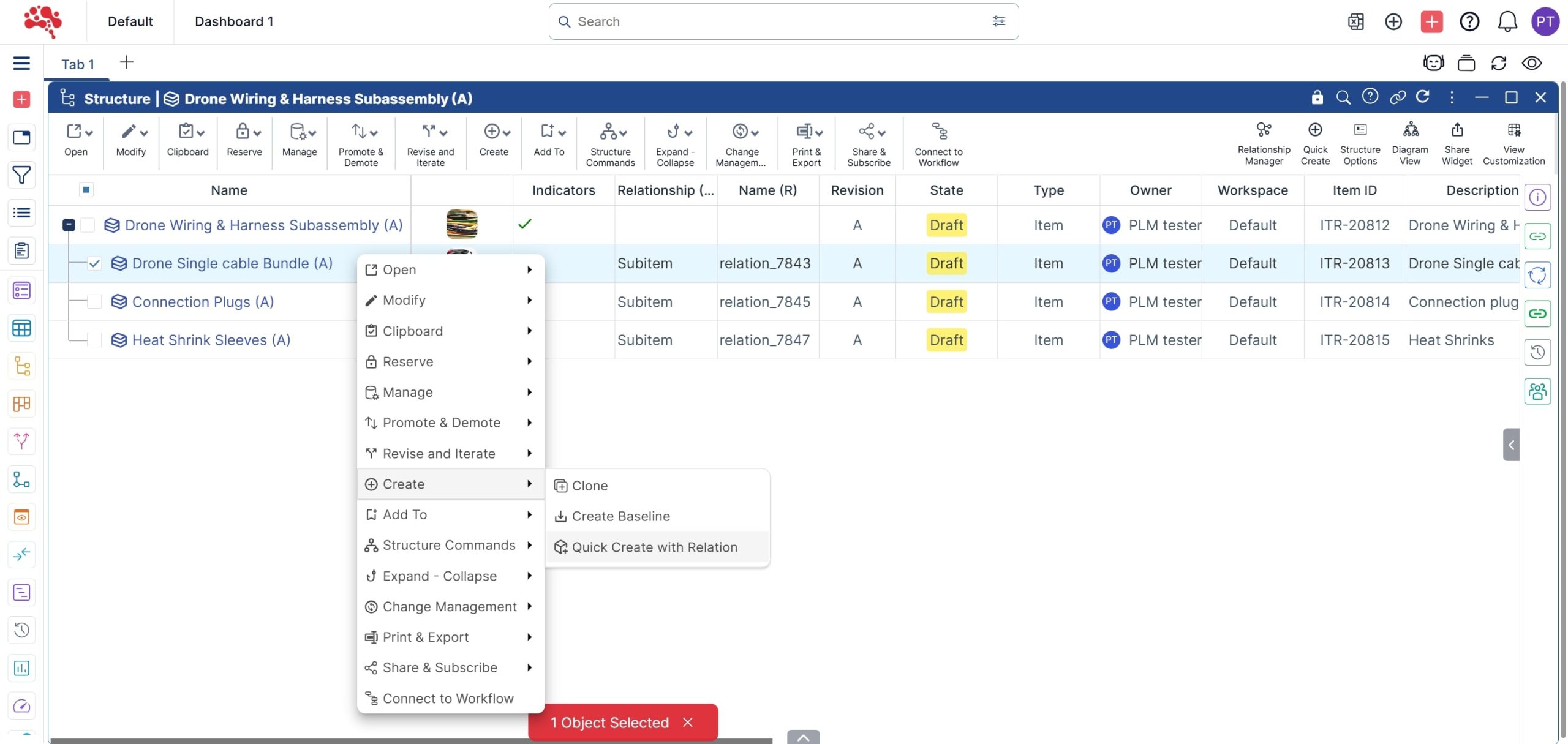
2. Right-click on the root item and select “Quick Create with Relation
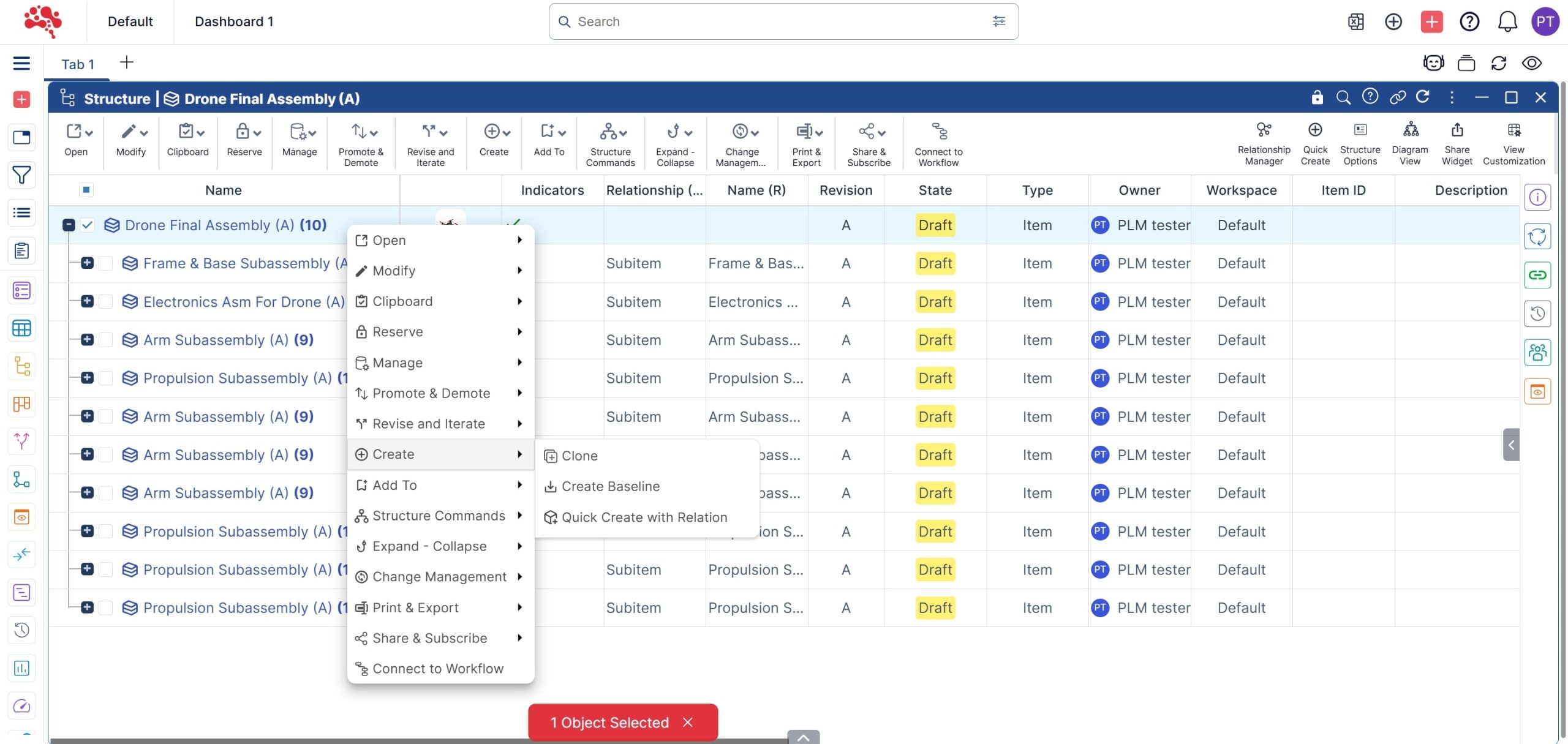
3. In the pop-up box, select the Type as Item, enter an appropriate Name, choose the desired Relationship Type, and click Create to add the new item as a sub-item.

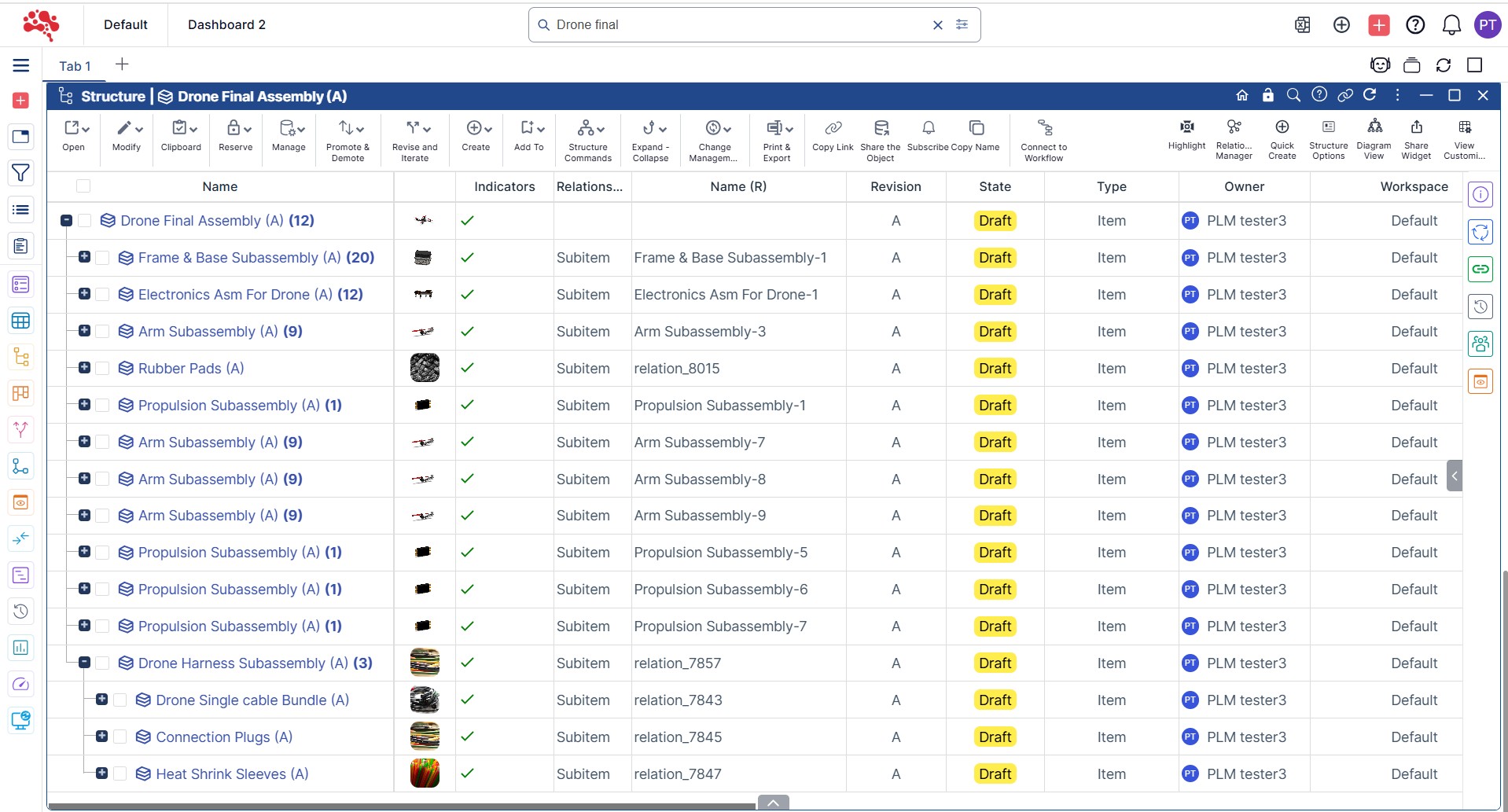
4. The new Sub-item is now successfully added to the root item

5. Similarly, use “Quick Create with Relation” to add additional sub-items under the Drone Harness Subassembly as required
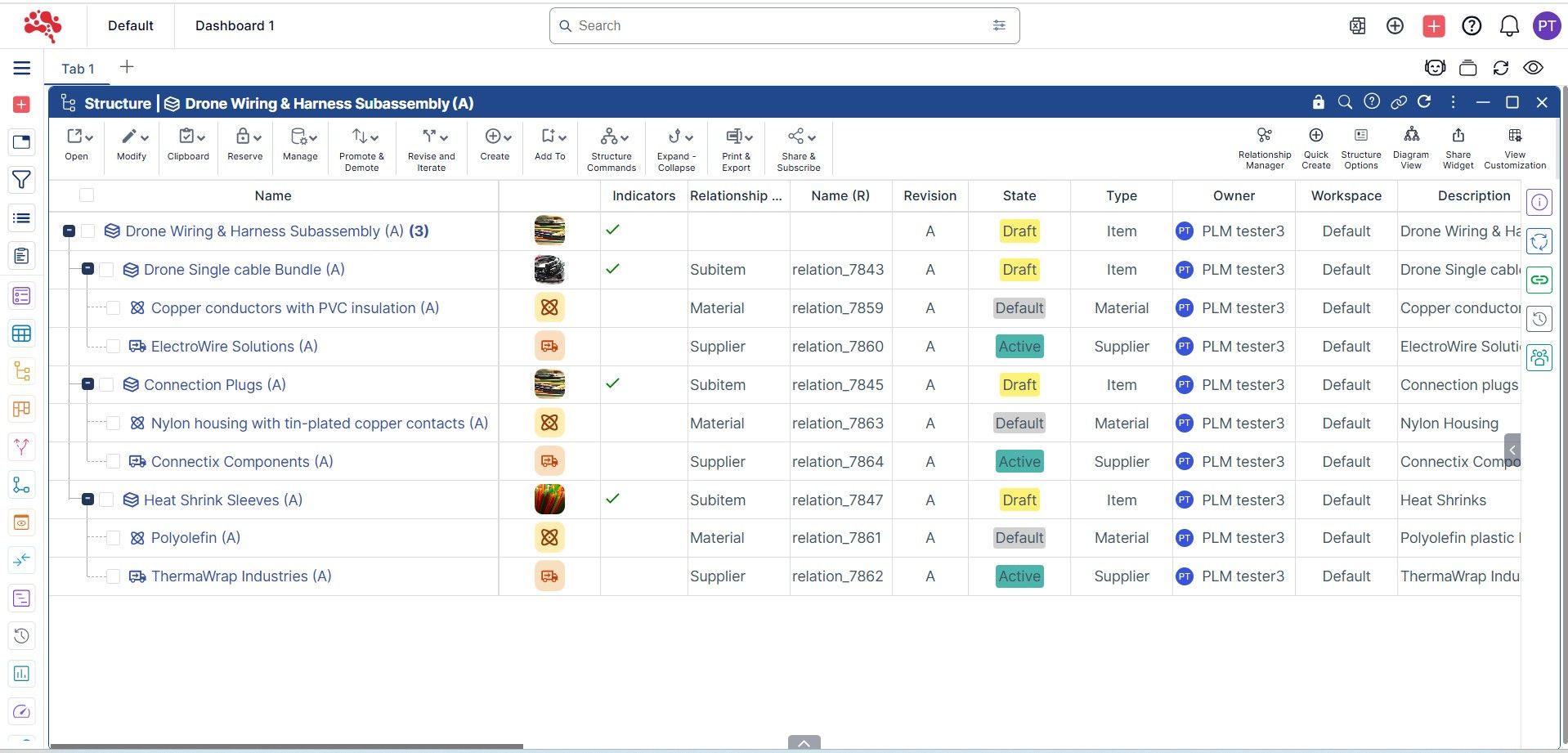
How to Add ‘Material’ and ‘Supplier’ to a Structure
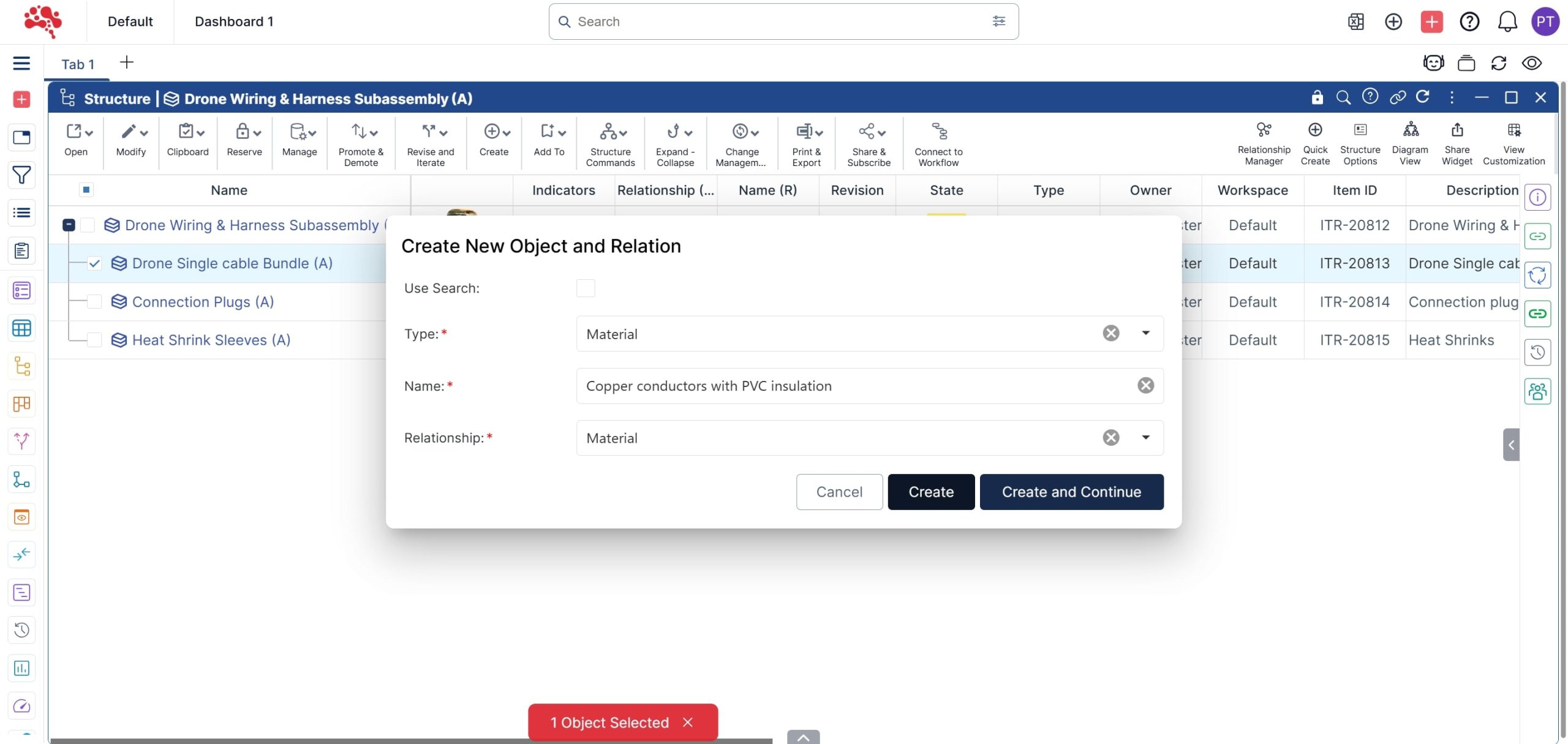
1. Right-click on the item for which you want to add a Material, and select “Quick Create with Relation.”
2. Set the Type as Material, provide a Name, and set the Relationship to Material. Then, click Create
3. In the Relationship Manager, select Material and click OK to display the created material in the structure.
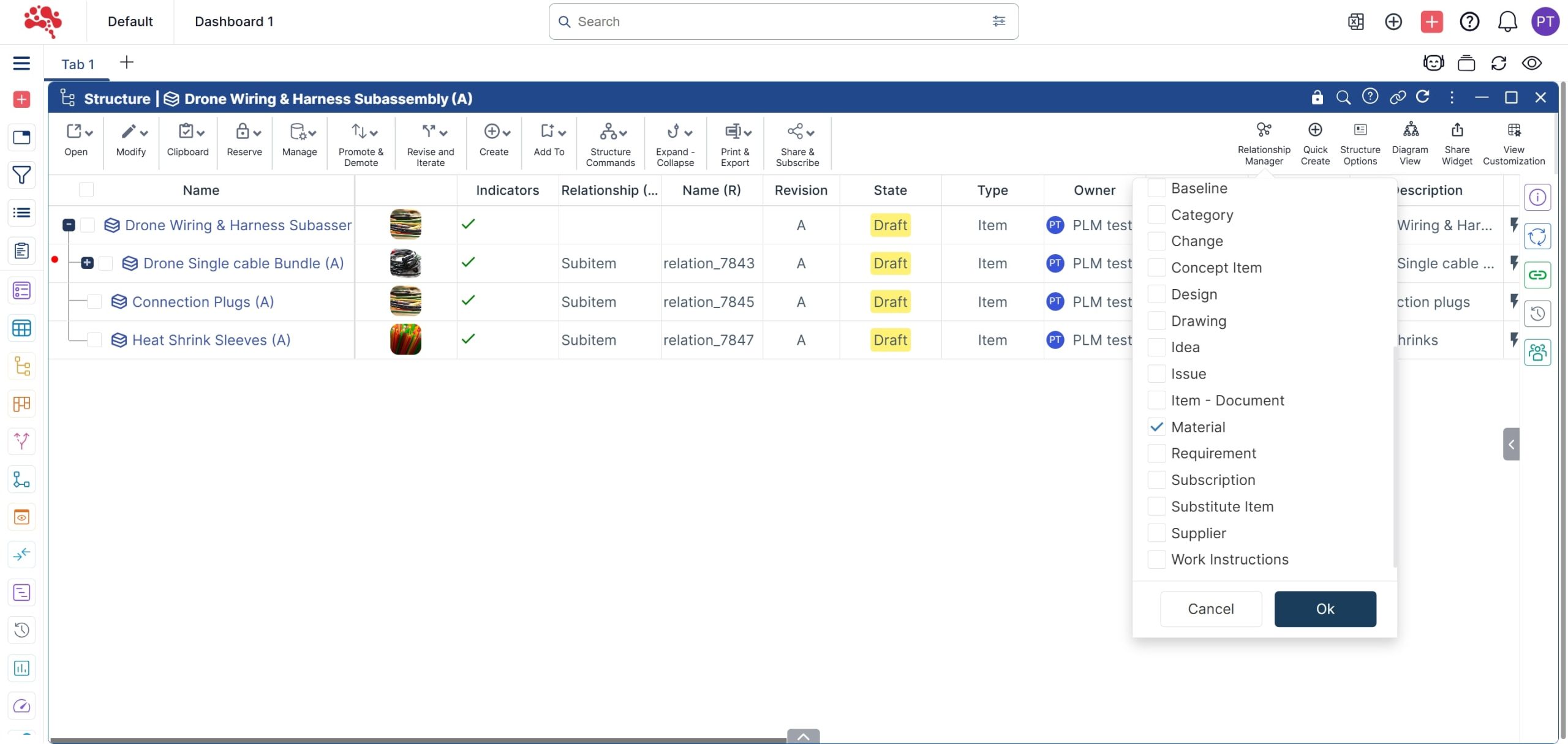
4. To add a Supplier, right-click the same item and select “Quick Create with Relation.
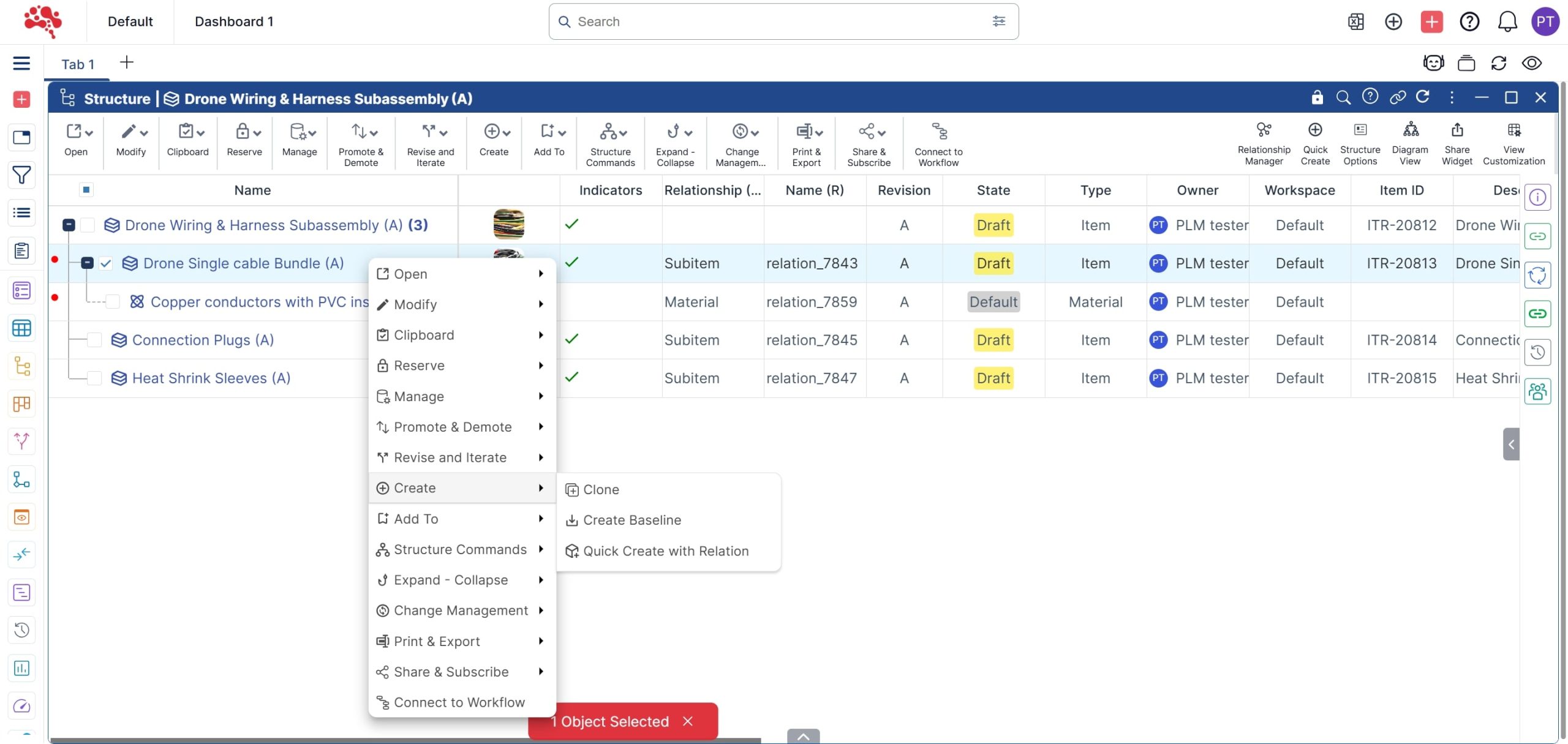
5. Set the Type as Supplier, enter a Name, and set the Relationship to Supplier. Then, click Create.
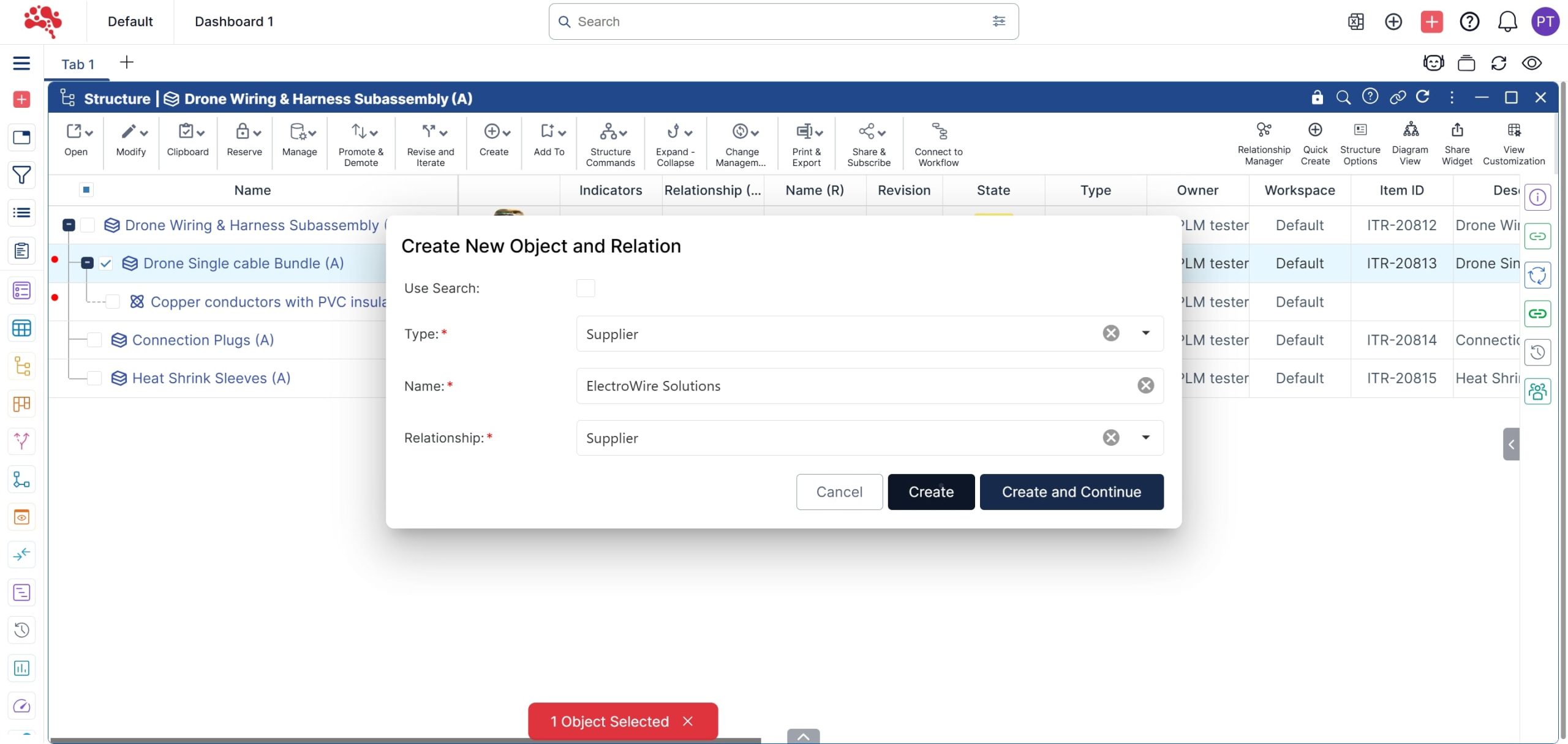
6. In the Relationship Manager, select Supplier and click OK to display the supplier in the structure.
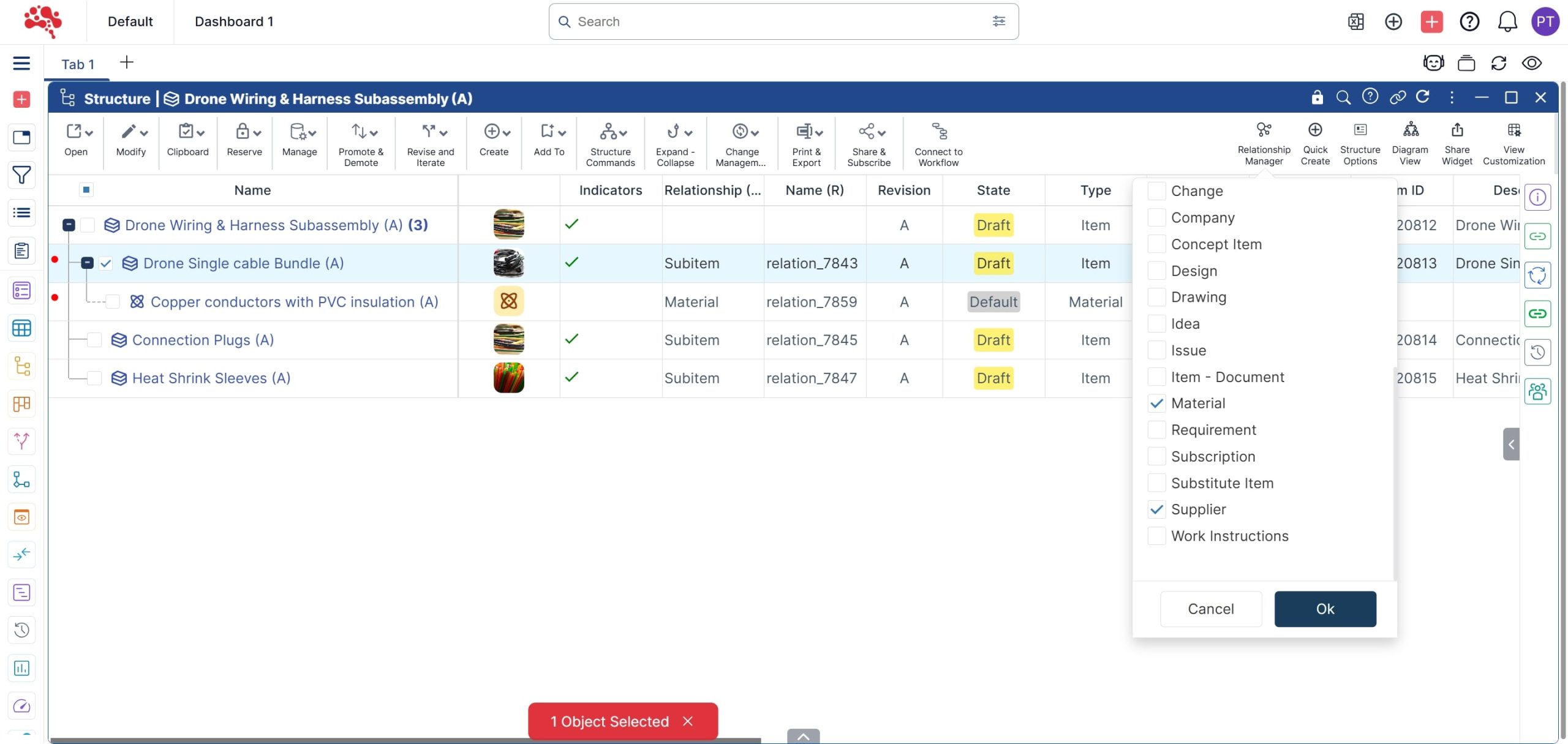
7. Repeat the above steps to add Material and Supplier details for all sub-items in the structure as needed.
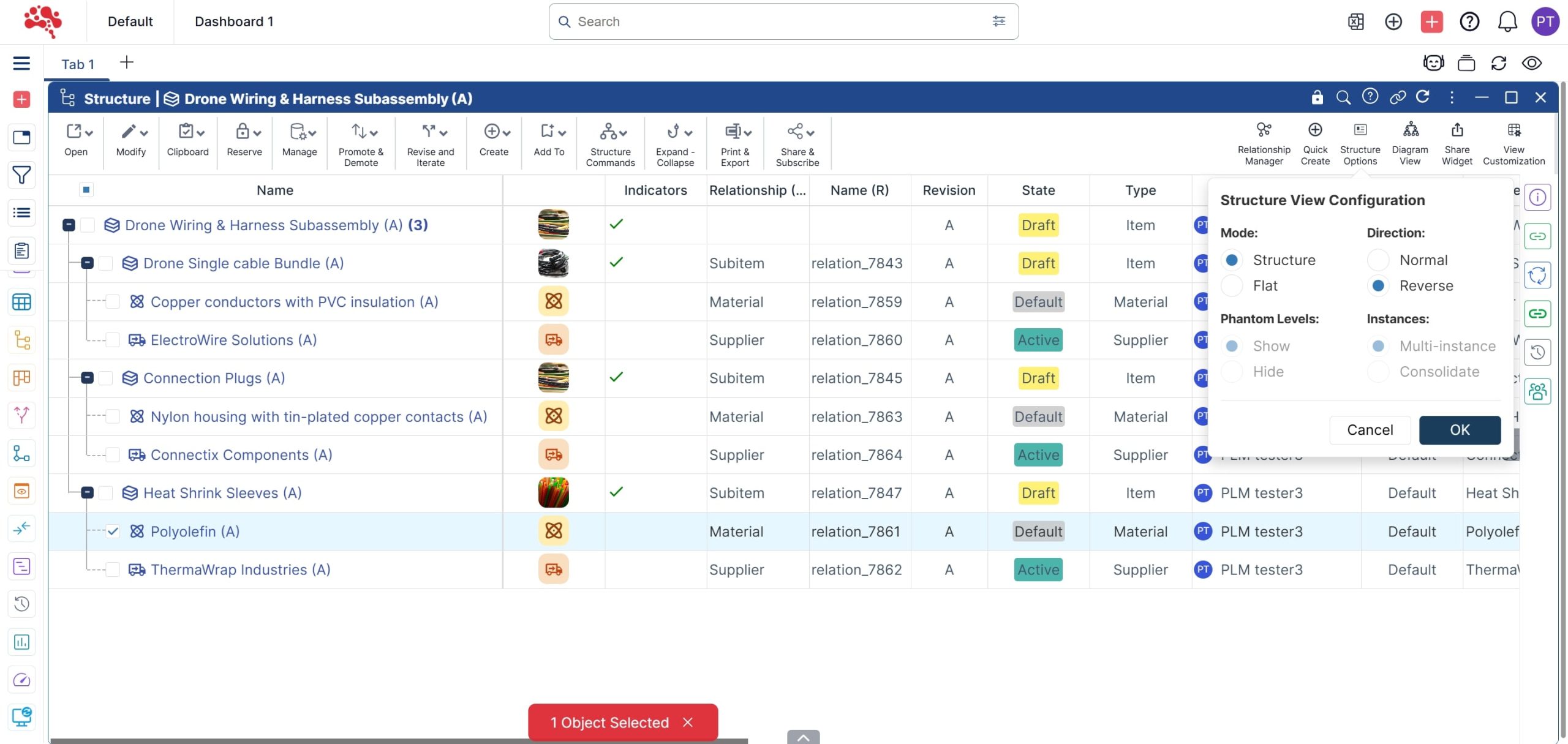
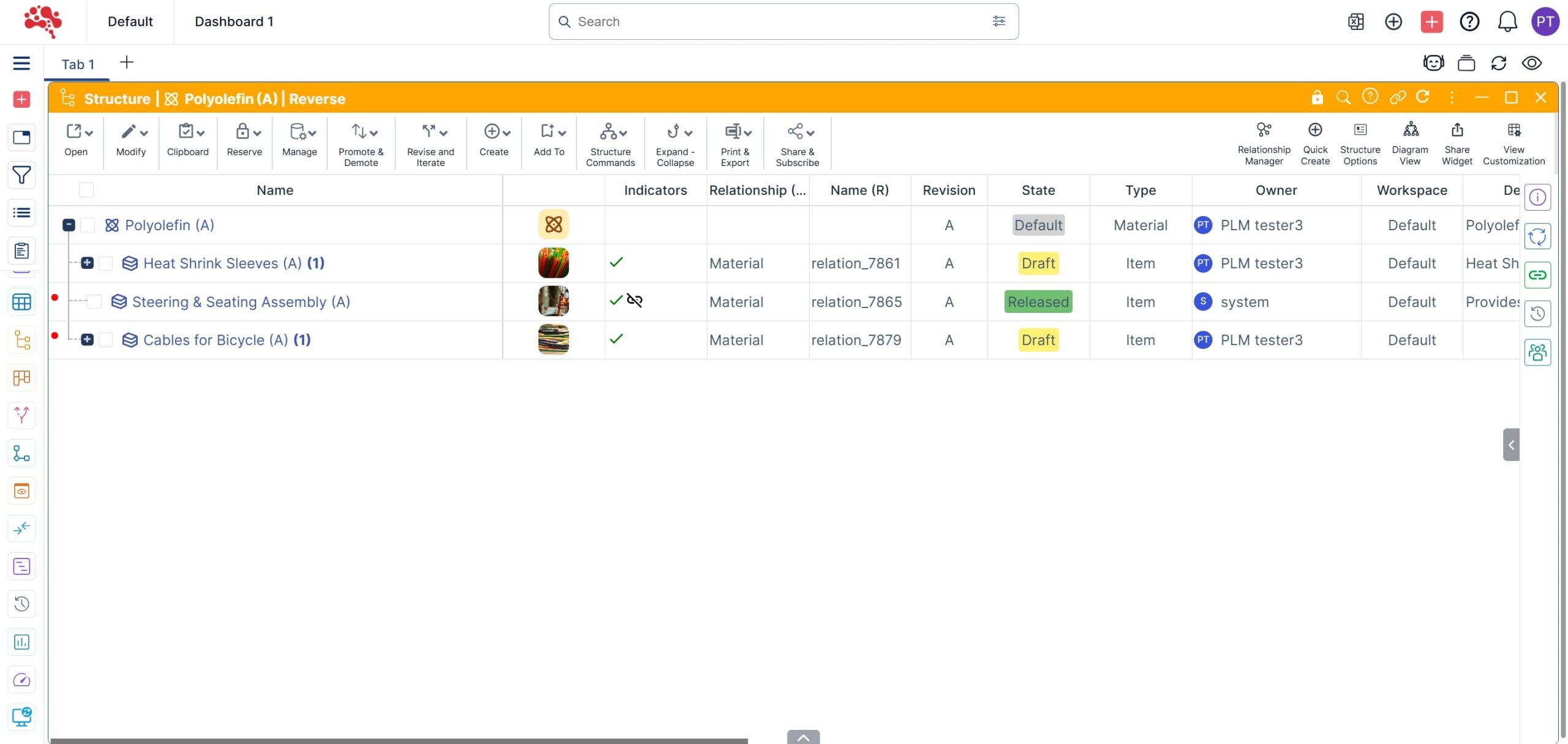
Where-Used Analysis with Reverse Hierarchical View.
1. In “Structure Options”, select the “Reverse” direction to view the where-used and click on “OK”.
2. The reverse hierarchy of the “Polyolefin” material is displayed.
BOM Management Made Simple: Easily Manage and Populate Objects using Mass Update.
- Open the Drone Wiring & Harness Assembly in structure mode
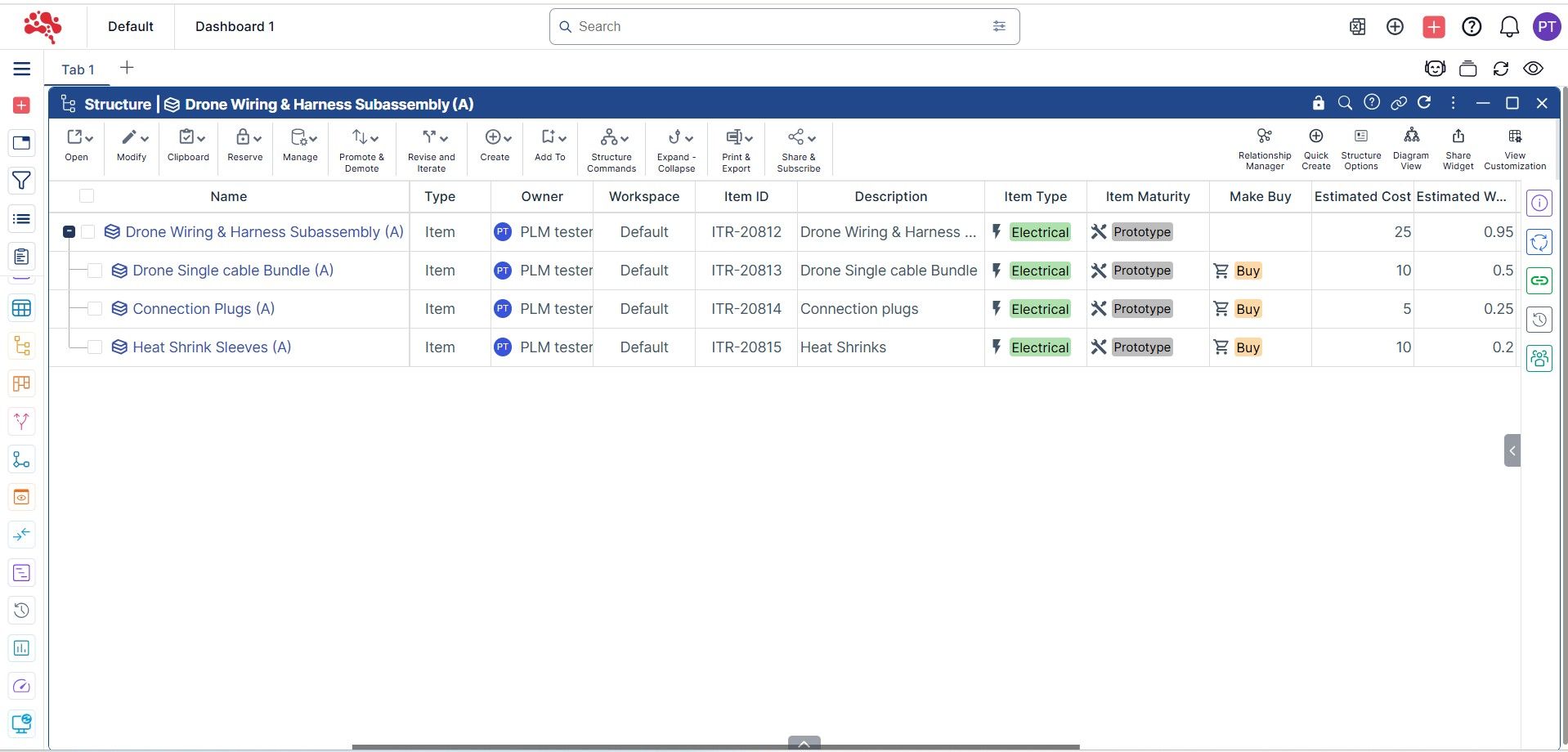
2. Click “Edit” to make changes, and use “Mass Update” for bulk attribute updates.
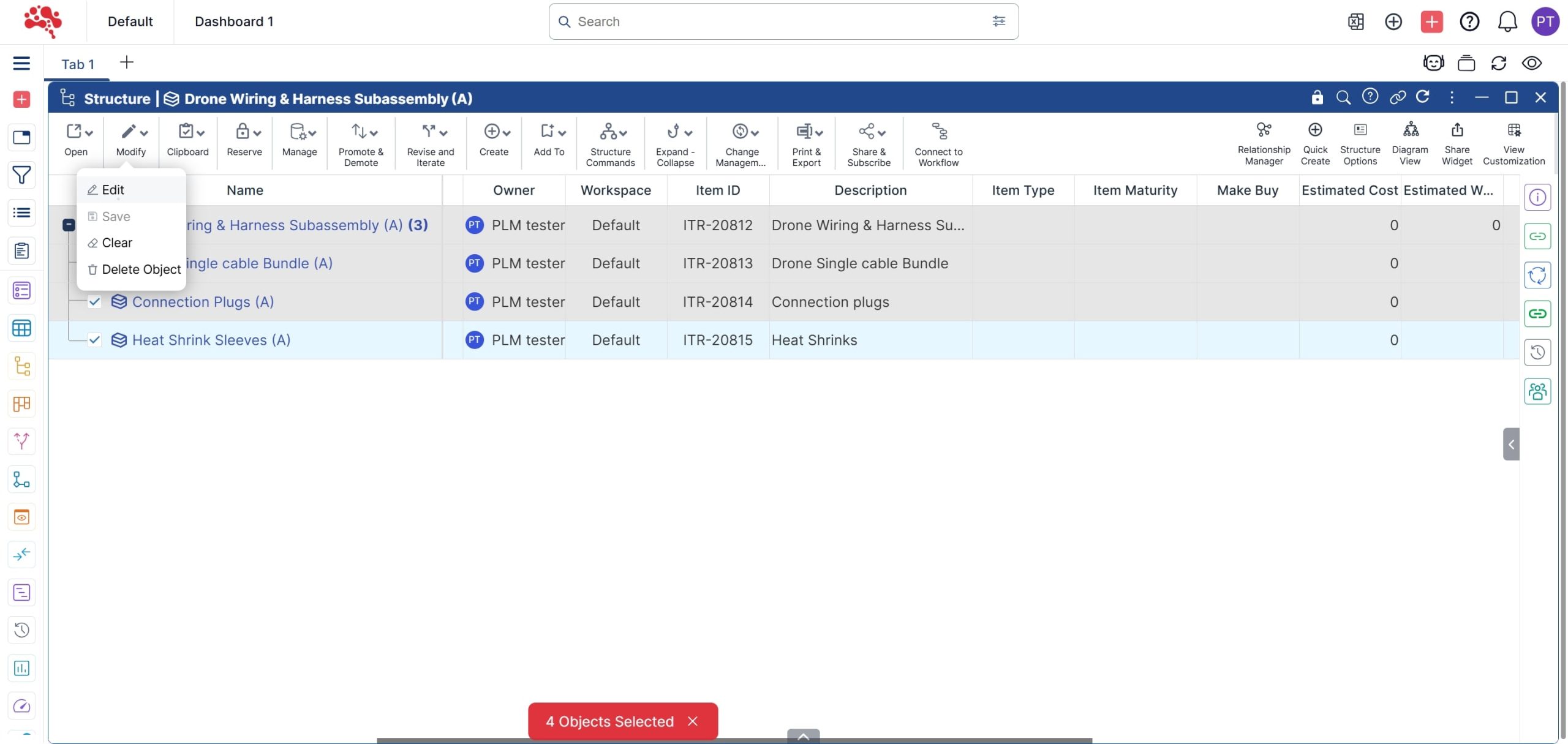
3. Right click on “Item Type” column and click on “Mass Update”.
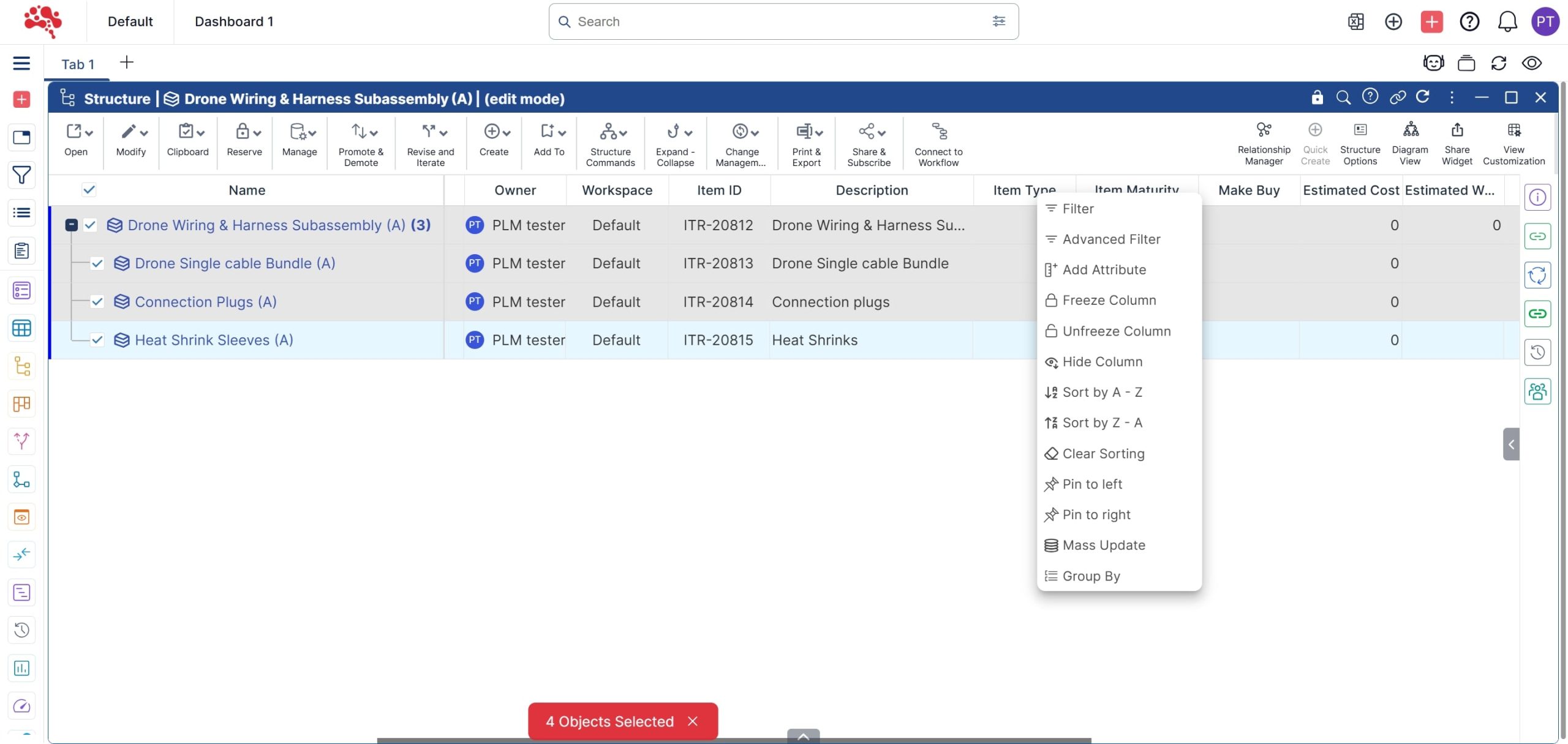
4. Select the desired value to update the value for all selected objects and Click Save to apply changes to all selected objects.

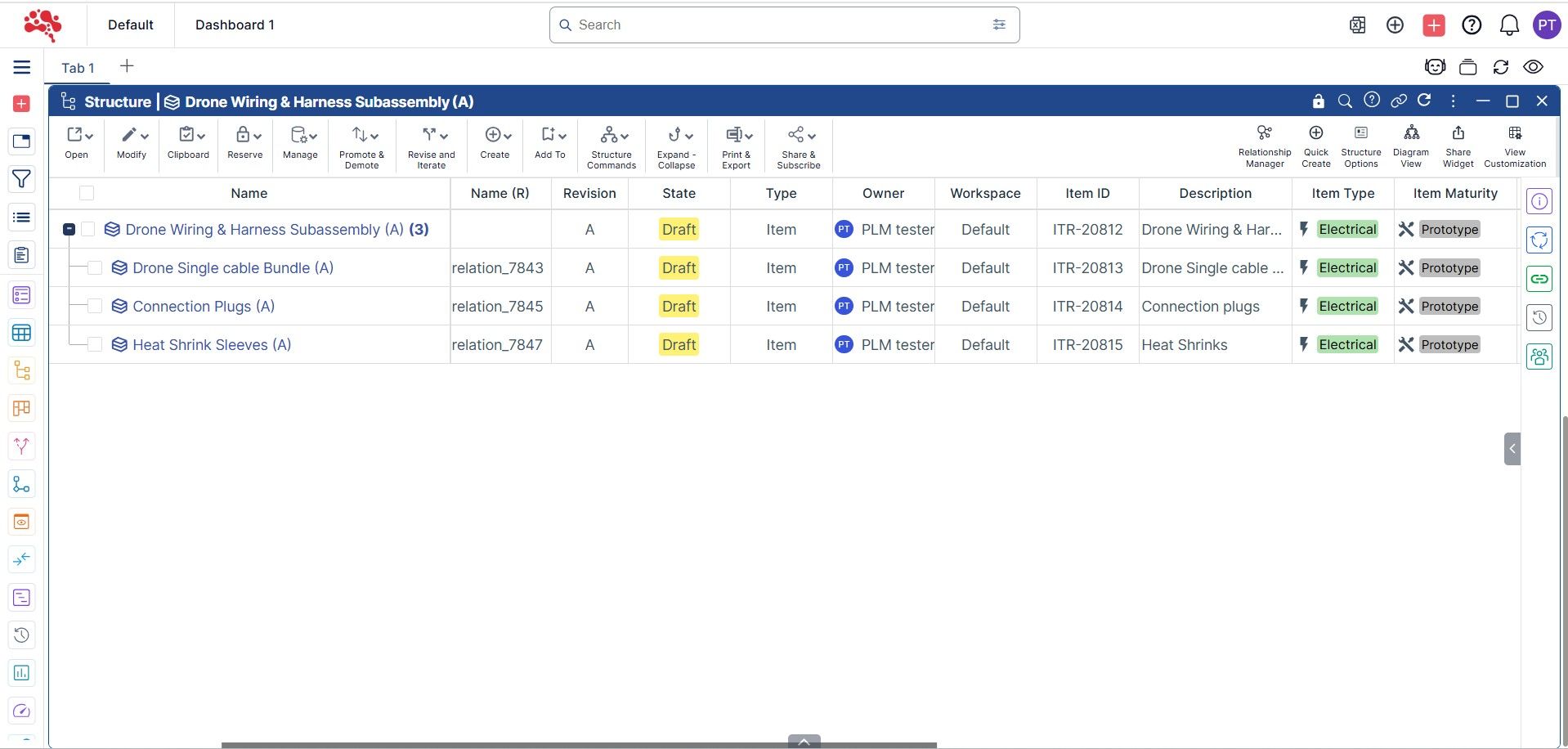
5. Similarly, update all other attributes in one go using Mass update.
How Relationships Keep the Structure Meaningful
Adding an item is only part of the process. The relationship between the new item and the parent structure provides context for how that item is used. For example, a team may need to distinguish a material, supplier-related record, software item, document, or another supporting object from a standard CAD component.
When these relationships are defined inside PLM, the structure becomes more useful for engineering review, BOM analysis, change impact, procurement coordination, and lifecycle traceability.
Example | Why It May Be Added |
Software item | Represent embedded or application software connected to the product. |
Document | Link specifications, instructions, certificates, or other controlled documentation. |
Material | Represent material information that may not exist as a native CAD component. |
Supplier-related item | Connect sourcing or supplier context to the controlled product definition. |
What Happens After the Structure Is Updated?
Once the new item is added and the structure is synchronized, teams can work with the updated product definition in Nora IPLM. The newly connected record can participate in the same lifecycle context as the rest of the structure, subject to the permissions, revision rules, workflows, and change processes configured for the organization.
This helps reduce the gap between what engineers see in CAD and what the broader organization needs to manage in PLM.
Conclusion
By following these steps, you’ll have a clear, repeatable process for enriching your CAD-imported structures in Nora IPLM, adding new items, defining relationships, and including materials or suppliers as needed. The outcome is a unified source of truth where design and production data stay in sync, helping your team collaborate faster, make smarter iterations, and reduce BOM-related risks.
Ready to bring more clarity and control to your product structure workflow? Start applying these steps and let Nora IPLM turn complexity into confidence.
See the consequence before you commit to the change
Discover how Nora IPLM Knowledge Thread turns connected product data into a traceable AI Change Impact Simulation, from qualified evidence and visual propagation to alternate-item, carbon, and AI-assisted analysis.


