Click Sync Data to upload the document.

Introduction

Creating and managing documents can feel like a chore, especially when you are juggling CAD files, specs, and revisions. Nora IPLM’s Desktop Services App changes that by letting you create, edit, and sync your files directly from your computer with full version control and traceability. 

Whether you are drafting a new spec, collaborating on design reviews, or organizing project documentation, Nora IPLM keeps everything connected and easy to manage.

In this guide, we will walk through how to use the Desktop Services App together with the Desktop widget inside Nora IPLM to create documents step by step. 
Note: This feature is only available on Windows for now.

How to Create and Upload Documents with the Nora IPLM Desktop Services App and Desktop Widget

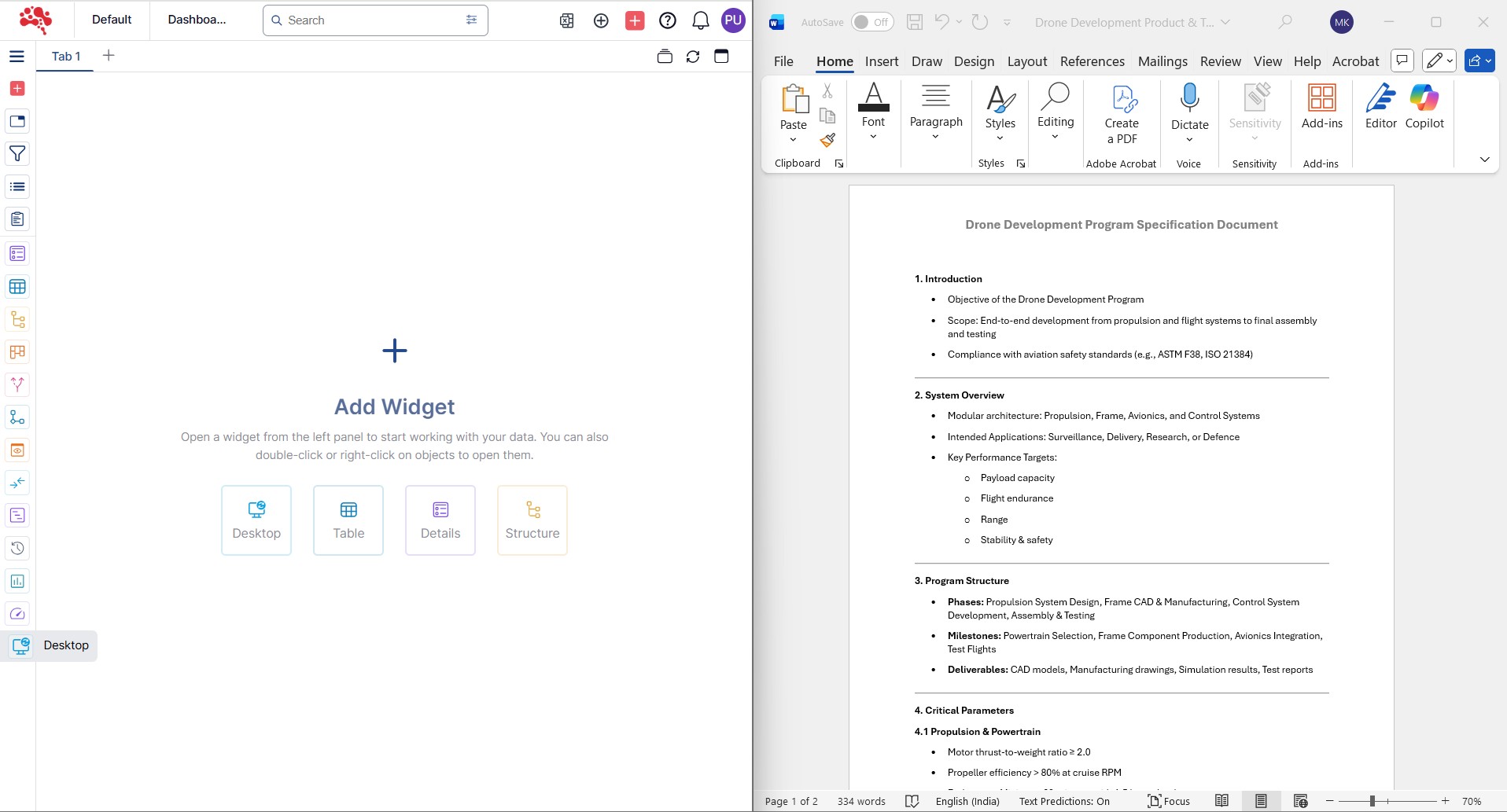
  1. To upload a document from any Microsoft Office application to Nora IPLM, launch the Desktop Services App on your Windows PC and open the Microsoft Office file you want to upload. Then go to the Nora IPLM platform and open the Desktop widget. In this example, we will use a Word document.

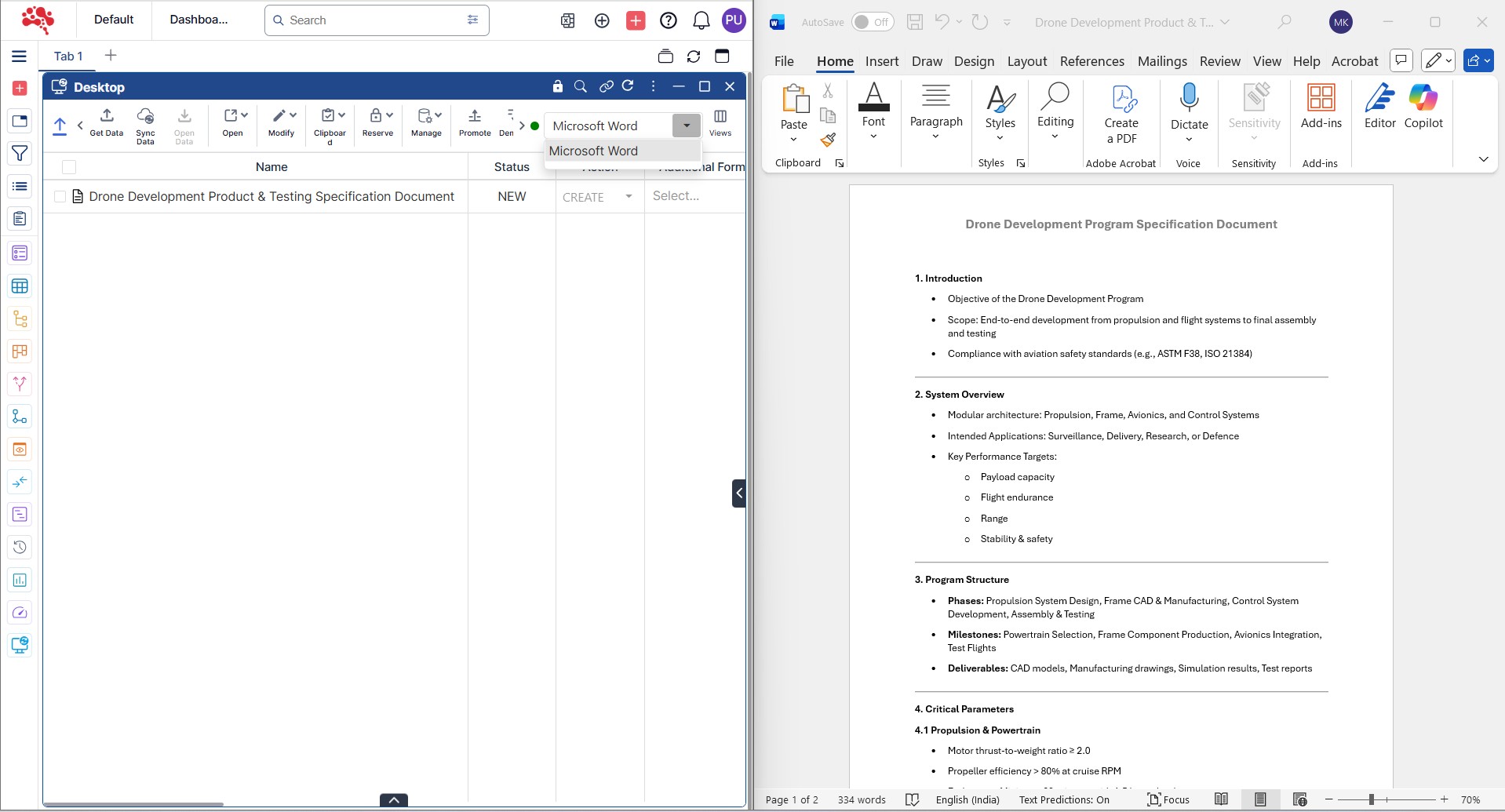
2. You can see that Microsoft Word is selected by default. You can use the toggle to view other available applications for data synchronization. The Desktop widget automatically detects the active applications on your machine, whether they are CAD tools or Office applications, as shown in this example.

3. Click “Get Data” to get the document data from Microsoft Word. 

Use the Get Data option to fetch details from Microsoft Word

4. The document is now retrieved and ready for upload. 

The document is now fetched and ready for upload

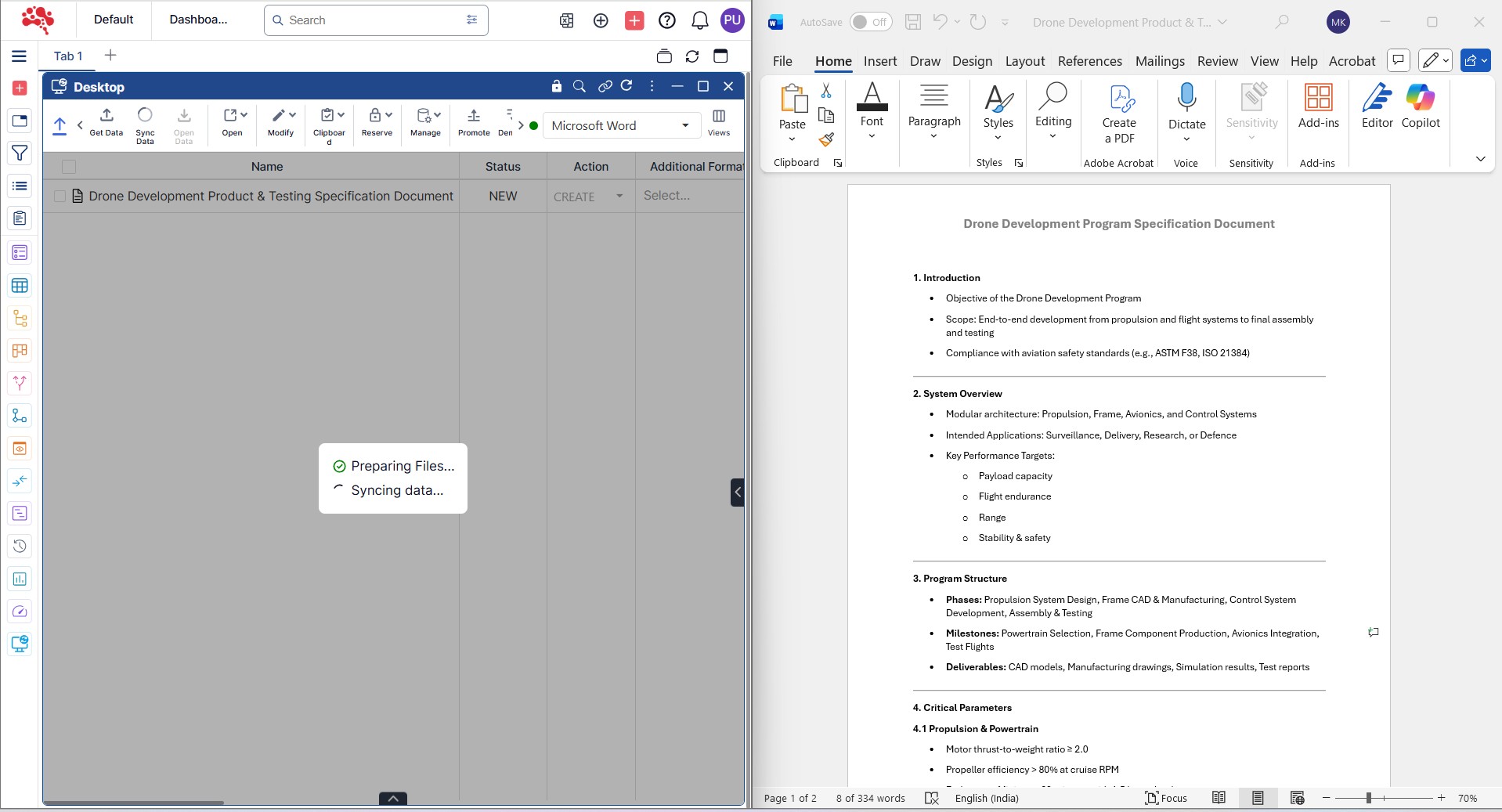
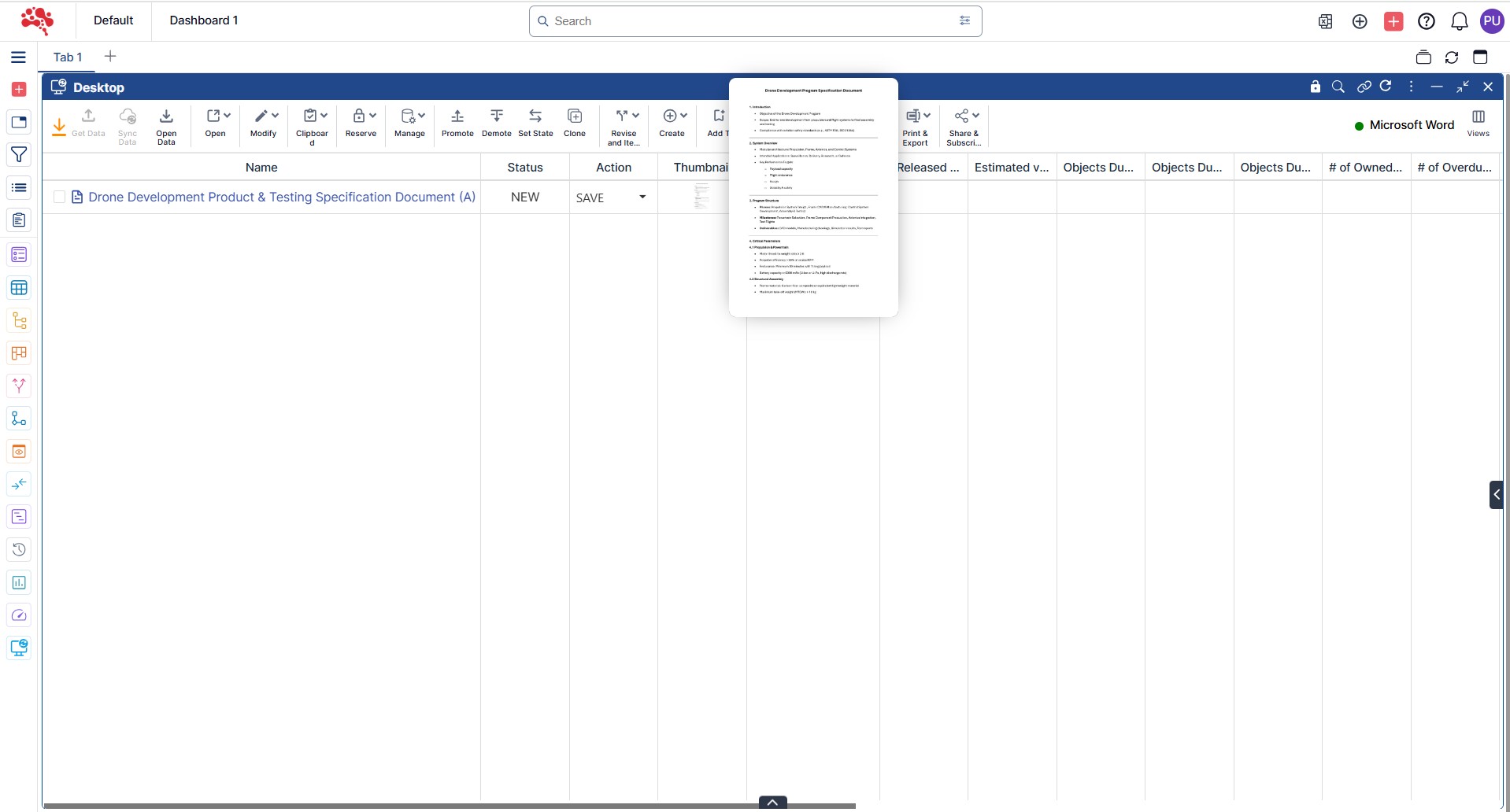
5. Click “Sync Data” to upload the document. Nora IPLM will prepare and synchronize the document from Word to the platform.  

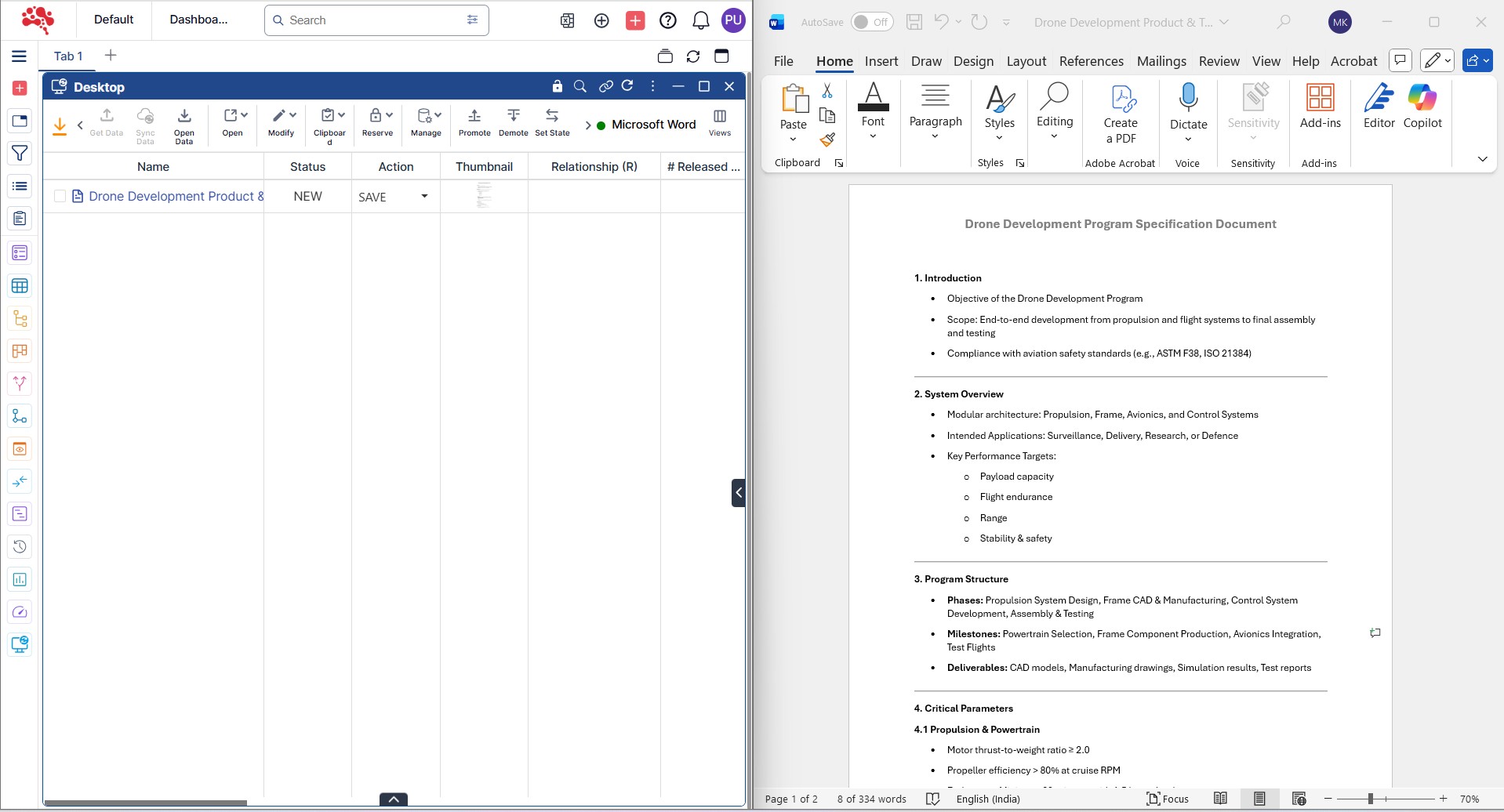
6. The document has been successfully synced from Microsoft Word to Nora IPLM.

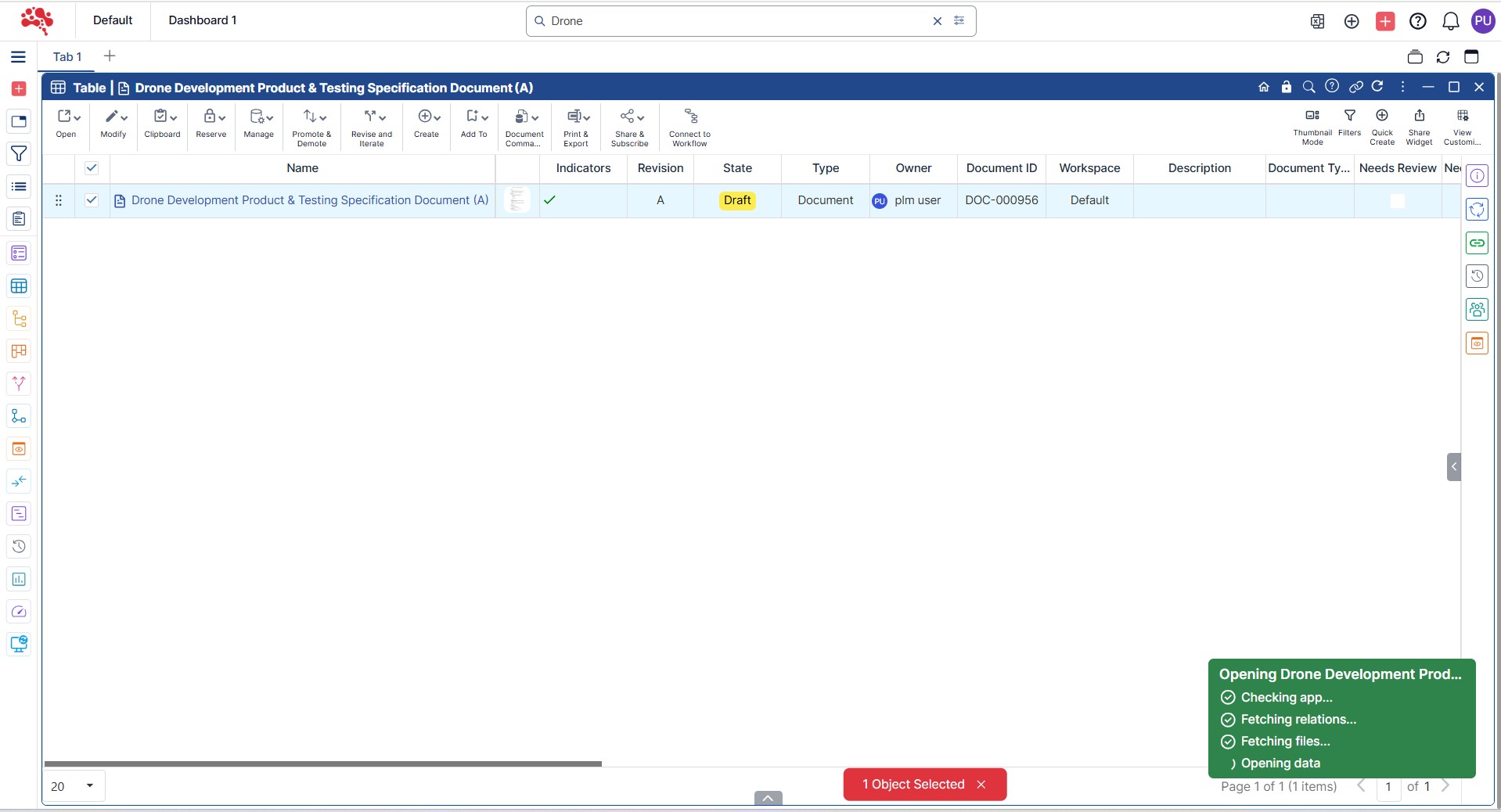
7. Hover over the thumbnail to view the image of the uploaded document.  

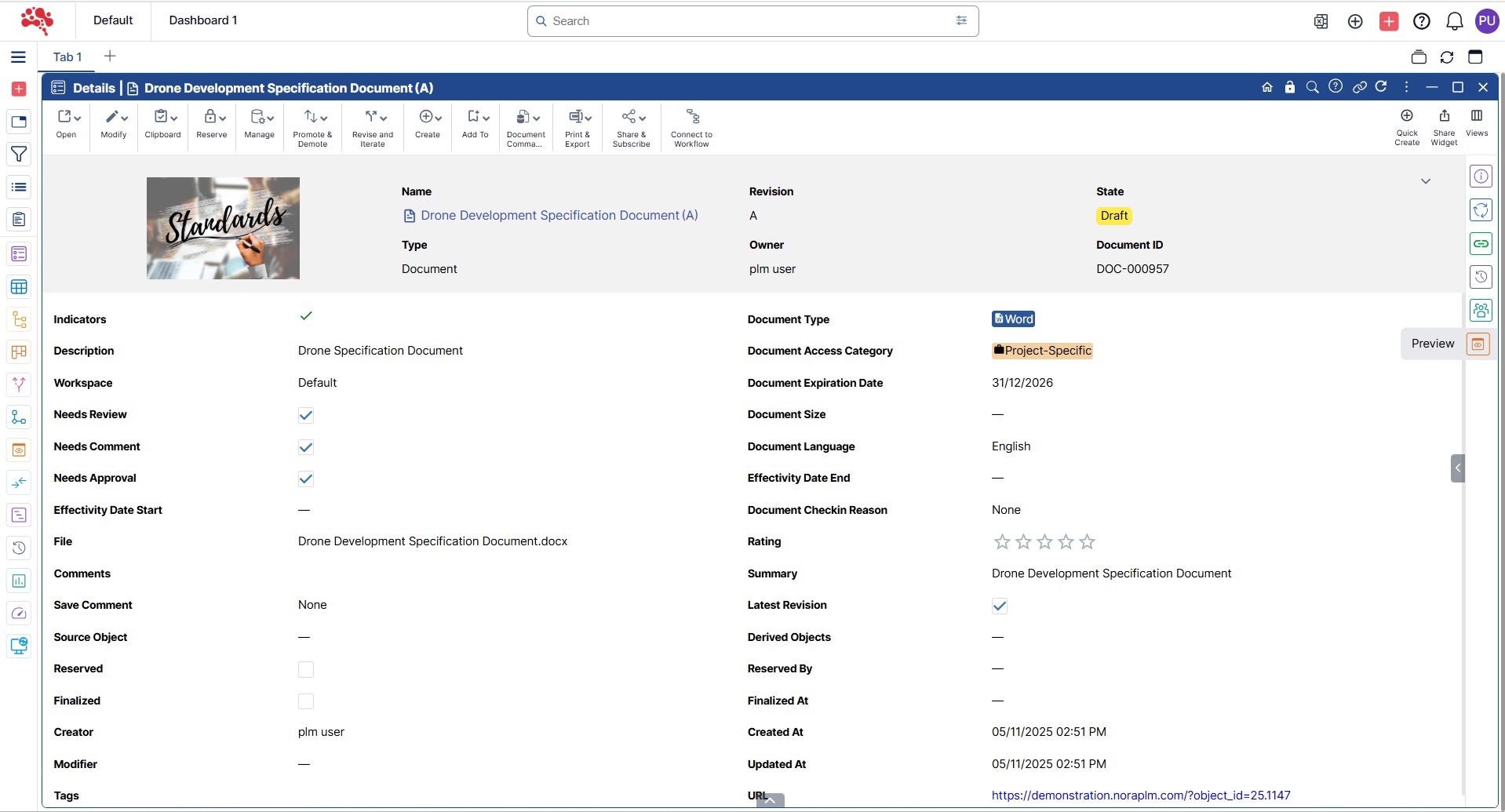
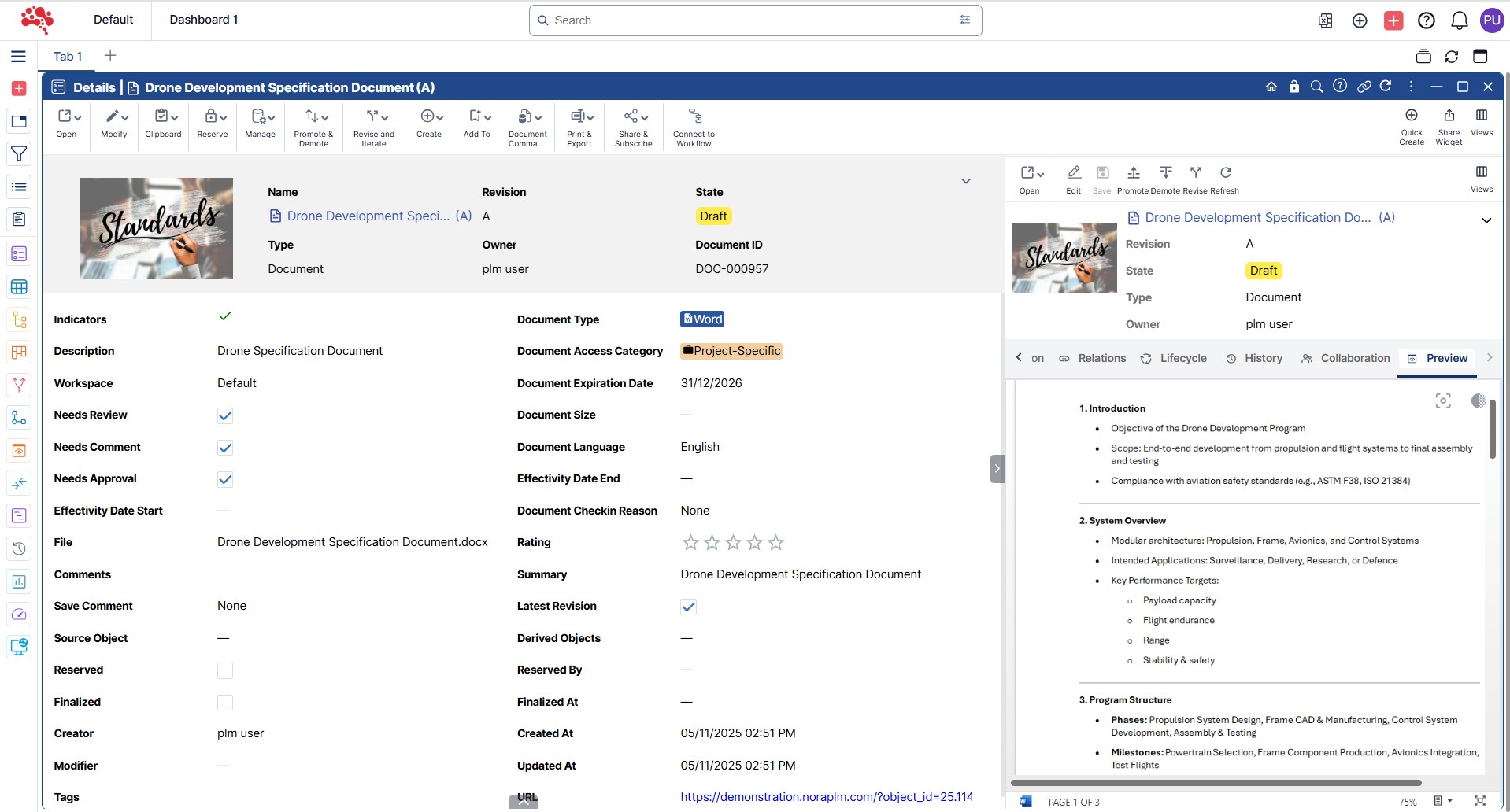
8. In the Info Pane on the right side of the screen, click the Viewer icon to open the document preview.

9. Scroll up and down to easily preview the document within the viewer. 

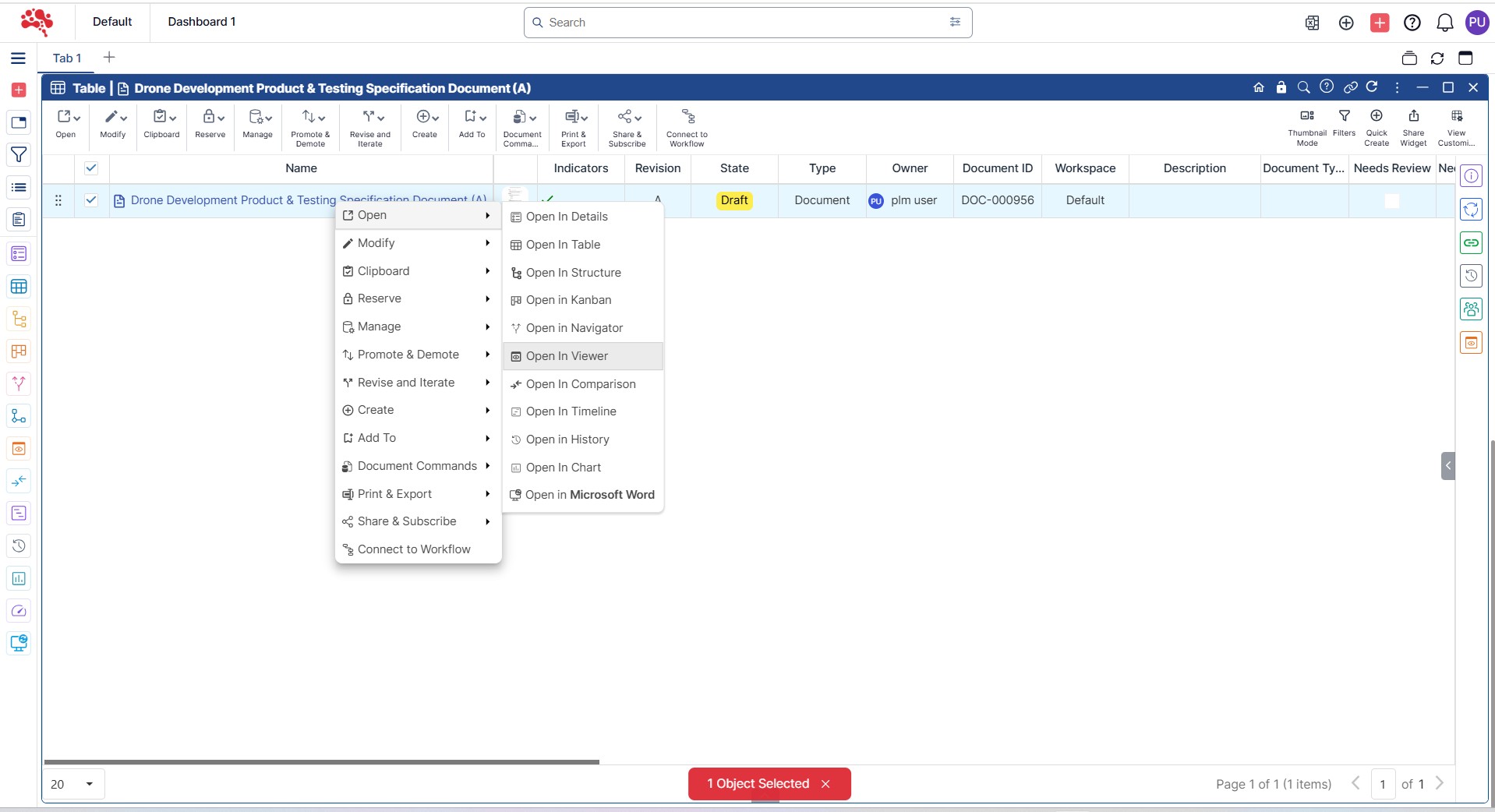
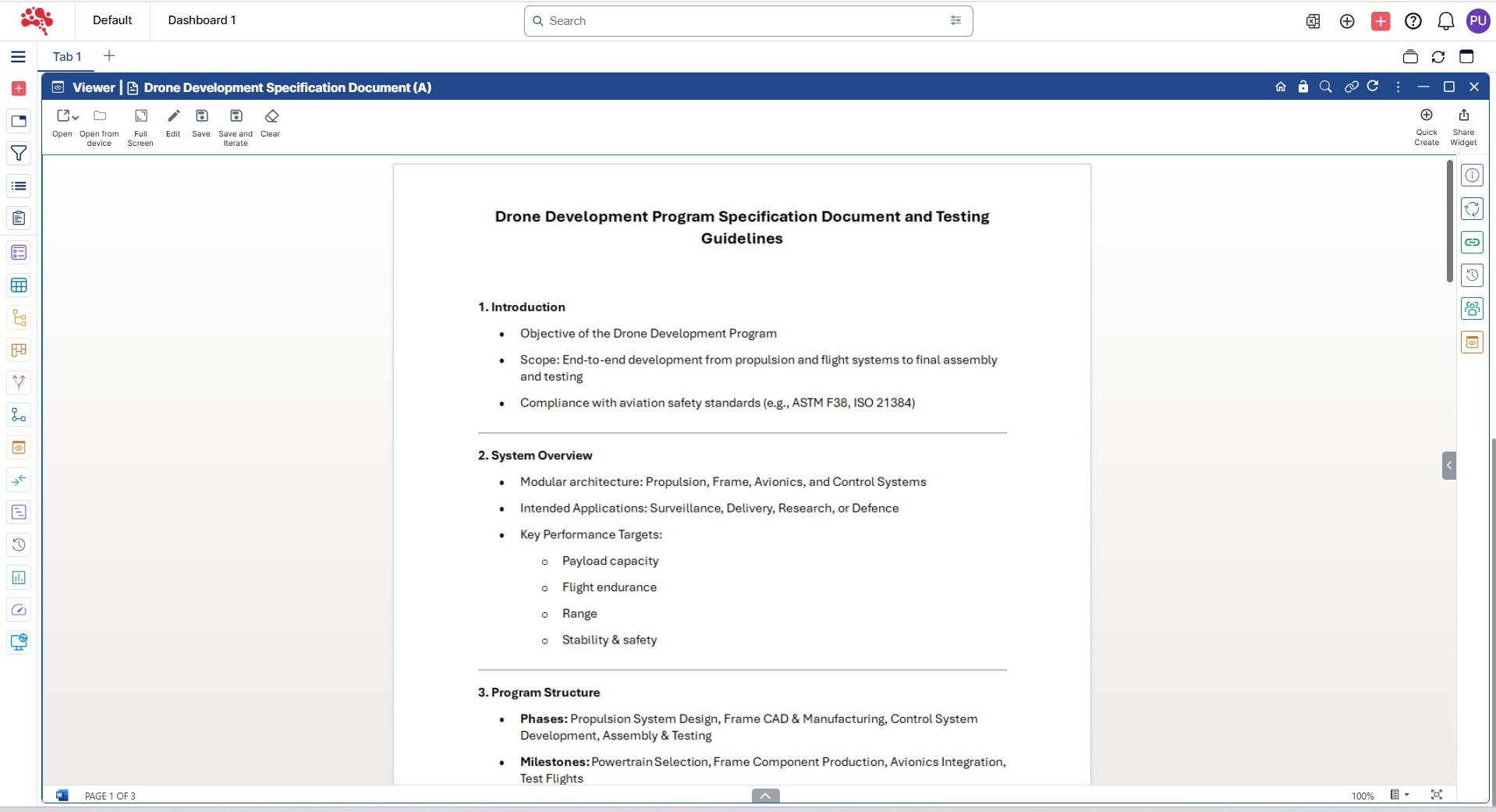
10. Right-click the document and select “Open in Viewer Widget” for enhanced readability.

11. The document is displayed in the viewer, allowing smooth scrolling and full preview. 

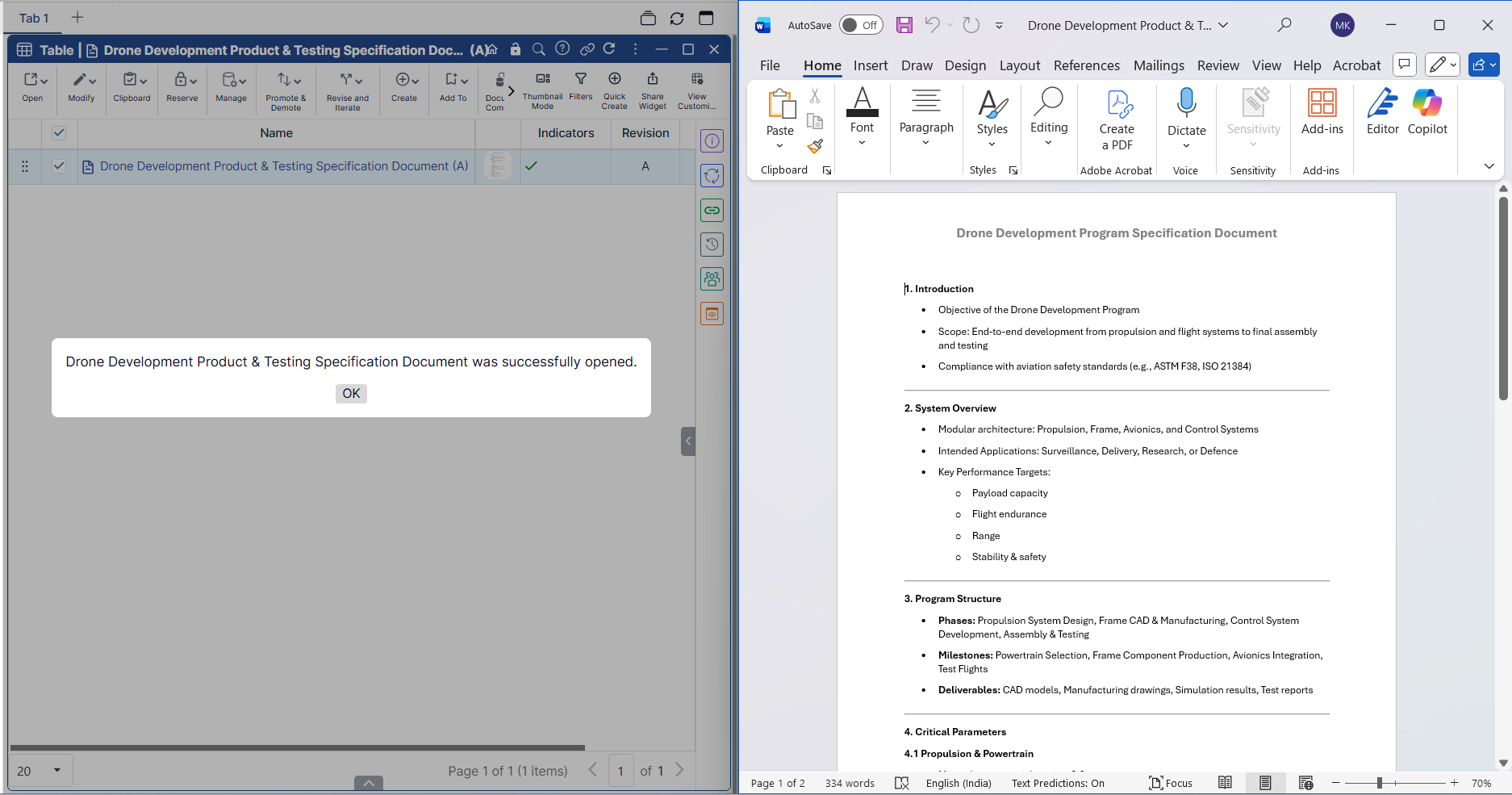
12. To open a document directly in Microsoft Word from the platform, right-click the object and select “Open in Microsoft Word”. This command updates automatically based on the file type of the document. For example, if the document includes an Excel file, the option will appear as “Open in Microsoft Excel”.

13. The document is successfully opened in the Microsoft Word Desktop Application. 

Conclusion

We just walked through how tightly your Office apps connect with Nora IPLM. In our next guide, we will show you how to go even further by editing documents in real time, whether you are working in the platform or in your desktop apps. We will also cover how to create iterations and revisions using check in and check out commands so you always stay in control of your document history.

By using the Nora IPLM Desktop Services App, you bring powerful document management into your daily workspace. You can create, edit, and sync files without jumping between tools, and every change is captured with version control and full traceability.

With just a few steps, your workflow becomes simpler, your team can collaborate more smoothly, and your information stays organized. Now you can spend less time managing files and more time building better products with confidence.

Explore More from Nora IPLM

Discover more ways Nora IPLM simplifies product development and innovation. Explore related topics, use cases, and platform features that help your teams work smarter and bring better products to market faster.

PLM in 2026: Predicting the Next Era of Product Innovation and Lifecycle Management 

Bill of Materials (BOM) is essential to manufacturing, but managing multiple BOMs can be complex and prone to errors. In this post, we explore the different types of BOMs, the challenges organizations face in synchronizing them, and best practices for efficient BOM management. Learn how to improve accuracy and streamline processes across departments while minimizing…

Effortlessly Migrate from Excel to Cloud PLM: A Guide for Engineers

Engineering teams rely on Excel for product data longer than they should. As complexity grows, spreadsheets create risk and slow progress. This guide explains how engineers can move from Excel to Cloud PLM step by step, without disrupting ongoing work, using a practical and structured approach.

Your Complete Guide to Change Management in Nora IPLM (Part 1)

Change is a natural part of product development. Requirements shift, suppliers update parts, and design reviews drive improvements. In this guide, we explore how Nora IPLM helps you manage change in a structured and transparent way. Learn how to create a change request, link it to affected items, route it for review, and make decisions…

Your Complete Guide to Creating Documents with Quick Create

Quick Create in Nora IPLM lets you rapidly generate new documents whether specs, reviews, or design notes, directly from any widget without switching tabs. With just a few clicks, you can define document attributes, upload files, and instantly link them to related items such as BOMs, change requests, or CAD models. This streamlined process keeps…

Liked It? Share It!

This is a staging environment