A Complete Guide to Unified Project Management with Nora IPLM

Introduction

Every successful product begins with a well-managed project. From the first idea to final delivery, effective project management keeps teams aligned, priorities clear, and progress measurable. Without it, even the best ideas can get lost in miscommunication, delays, and scattered tools.

That’s where Nora IPLM comes in. Our Integrated Project Management brings every stage of the product lifecycle, including planning, execution, tracking, and delivery, into one connected workspace. Teams can define programs, projects, phases, and milestones through structured templates that make collaboration simple and consistent across departments.

With real-time dashboards and interactive timeline views, managers can easily track progress, identify bottlenecks, and keep every initiative moving forward. Automated workflows streamline reviews and approvals, while baselines and scheduling tools help teams measure actual results against planned targets.

By linking projects with related data such as documents, BOMs, and change requests, Nora IPLM provides a complete and connected view of progress across design, engineering, and manufacturing. The result is faster execution, stronger accountability, and a clear path from concept to completion.

Let’s dive in and see how you can create your first project from scratch.

How to create and manage projects 

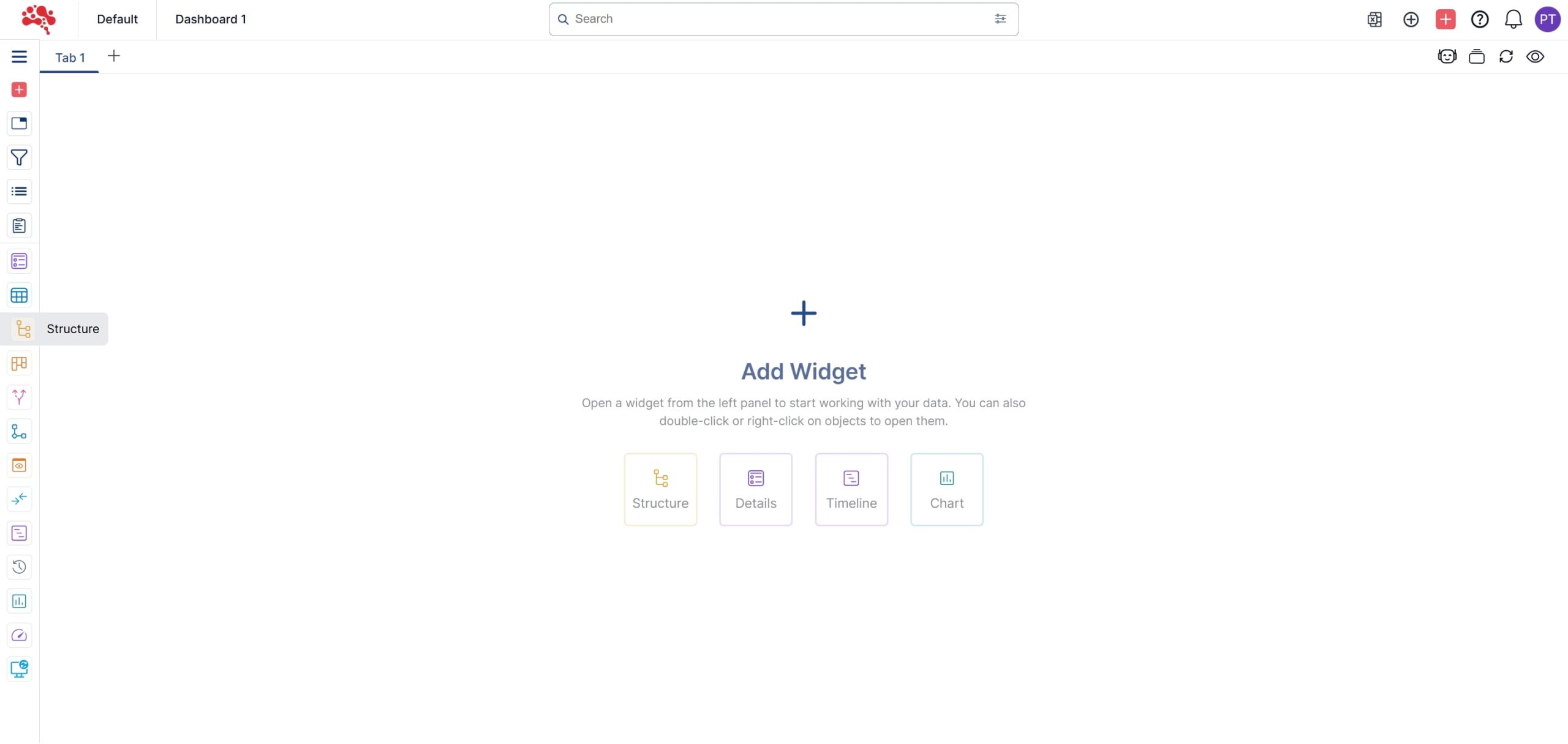
  1. Open the Structure Widget. 

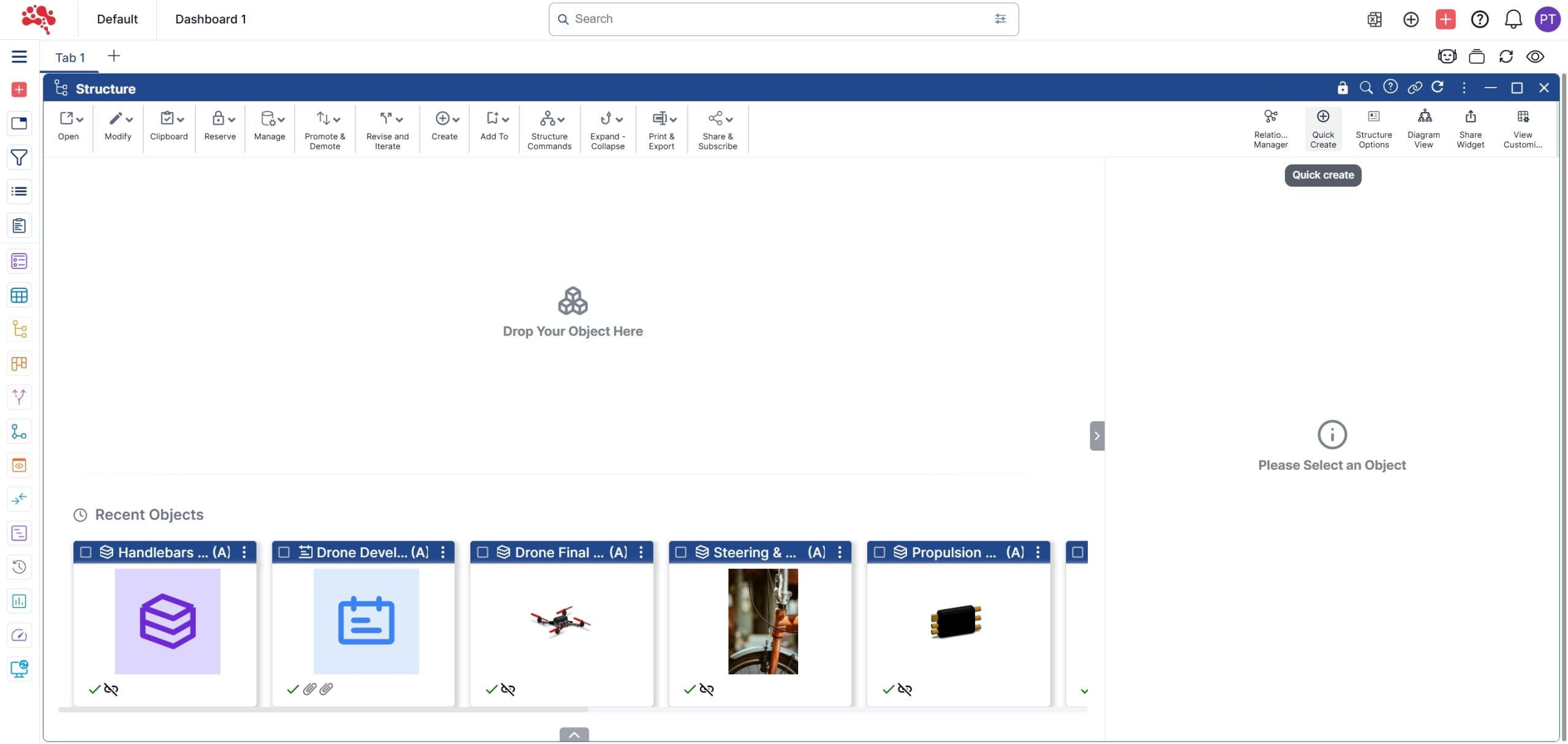
2. Click “Quick Create”. 

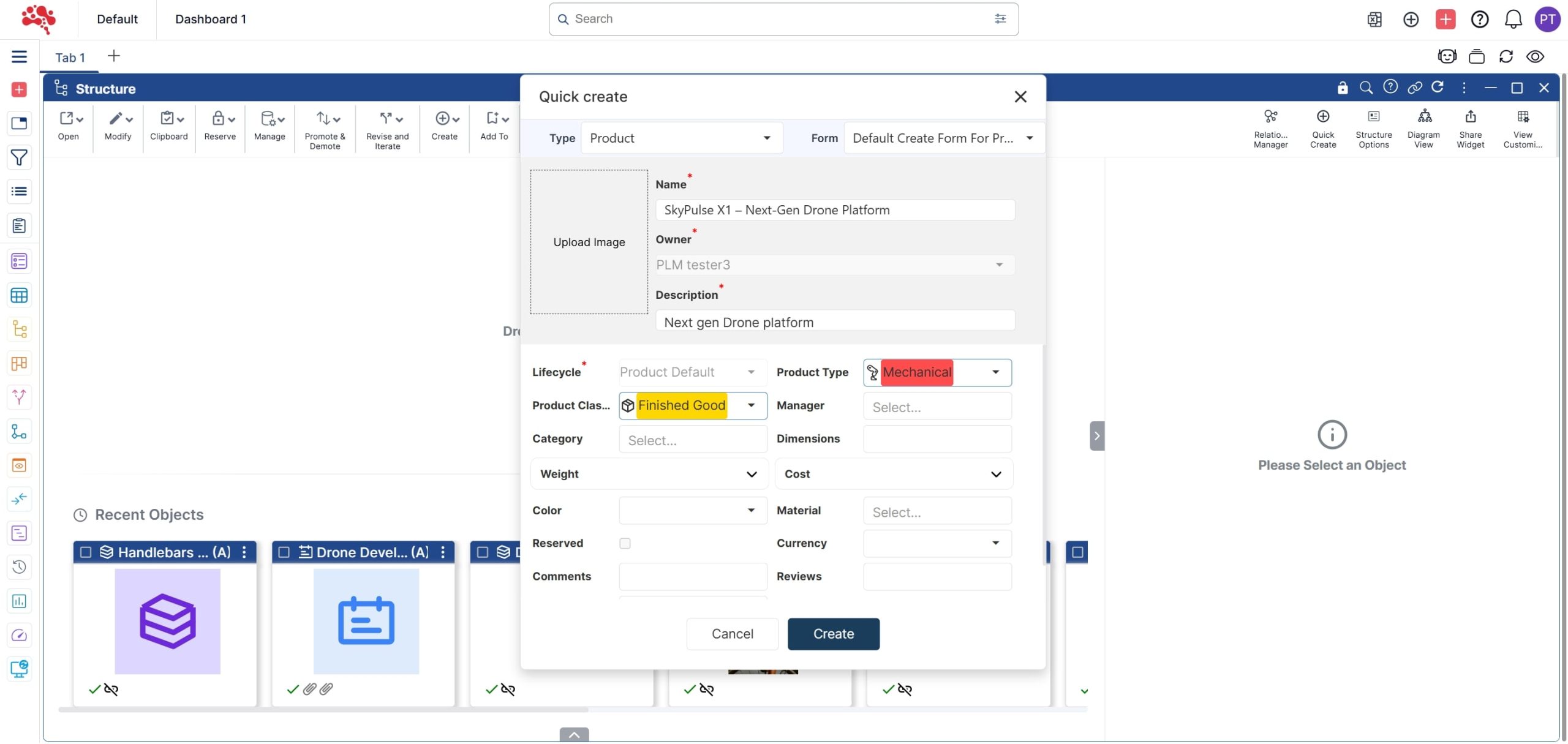
3. Fill in all the required details and click “Create”. 

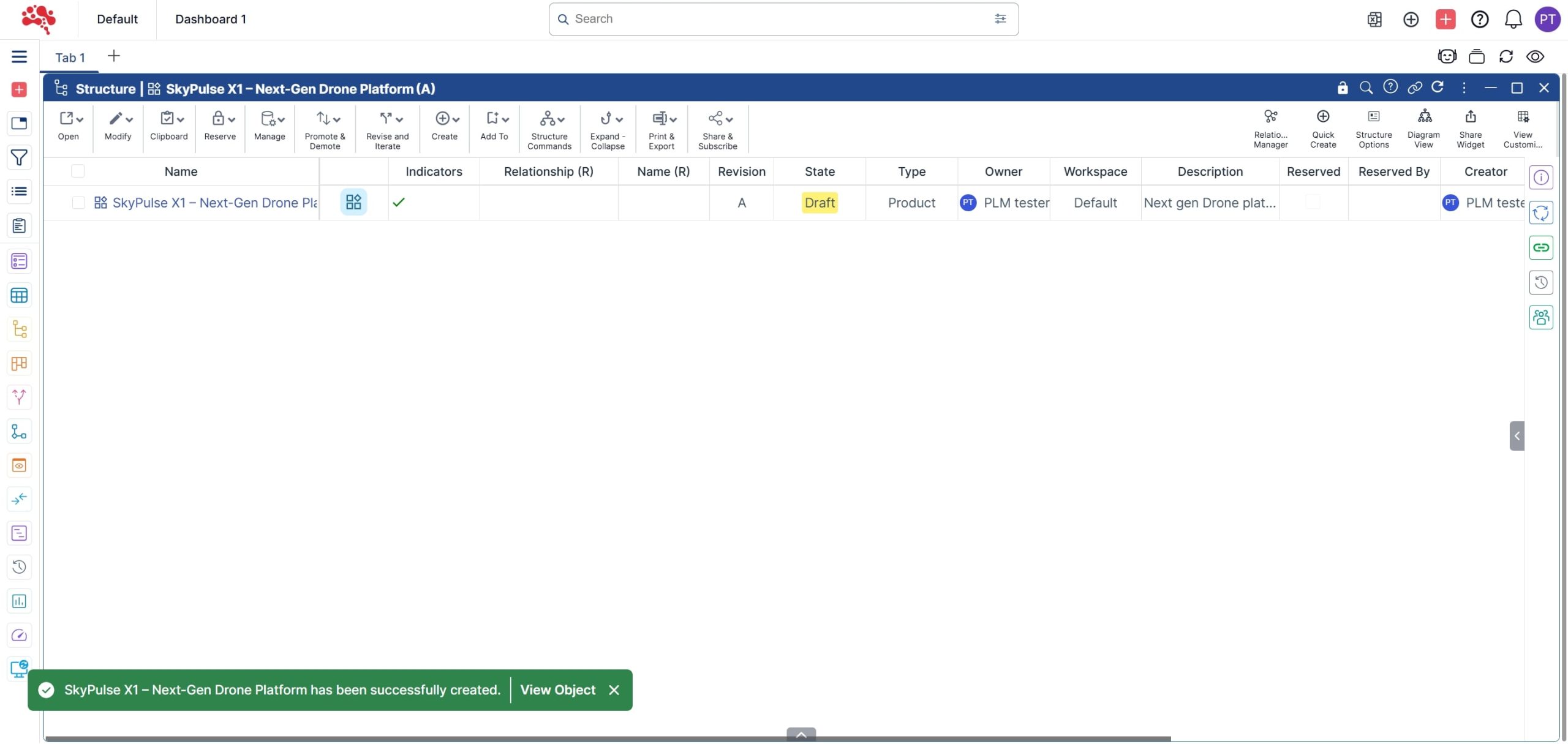
4. A new Product has been successfully created. 

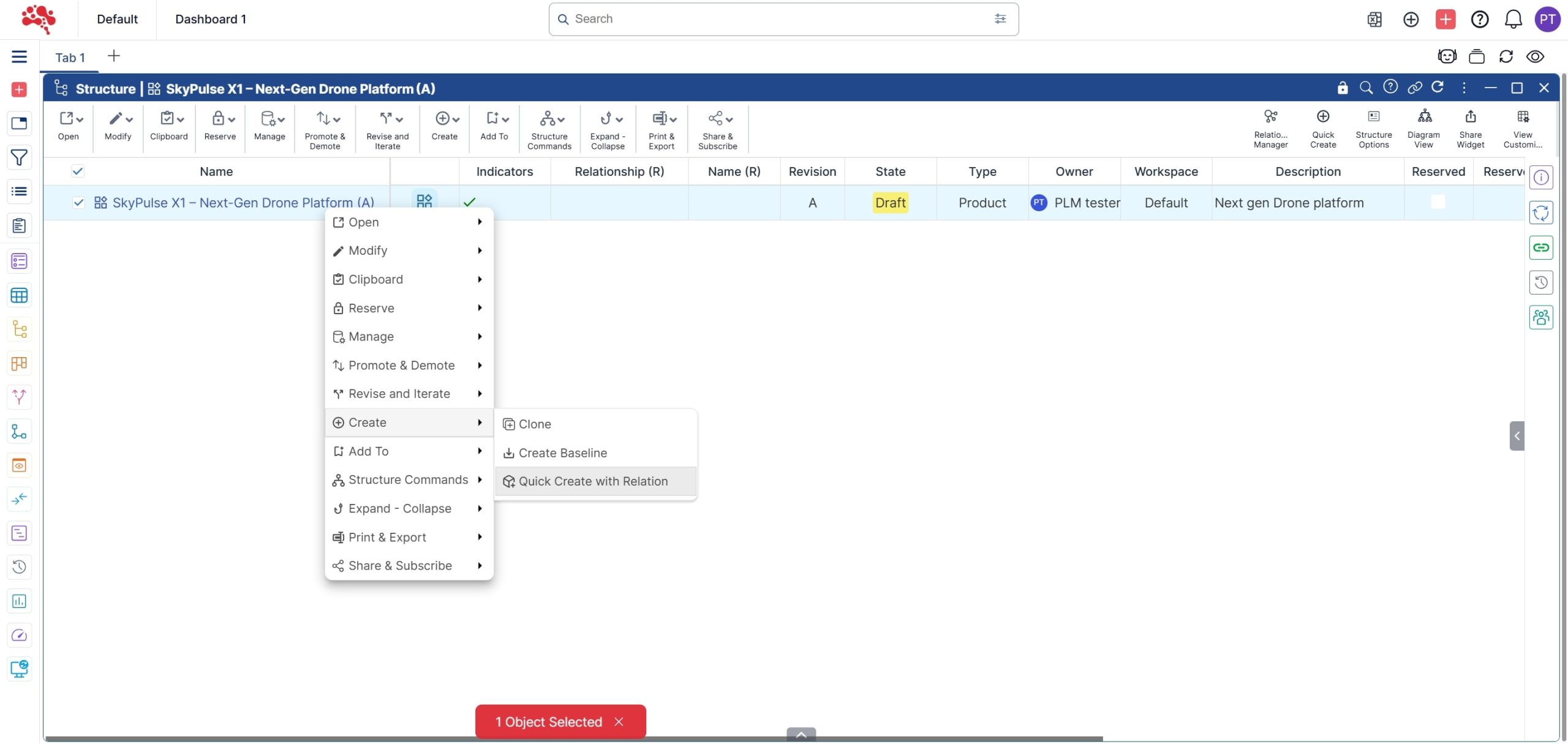
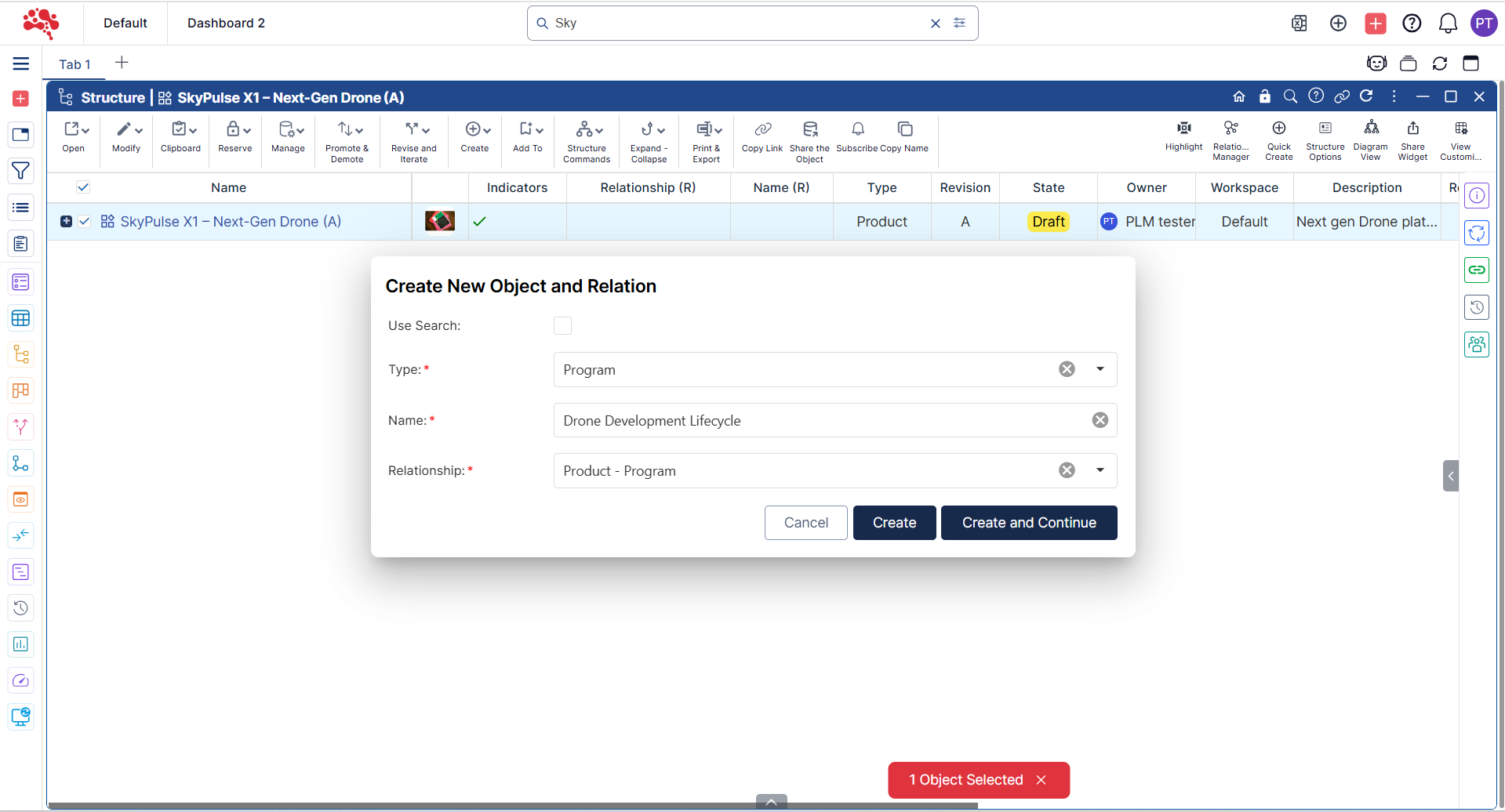
5. Right-click on the Product and select “Quick Create with Relation”. 

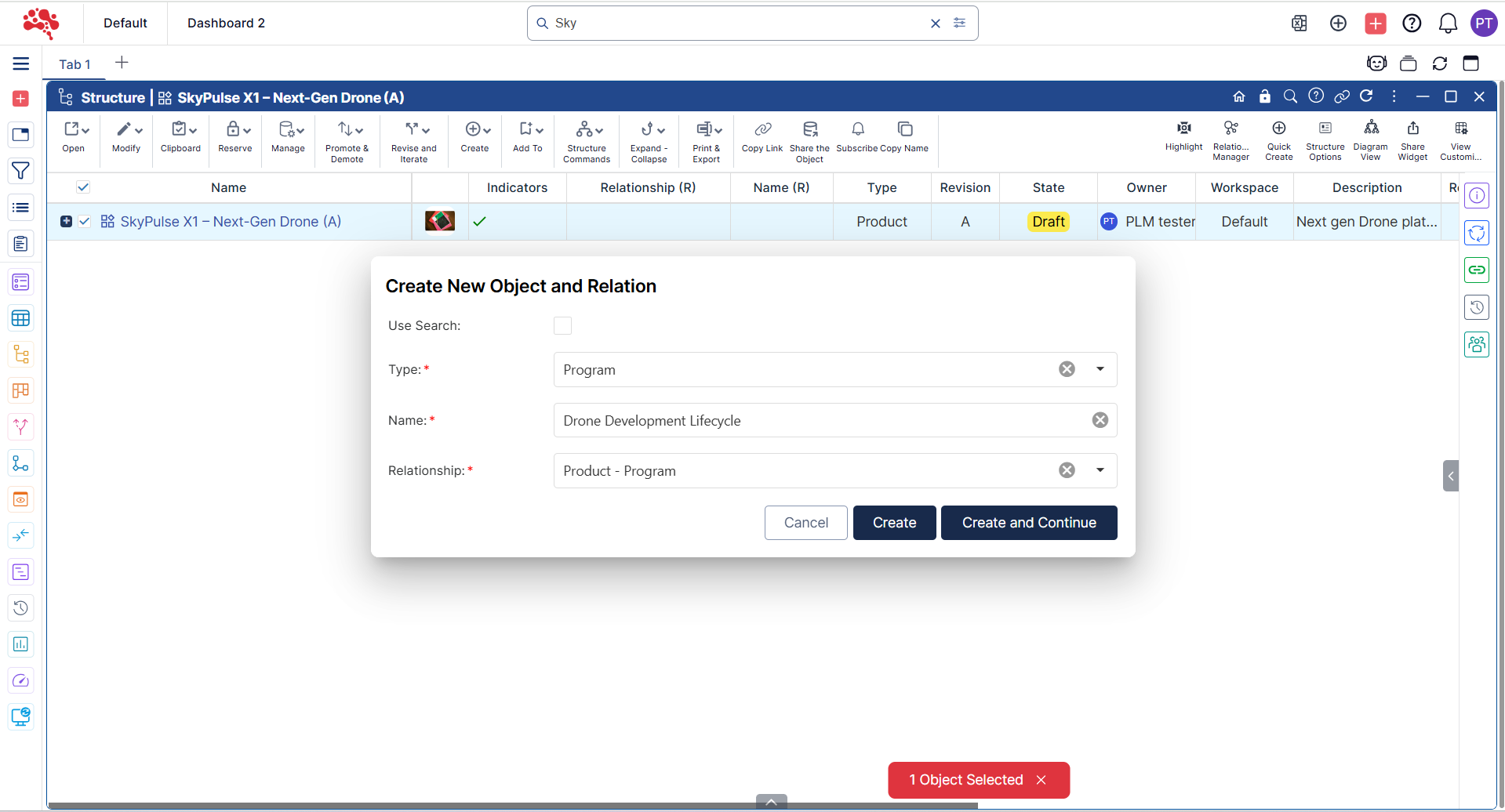
6. Set the Type as Program, enter an appropriate Program name and Relation type.  

7. The Program has been successfully added to the Product 

The Program has been successfully added to the Product

How to Create a Project and Connect it to a Program 

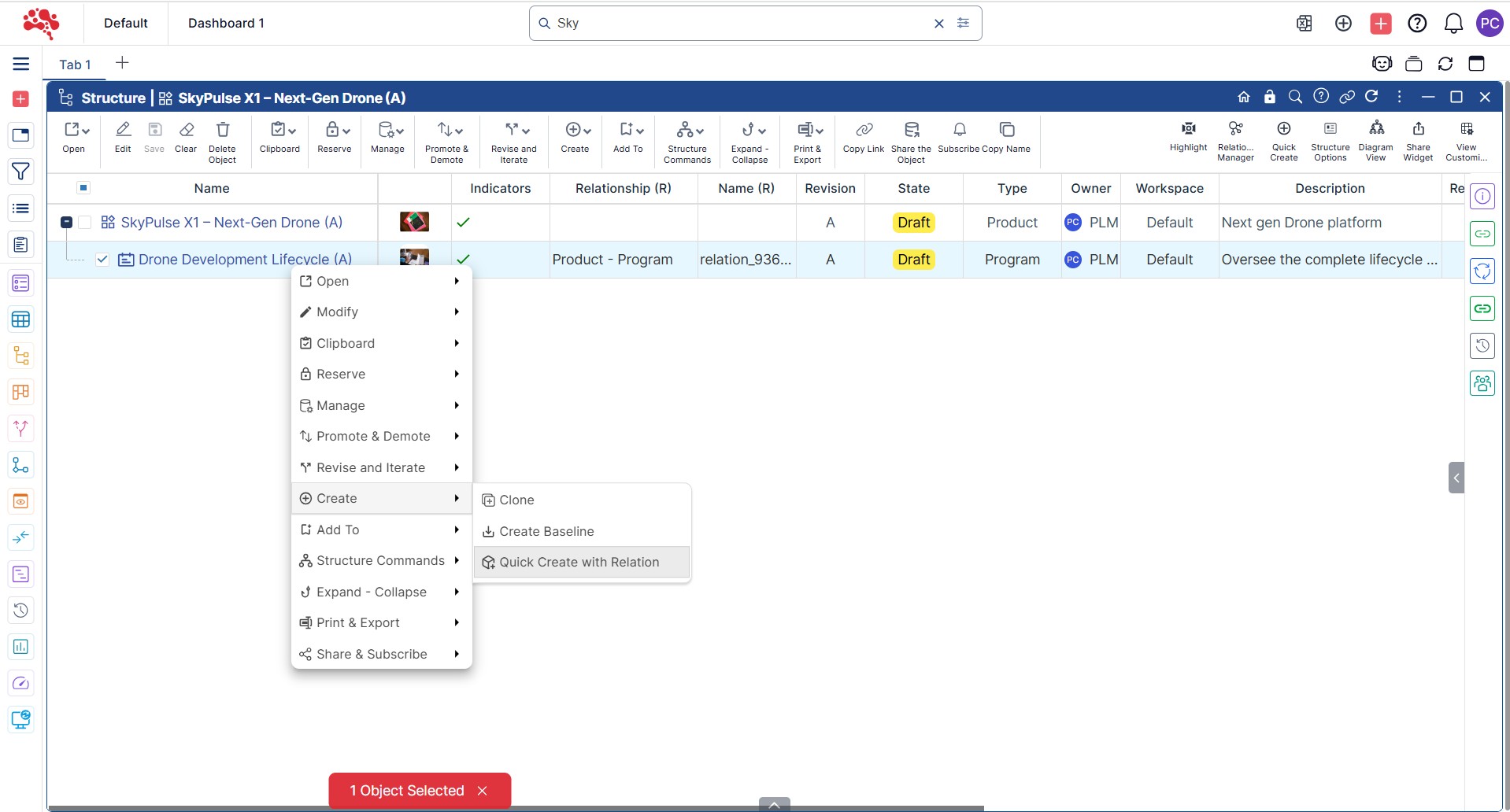
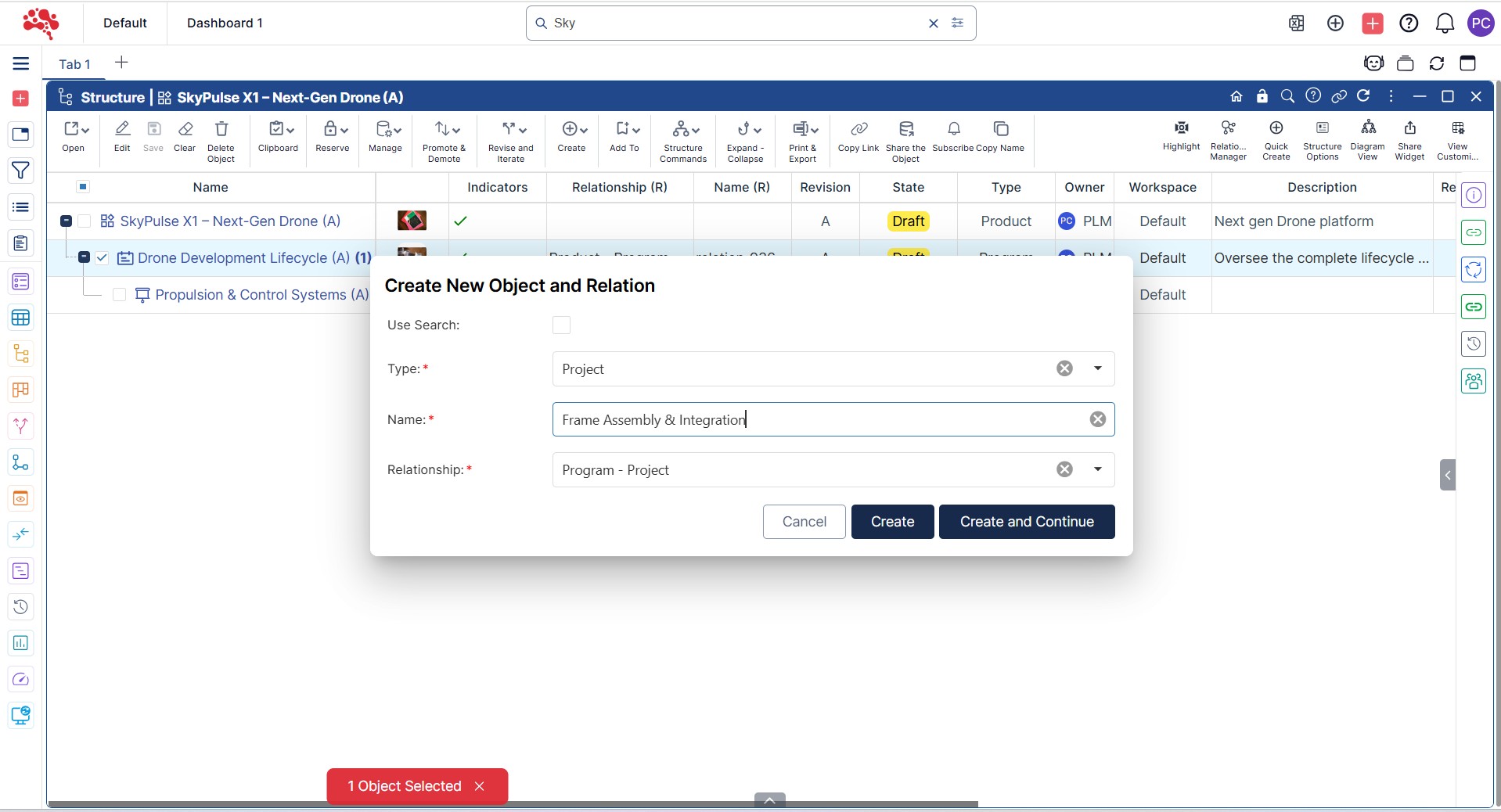
  1. Open the Program in a Structure Widget and right-click to select “Quick Create with Relation”.

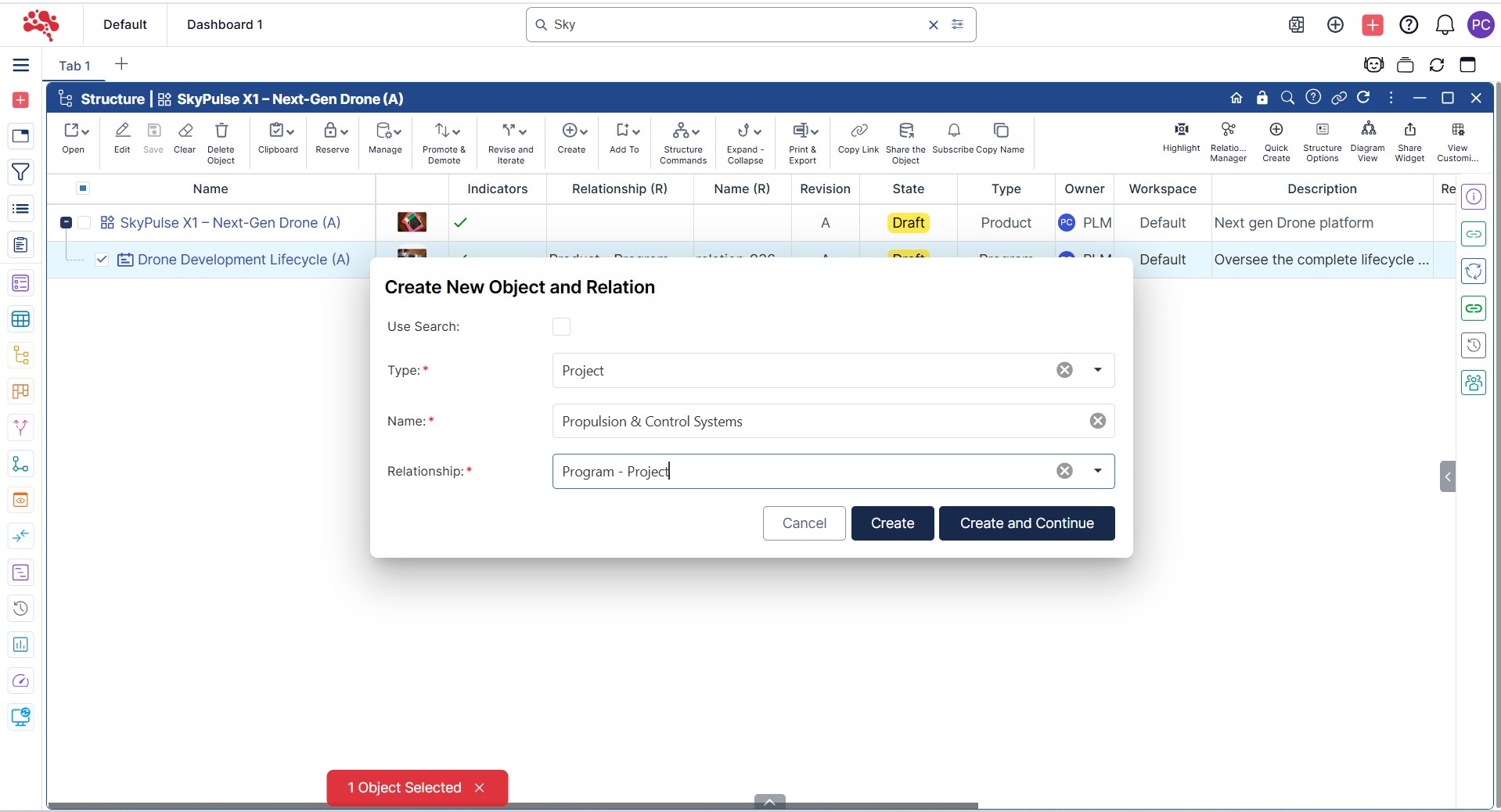
2. Choose the Type and Relationship, enter the name, and click “Create and Continue” to create and add a new Project

3. Two Projects have now been successfully created and linked to the Program. 

How to Create a Phase and Connect it to a Project 

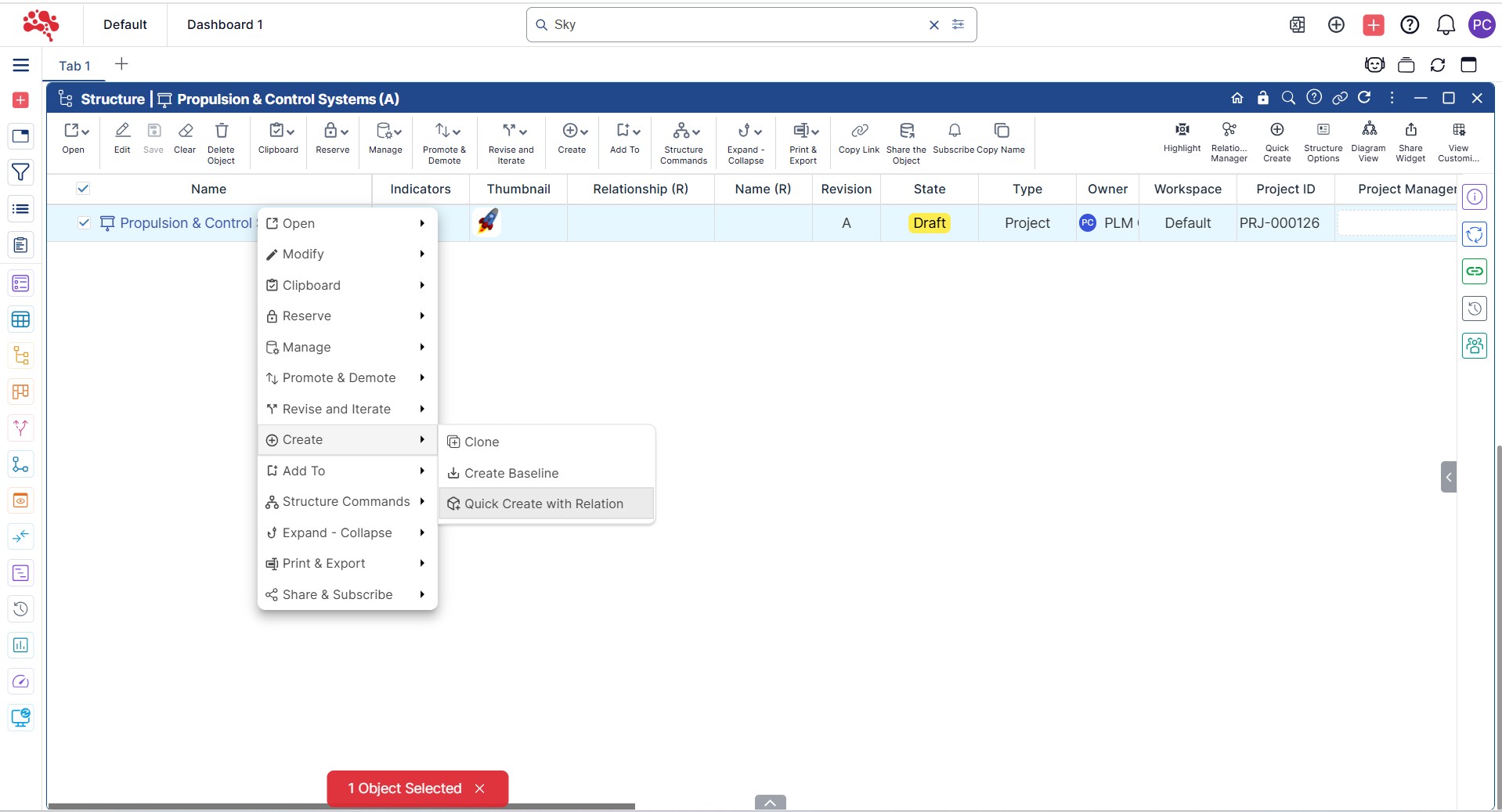
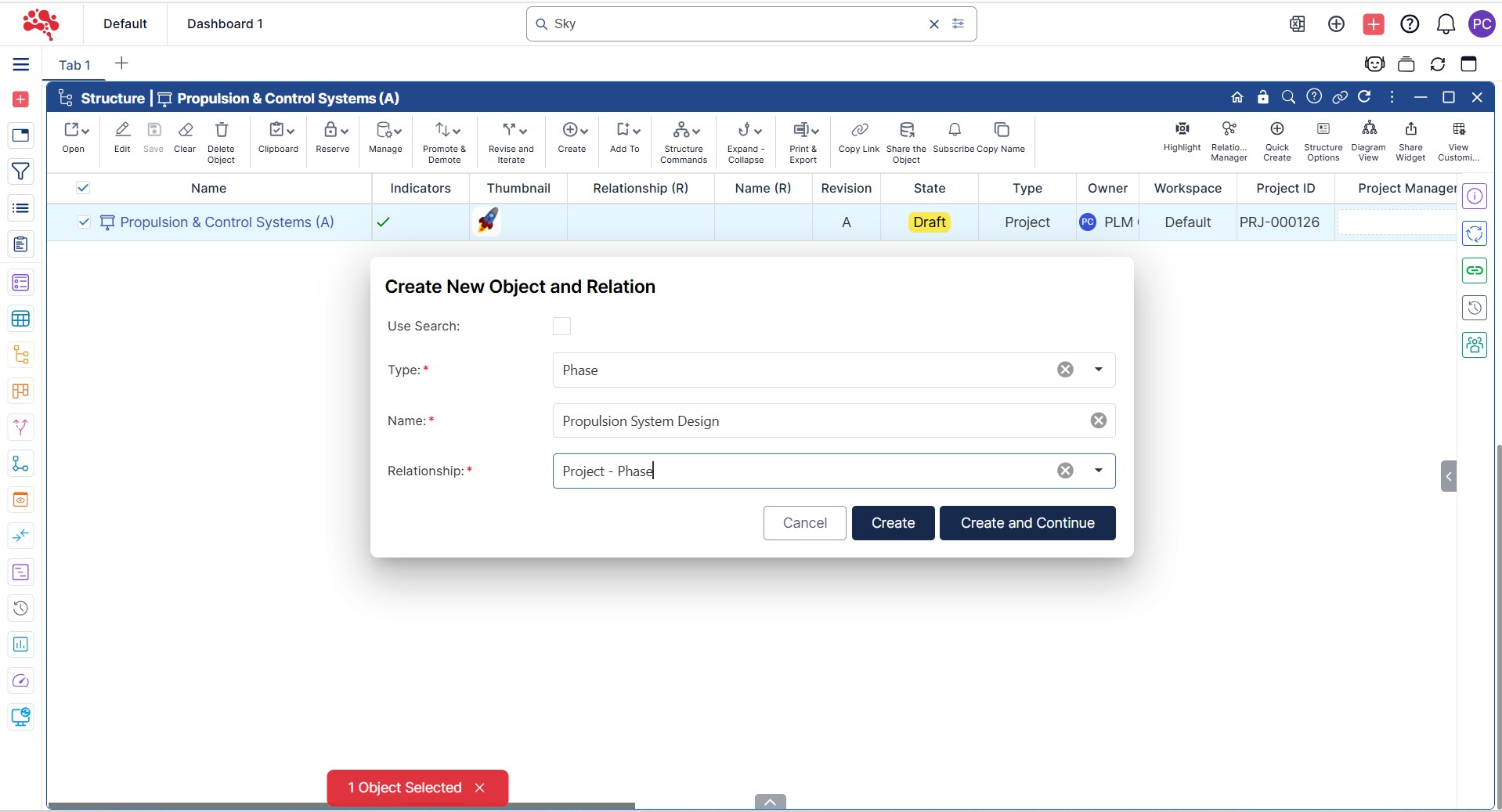
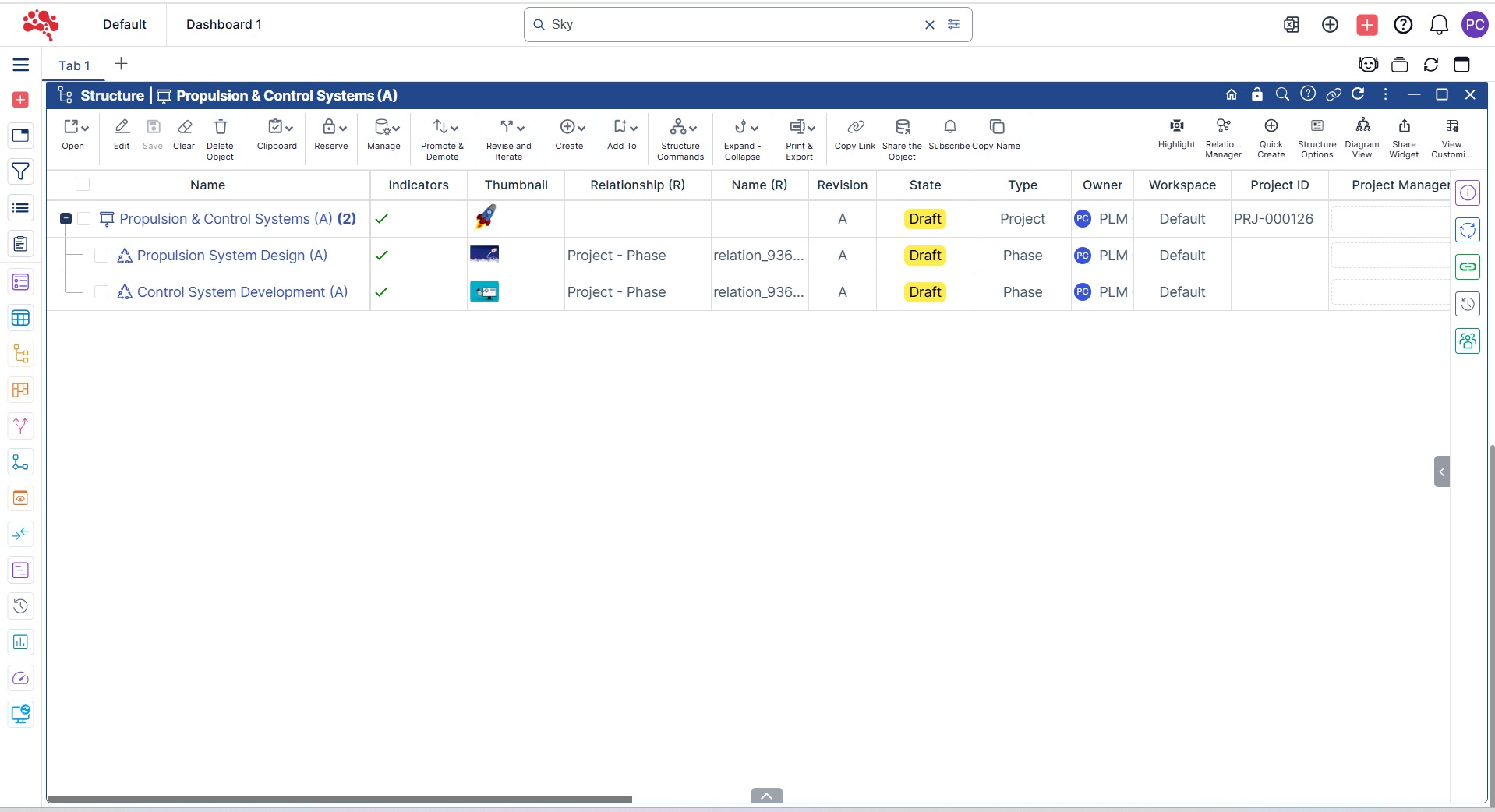
  1. Open the Project in a Structure Widget and Right-click on the Project and select “Quick Create with Relation”. 

2. Choose the Type and Relationship, enter the name, and click “Create” to add a new Phase

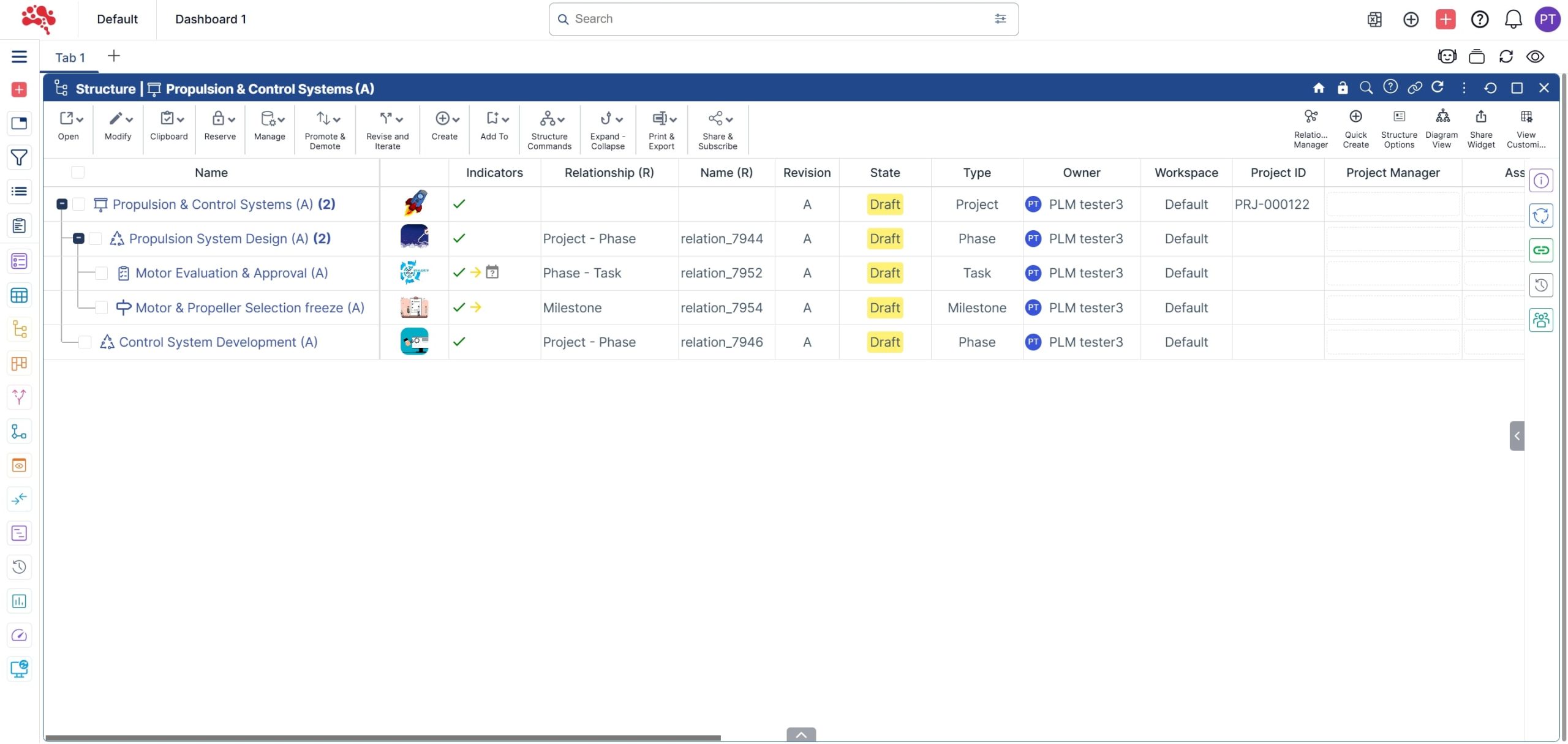
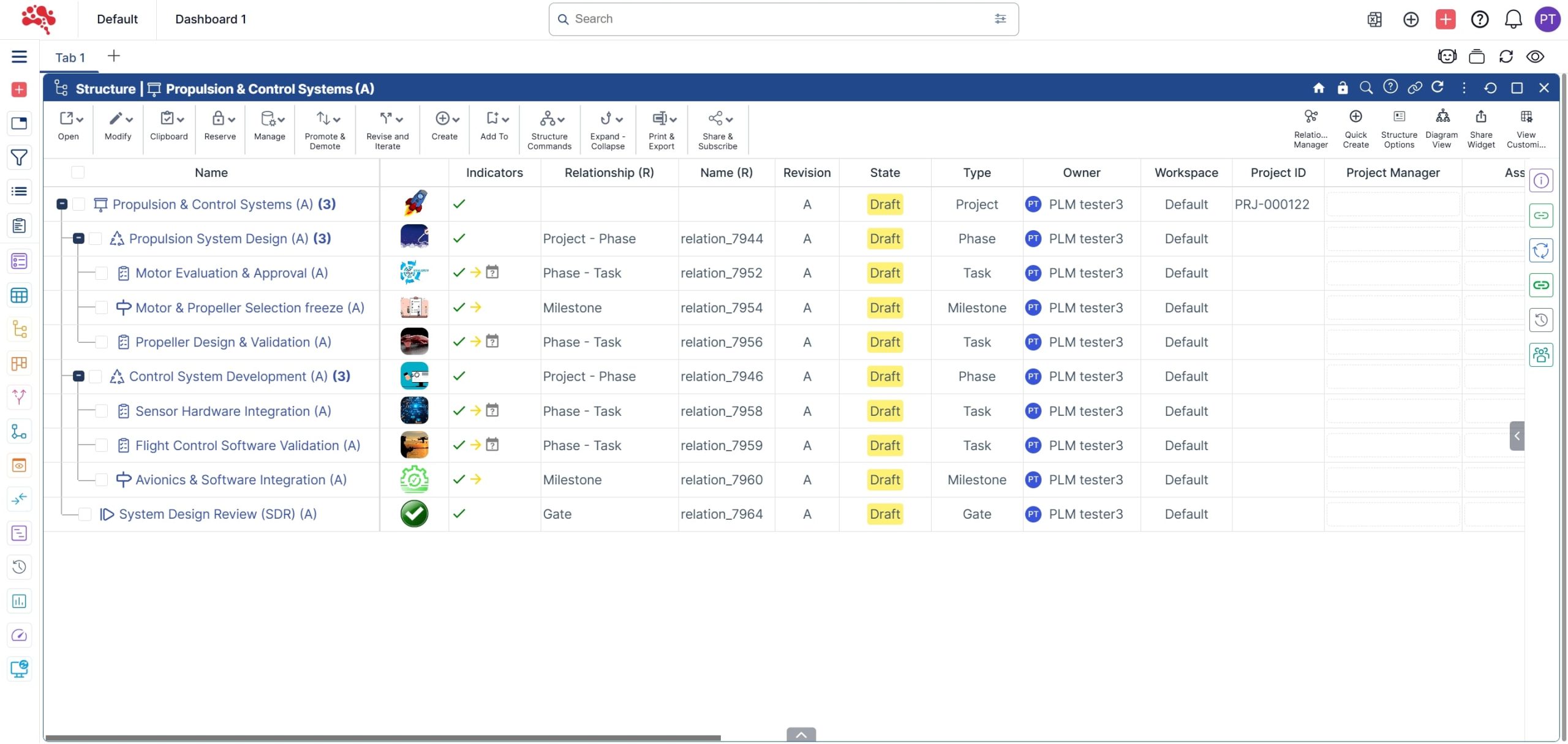
3. Using “Quick Create with Relations”, add the corresponding Phases as needed.

How to Add Tasks, Milestones, and Gates to a Project 

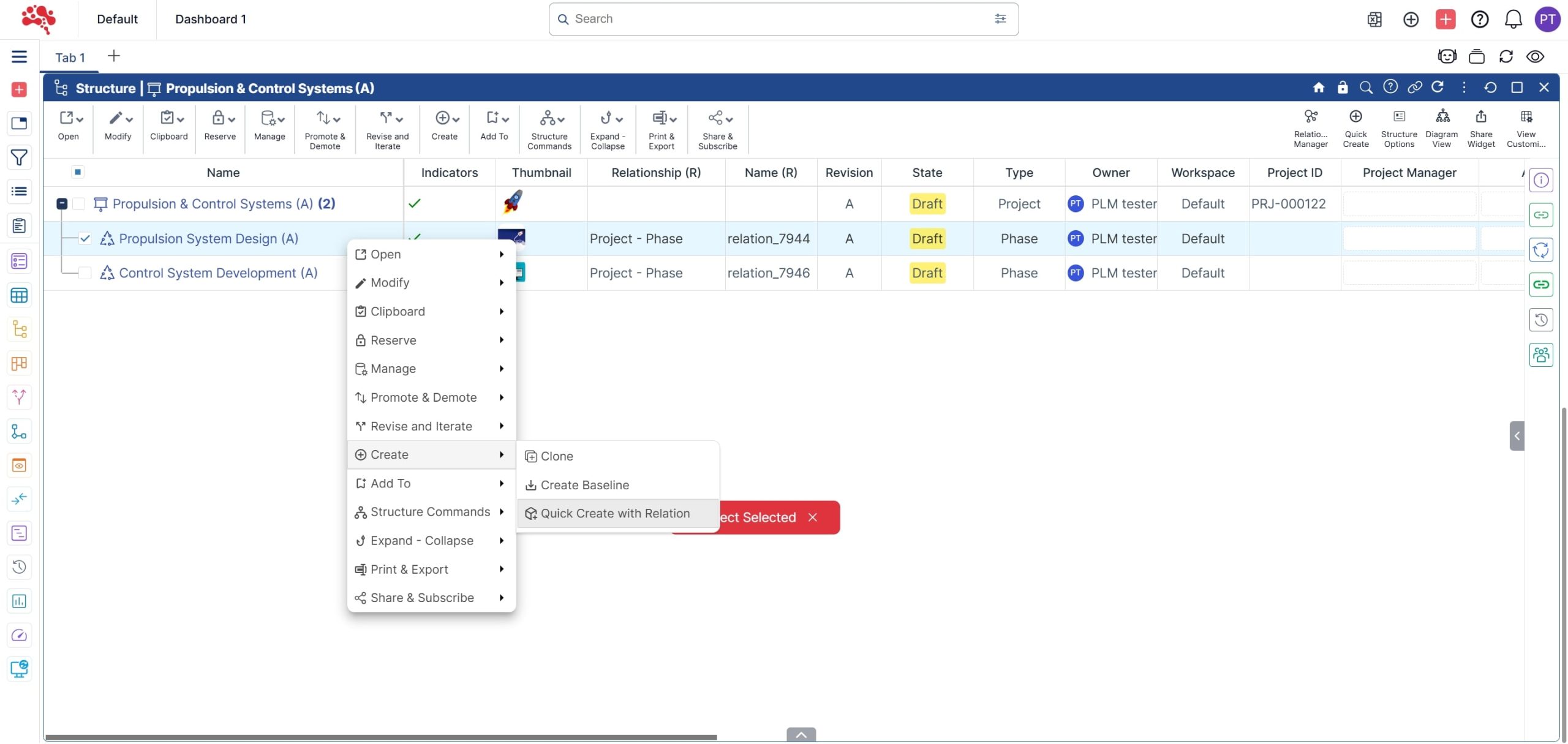
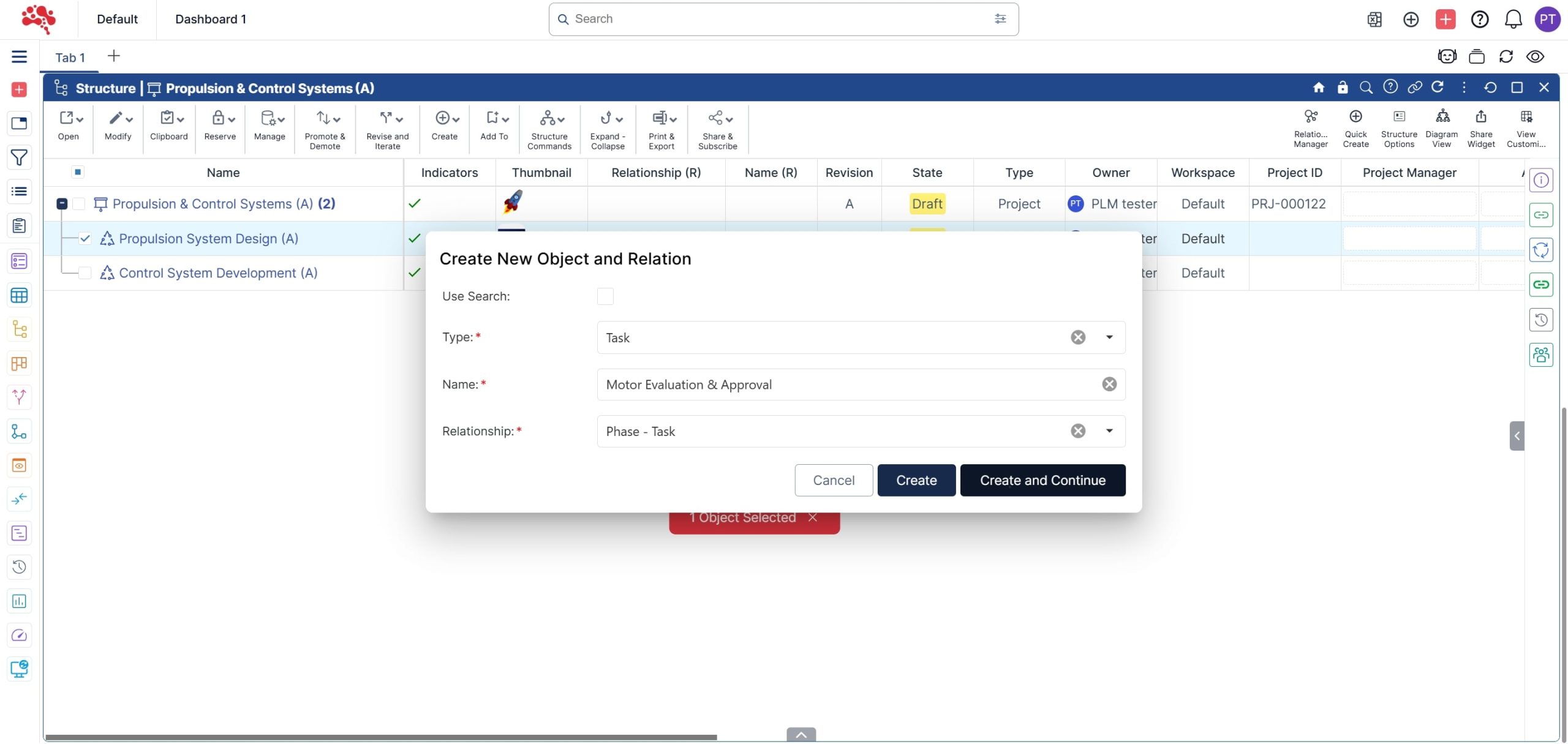
  1. Right-click on the Phase and select “Quick Create with Relation”.

2. Choose the Type and Relationship, enter the name, and click “Create” to add a new Task.

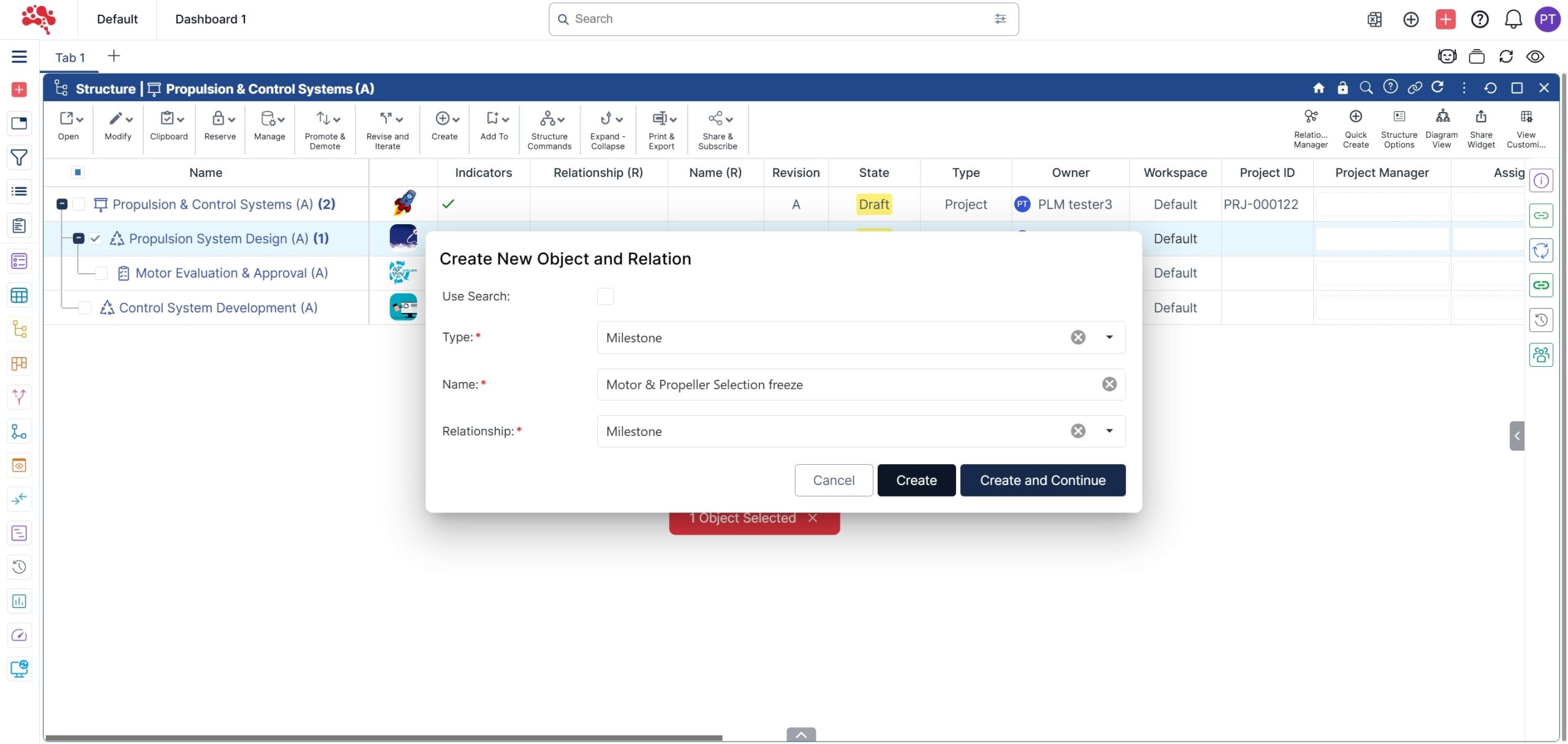
3. Repeat the step to create and add a new Milestone

4. A Task and Milestone have been successfully added to the Phase.

5. Following the same steps, you can create and connect additional Tasks, Milestones, and a Gate for the Phases and Project.

Visualize and manage your program and project schedules with the timeline widget

1 .Right-click on the “Program” and select “Open in Timeline.” 

Right-click on the Program and select Open in Timeline

2. The Program with the Projects, Phases, Tasks, Milestones and Gates are displayed in the Timeline widget according to the assigned timelines. 

3. Click on the “Relationship Manager” to select the appropriate filters to display.  

4. Click on “Timeline Options” to select different time-based interval display views. 

Click on Timeline Options to select different time-based interval display views

Conclusion

Strong project management keeps product development moving steadily from the first concept to the final release. When teams can plan, assign, and track work within a single connected platform like Nora IPLM, they gain real-time visibility and eliminate the confusion caused by scattered tools and disconnected data.

As you’ve seen, Nora IPLM keeps every project linked to product data, milestones measurable, and tasks aligned with design and engineering goals. The platform connects teams through synchronized updates, automated notifications, and clear ownership, helping everyone stay focused on what matters most.

Whether you’re managing multiple product lines or complex development cycles, Nora IPLM provides the structure, clarity, and flexibility to move projects forward with confidence. Start simplifying your project management today and empower your teams to plan, execute, and deliver faster with Nora IPLM.

Streamline Product Development with Intelligent Project Management in Nora IPLM

Discover how Nora IPLM connects projects, tasks, and product data in one unified workspace – driving seamless collaboration, faster execution, and on-time product delivery.

Explore More from Nora IPLM

Discover more ways Nora IPLM simplifies product development and innovation. Explore related topics, use cases, and platform features that help your teams work smarter and bring better products to market faster.

Your Complete Guide to Change Management in Nora IPLM (Part 1)

Change is a natural part of product development. Requirements shift, suppliers update parts, and design reviews drive improvements. In this guide, we explore how Nora IPLM helps you manage change in a structured and transparent way. Learn how to create a change request, link it to affected items, route it for review, and make decisions…

Your Complete Guide to Creating Documents with Quick Create

Quick Create in Nora IPLM lets you rapidly generate new documents whether specs, reviews, or design notes, directly from any widget without switching tabs. With just a few clicks, you can define document attributes, upload files, and instantly link them to related items such as BOMs, change requests, or CAD models. This streamlined process keeps…

Your Complete Guide to Change Management in Nora IPLM (Part-2)

In fast-moving product development, manually editing bills of materials (BOMs) after design updates is a hidden bottleneck. Nora IPLM addresses this at the source by connecting directly with your CAD system (such as SolidWorks) and enabling you to add new items, assign relationships (“material”, “supplier”, etc.), and instantly reflect changes in your PLM-controlled structure.

How to Add a New Item to a Structure Integrated from SolidWorks 

In fast-moving product development, manually editing bills of materials (BOMs) after design updates is a hidden bottleneck. Nora IPLM addresses this at the source by connecting directly with your CAD system (such as SolidWorks) and enabling you to add new items, assign relationships (“material”, “supplier”, etc.), and instantly reflect changes in your PLM-controlled structure.

How to Easily Create and Manage Your BOMs with Nora IPLM

Learn how to add new items to a product structure integrated from SolidWorks using the Nora IPLM Desktop Widget. This step-by-step guide shows how to create items within your CAD-linked structure, define relationships like materials and suppliers, and keep your BOM synchronized and accurate across your PLM environment.

Liked It? Share It!

This is a staging environment
Nora IPLM